Tenant Profile
Company Profile is a section that contains company data information and is used for member settings, working hours, company details, etc.
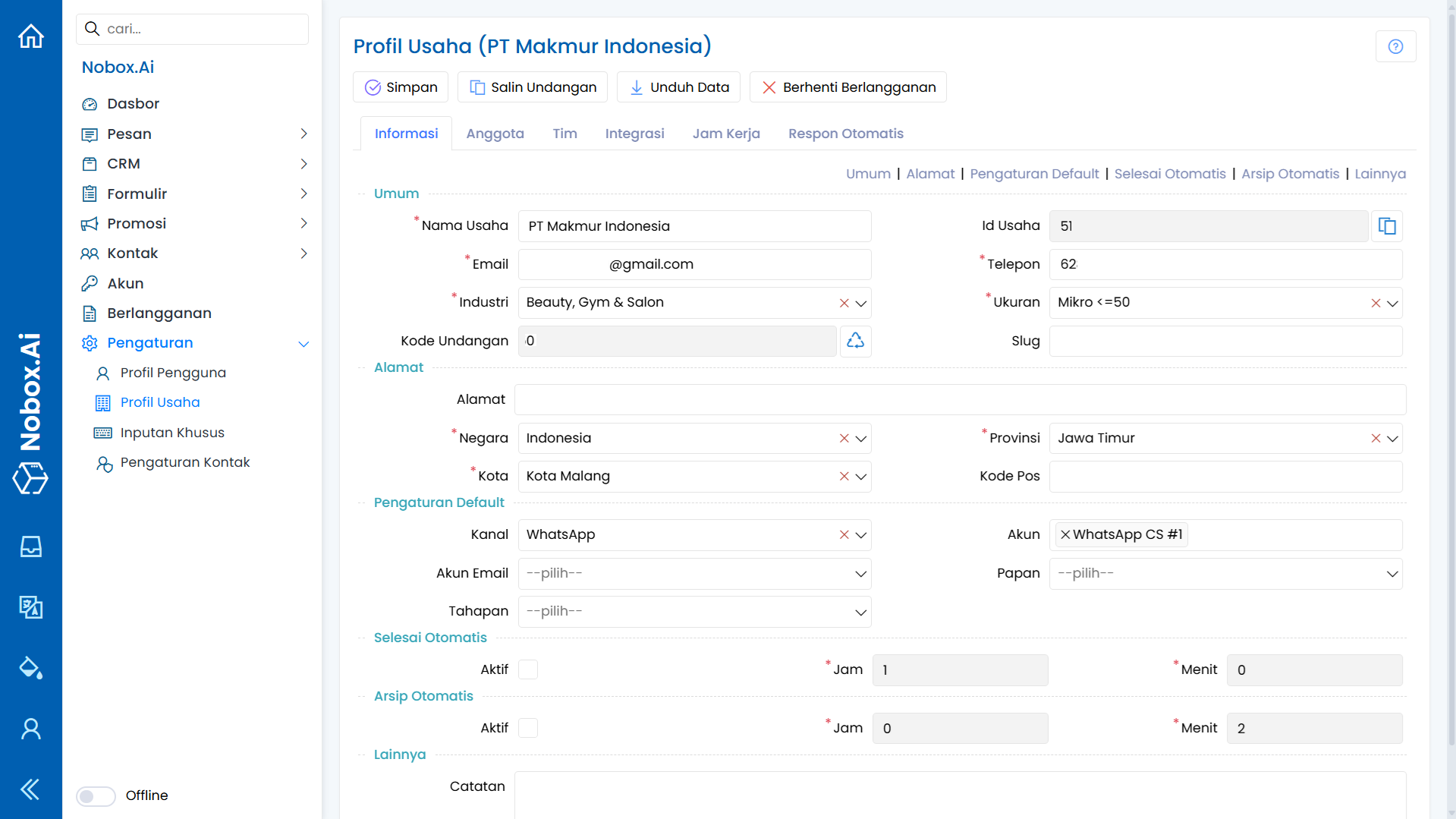
Items in the Information Tab and Their Functions:
1. General
Information related to company data.
2. Address
Company address.
3. Default Settings
Default settings for channels and accounts used to send promotions.
4. Auto-Complete
Settings to activate or deactivate the auto-complete feature in the inbox menu, configured with a specified time.
5. Auto-Archive
Settings to activate or deactivate the auto-archive feature in the inbox menu, configured with a specified time.
6. Others
Notes related to company data.
If you make any changes to the business profile data, click [Save] to store the newly modified data.
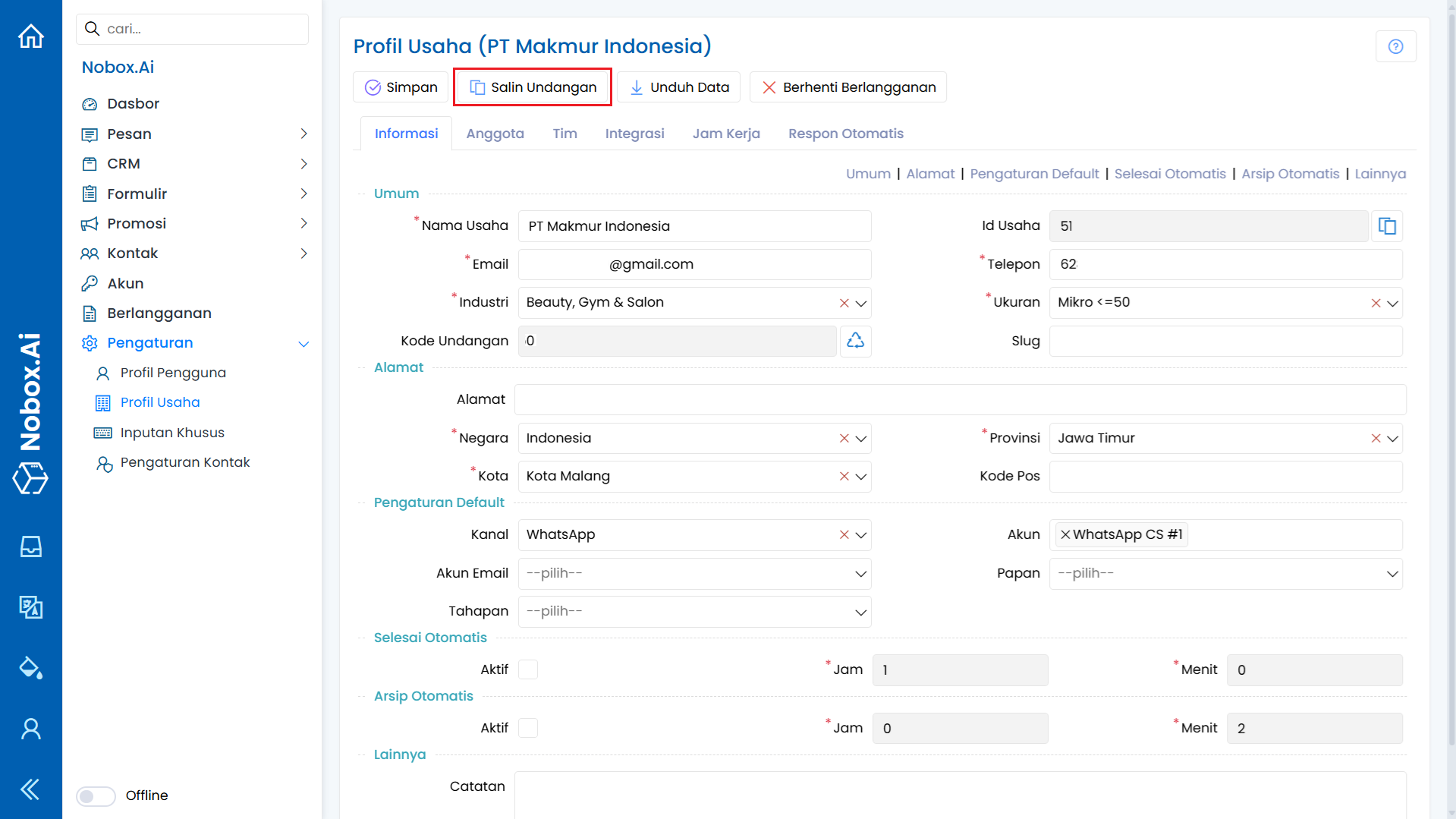
Copy Invitation
Copy Invitation is a feature used to copy the invitation to join the company to other users as company members.
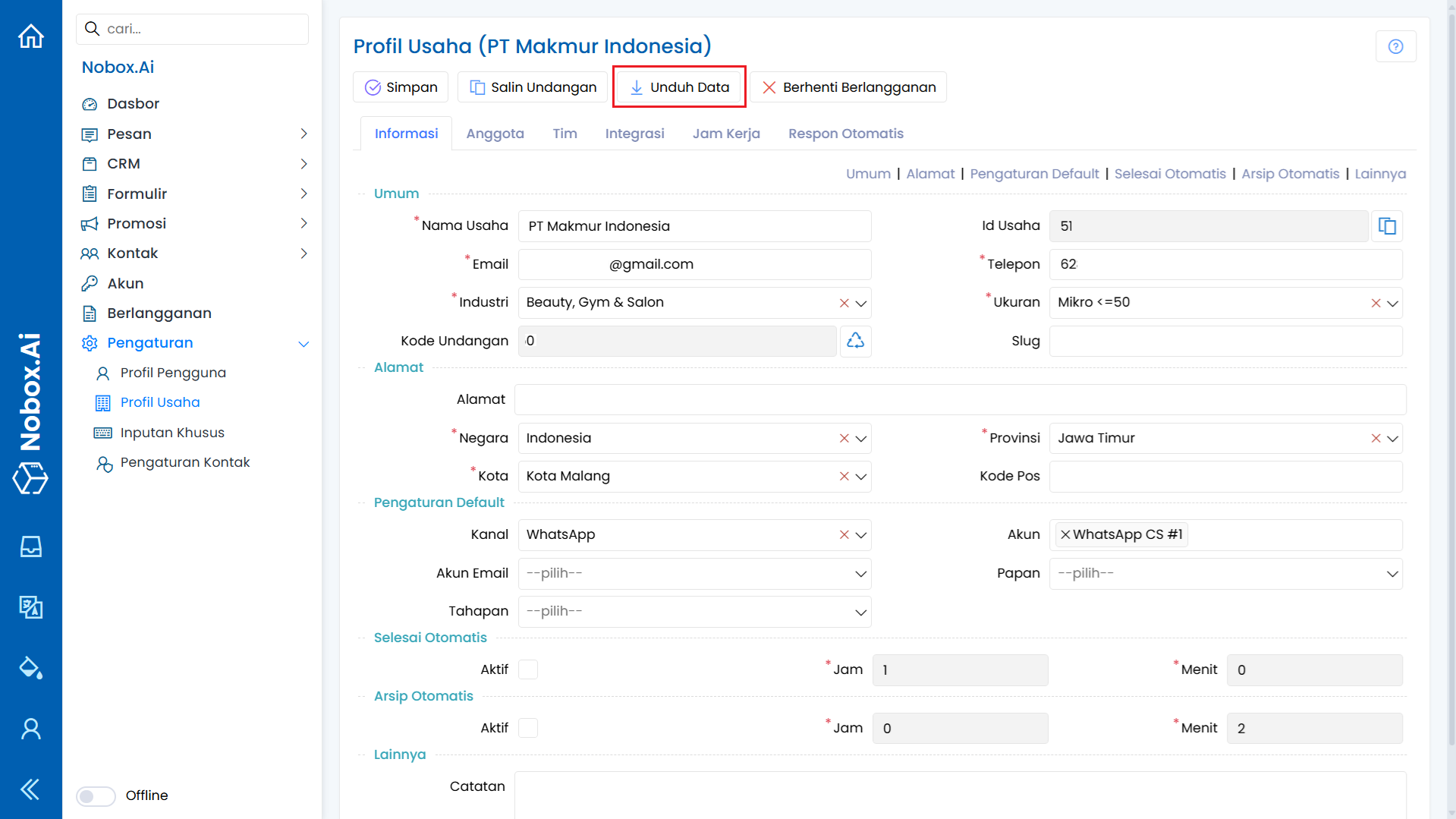
Download Data
Download Data is a feature used to download a zip file containing an SQLite database and company data files.
Members
Information related to users who join your company, used for managing members, removing members, and changing member roles.
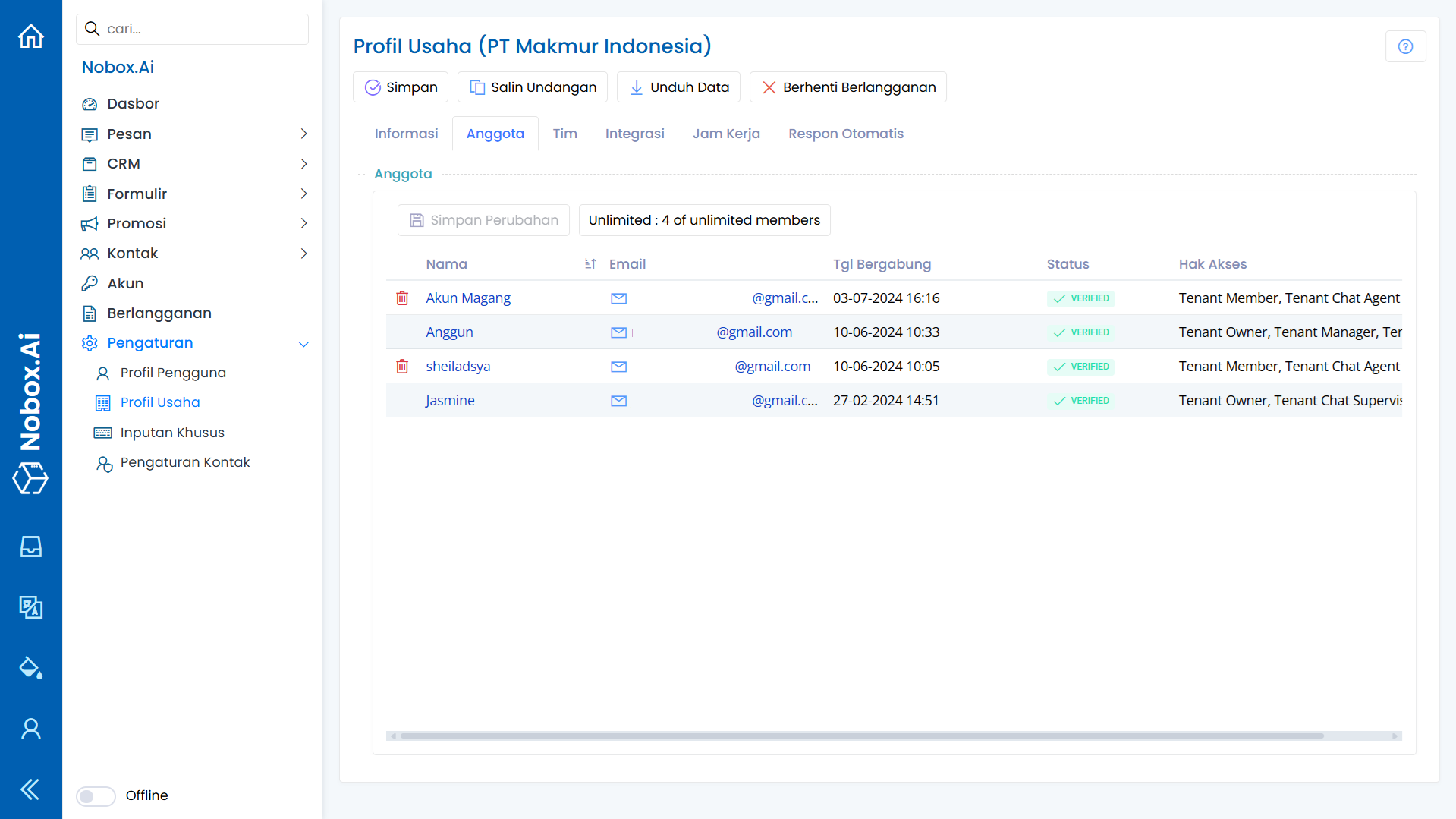
To access Nobox.Ai, there are several types of accounts: Owner, Manager, Member, Chat Supervisor, and Chat Agent. The differences among these accounts are explained below.
| Access | Information |
|---|---|
| Owner | Level user dengan hak akses sebagai pemilik tenant merupakan level tertinggi dalam sistem yang memiliki semua akses fitur Nobox.Ai. |
| Manager | Level user dengan hak akses sebagai manajemen tenant yang memiliki semua akses fitur Nobox.Ai kecuali ganti peran owner. |
| Member | Level user dengan hak akses sebagai anggota tenant yang memiliki semua akses fitur Nobox.Ai kecuali akses manajemen akun dan pengaturan profil usaha. |
| Chat Supervisor | Supervisor digunakan untuk pengaturan kotak masuk, supervisor dapat akses penuh terkait kotak masuk dari penanganan percakapan dan laporan kinerja agen. Supervisor dapat melihat semua pesan, pesan yang belum dan sudah ditugaskan pada agen serta pesan yang sudah terselesaikan. Supervisor juga bisa memilih chat yang masuk berdasarkan izin yang ditugaskan melalui fitur filter. |
| Chat Agent | Agen digunakan untuk pengaturan akses kotak masuk, agen dapat mengakses fitur kotak masuk untuk membaca dan membalas pesan yang ditugaskan kepada dirinya. |
Role Swap Among Team Members
To change a member's role, please click the [Members] tab, select a member, and click the icon [ ] A dialog will appear to edit member roles, check the desired role.
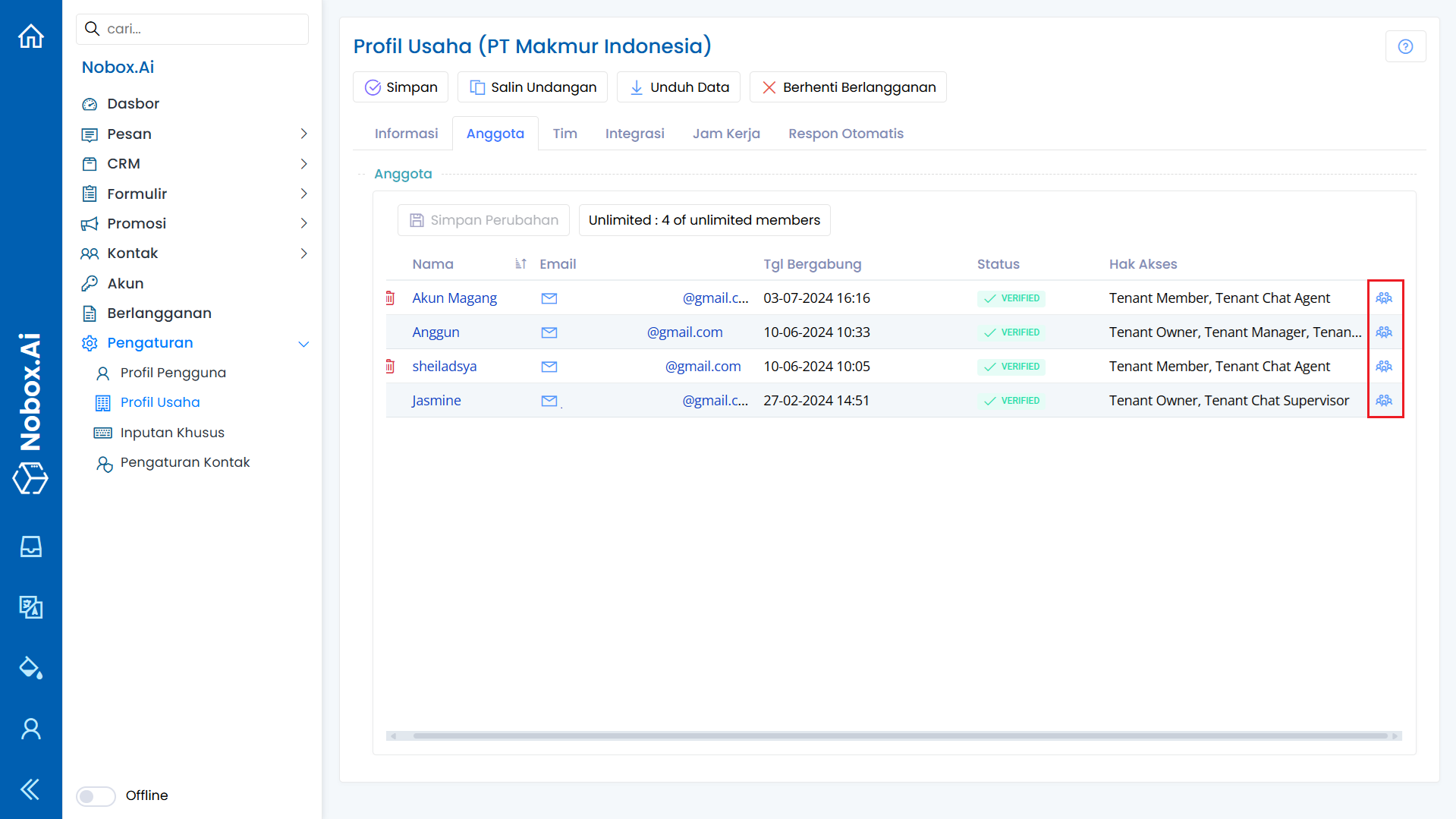
Click [Ok] to save the updated role once you have made changes.
Team
The Team is a feature in Nobox.Ai used to categorize agents based on the teams within your company.
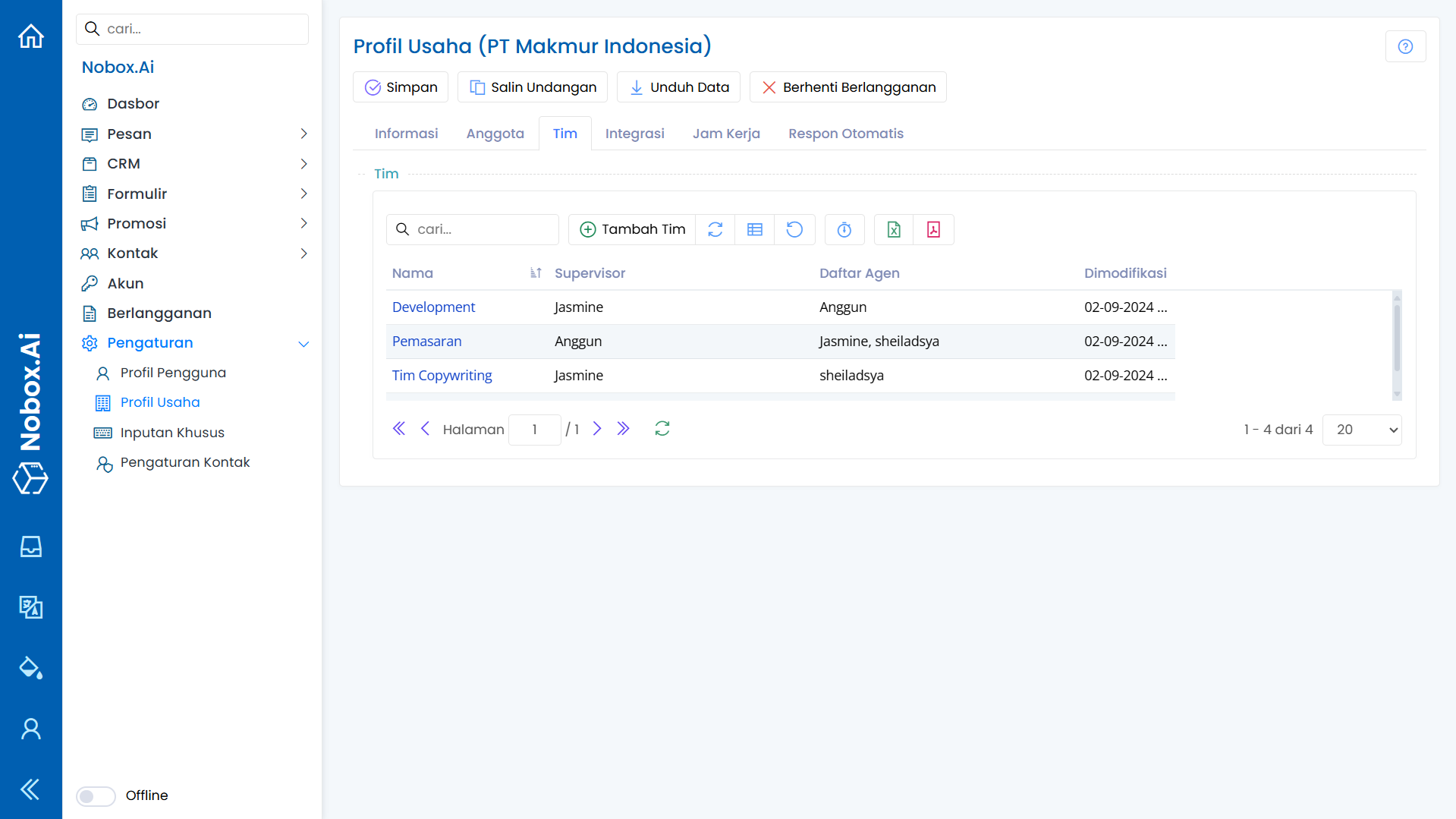
The feature relates to the promotions menu and inbox. Choosing a team in the promotions section determines which team will handle the chat. Once a customer replies to the chat, it is immediately marked as assigned and directed to an agent in that team.
Add Team
To create team data, please click the [Business Profile] ➔ open the [Team] tab ➔ [NewTeam] where a [New Team] dialog will appear. Complete the fields in the dialog.
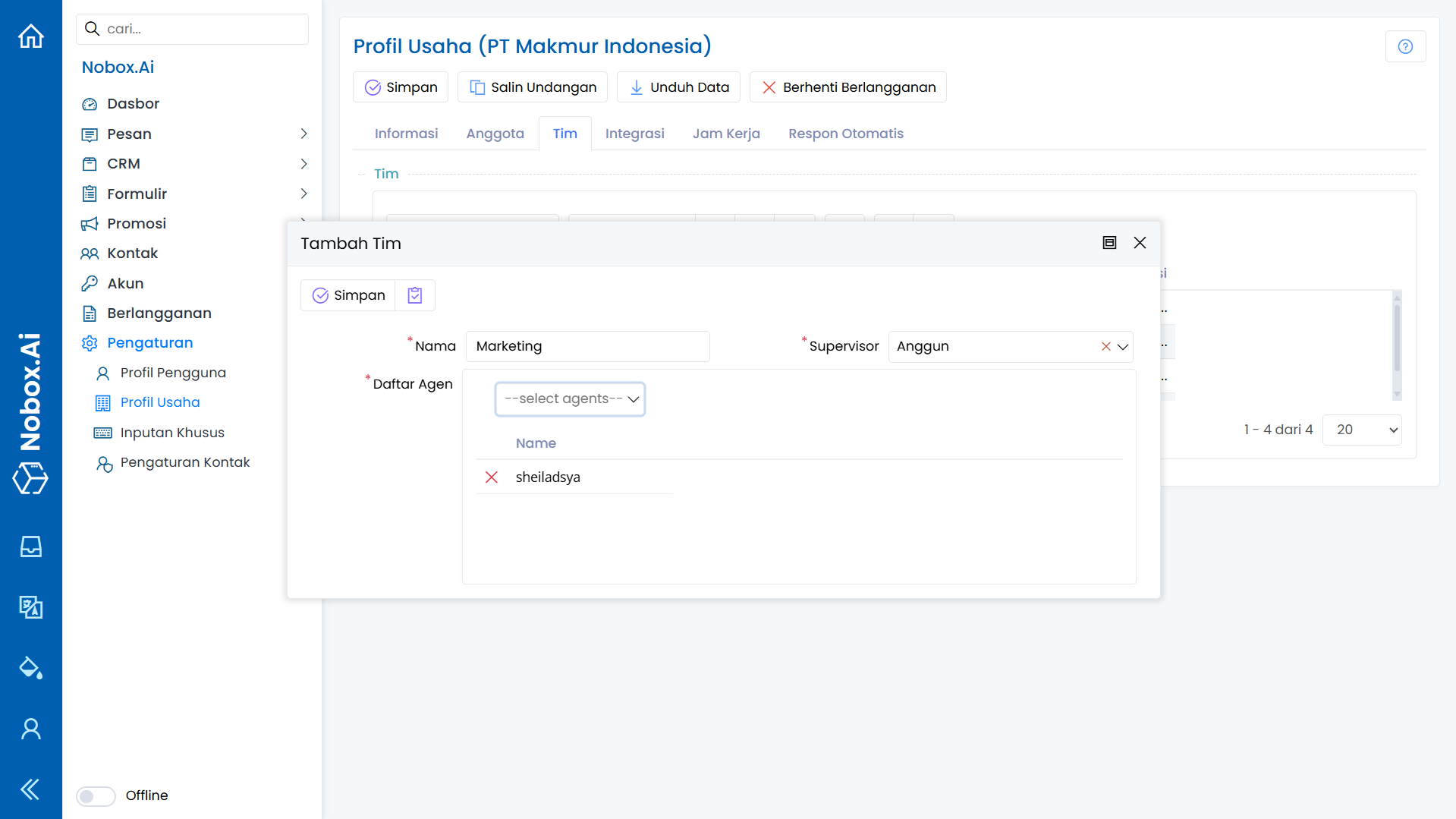
| Field | Description | Example |
|---|---|---|
| Name | Team Name | Marketing |
| Supervisor | Choose team supervisor | Anggun |
| Agent List | Choose team agent | sheiladsya |
If you have completed the fields, click [Save] to save the team data you just created.
Edit and Delete Team Data
To edit a team's data, first select the data you want to edit. Make your changes and click [Save] to save them.
To delete a team data, select the team data you wish to remove, then click [Delete]. A confirmation dialog will appear asking if you want to delete the data. If yes, click [Yes]; if not, click [No].
Integration
Integration is a feature of Nobox.Ai used to connect third-party applications with Nobox.Ai.
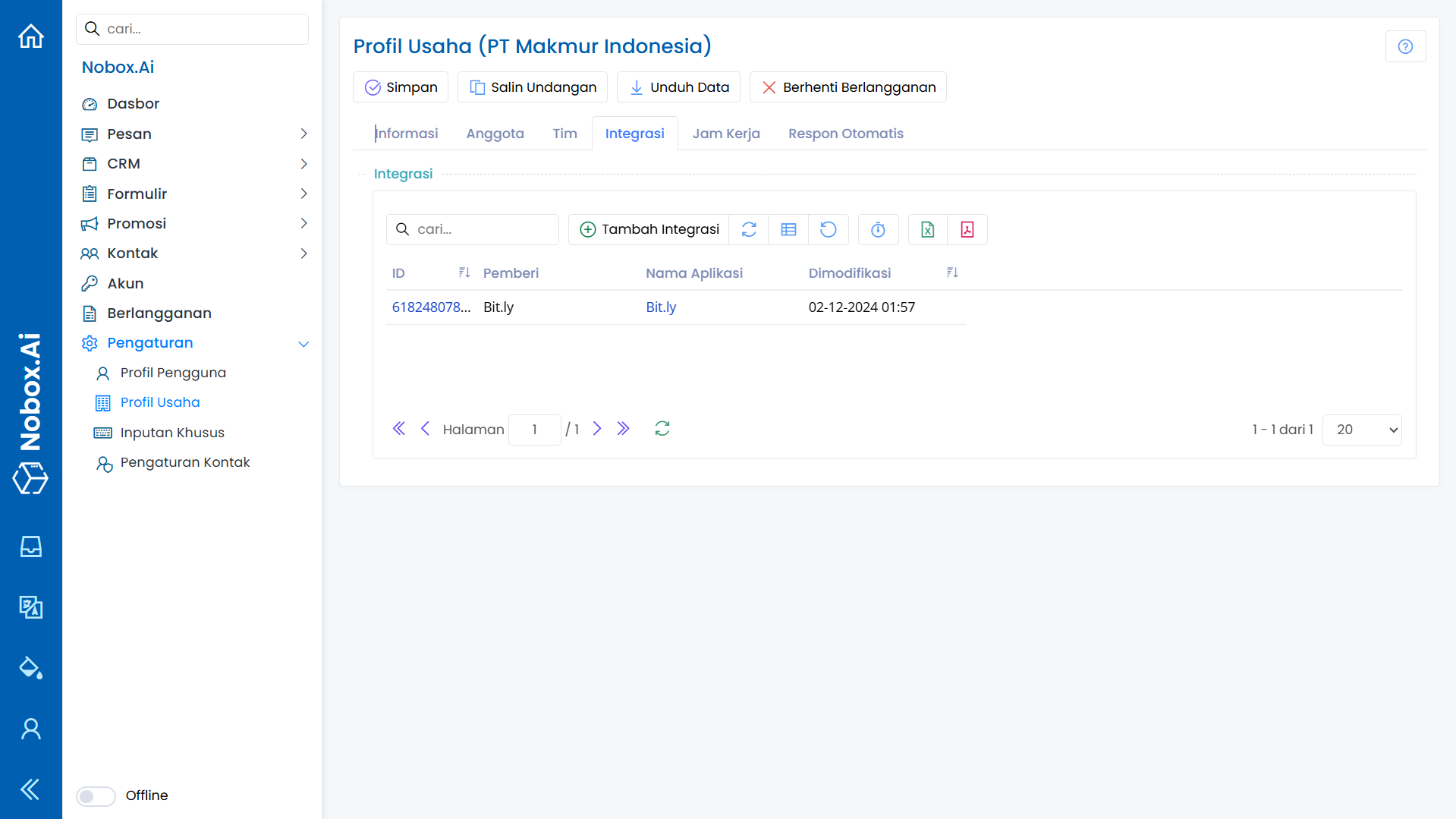
Add Integration
To add integration data, you can create an account at bitly.com first. If you already have an account, click the [Integration]➔ [New Integration] tab to display the [New Integration] dialog.

Complete the necessary fields, as shown in the following example:
| Field | Description | Example |
|---|---|---|
| Provider | Select the provided provider | Bit.ly |
| Application Name | Name of the application | Bit.ly |
| Application End | ||
| Client ID | Application login username | emailname@gmail.com |
| Client Secret | Application login password | - |
| Application Options | ||
| Application ID | Application token | 785091d8dc9008dd4faf948406dece159658529f |
| Notes | Notes | - |
The token can be generated automatically when the Client ID and Client Secret are correct with the account you registered with Bit.ly. Click the [Generate Token] button, and the token will automatically appear in the Application ID field. Once you have completed the fields, click [Save] to store the new integration data you just created.
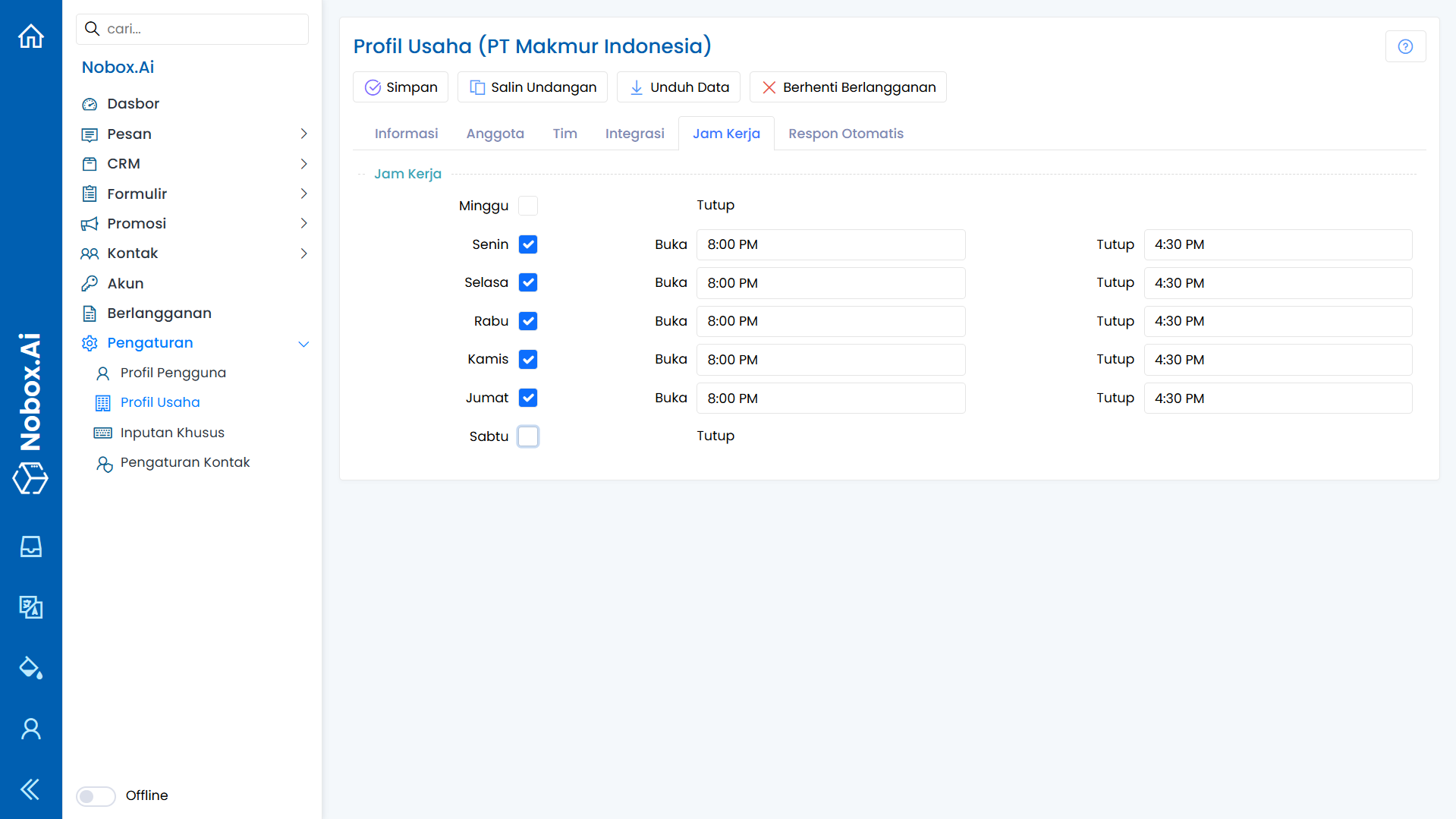
Working Hours
Working Hours is a feature of Nobox.Ai used for configuring your company's working hours information.
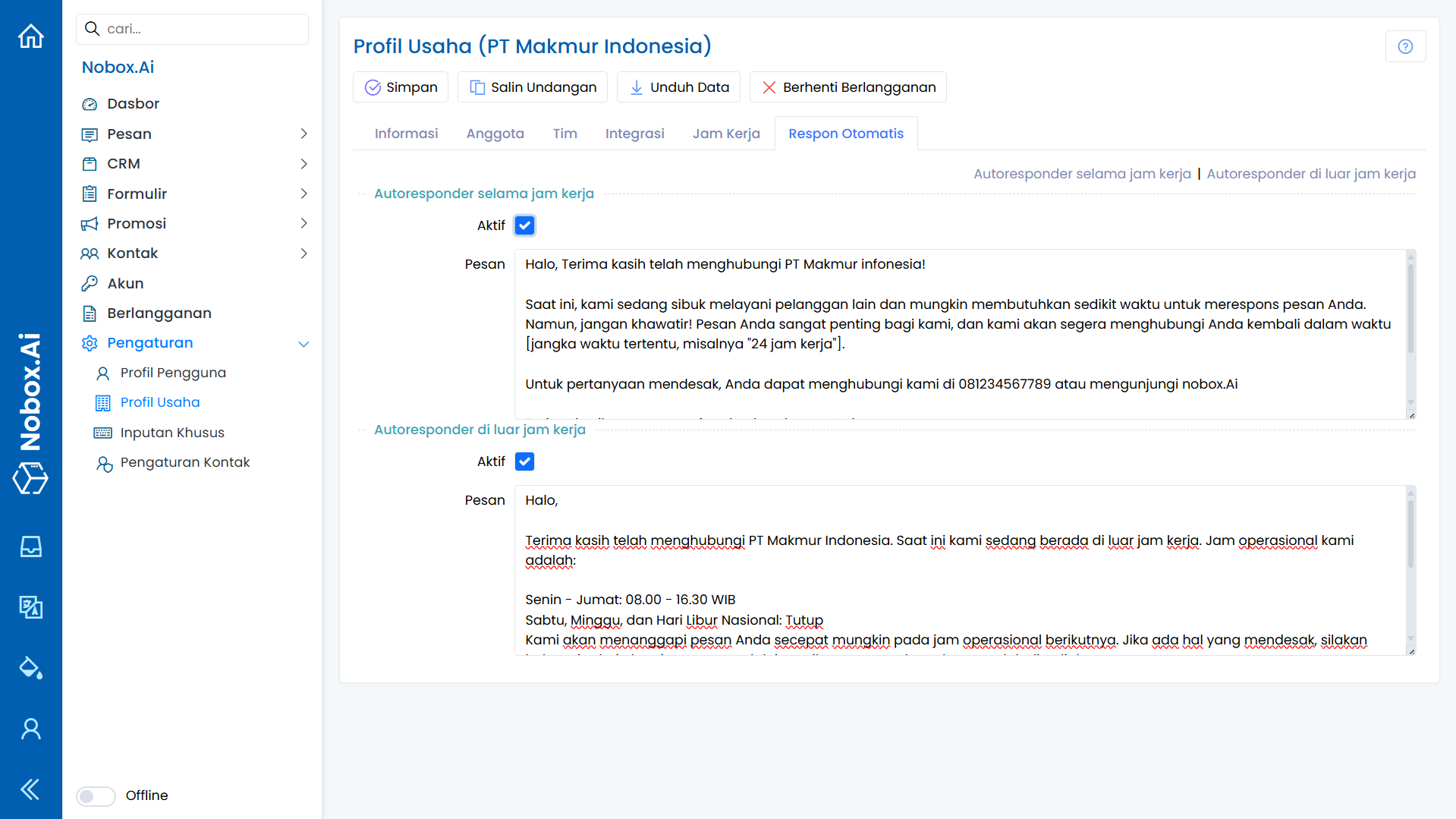
Automated Response
Automated Response is a feature of Nobox.Ai used for setting message templates and determining the activation status of automated messages when chats occur outside of working hours.
If you have any issues or difficulties related to Nobox.Ai, please contact us through Support Ticket