Task Tags
Task Tag is a feature in Nobox.Ai used to categorize your task data.
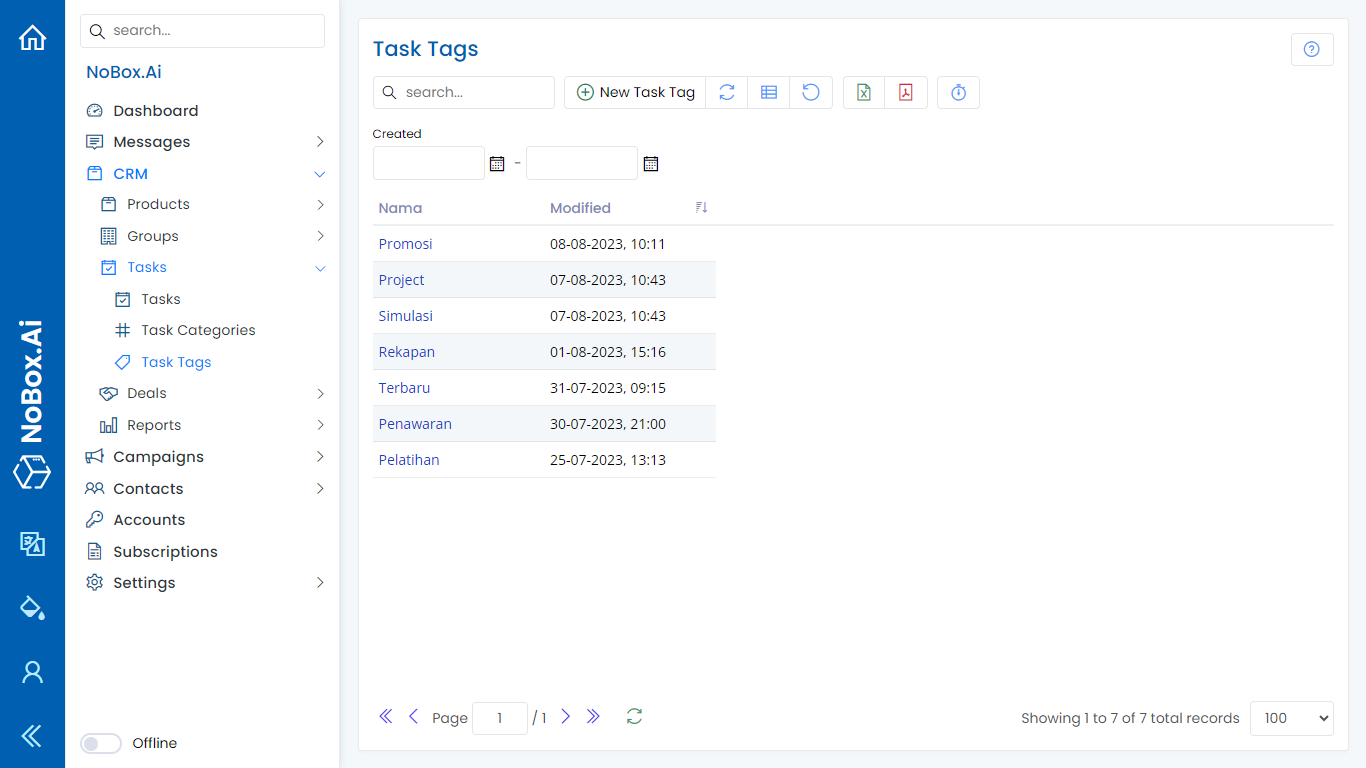
Add Task Tag Data
To create a task tag, click the [CRM] module, then select [Tasks] ➔ [Task Tags] ➔ [Add Task Tag]. The [Add Task Tag] dialog will appear, where you can enter the tag name.
.png)
If you have entered the tag name, click [Save] to store the newly created tag data.
Edit and Delete Task Tag Data
To edit a tag data, please first select the data you wish to edit. Edit your data and click [Save] to save the changes.
To delete a tag, select the tag you want to remove, then click [Delete]. A confirmation dialog will appear asking if you want to delete the selected tag. If yes, click [Yes], otherwise click [No].
How to Use Task Tag
1. Open the [Tasks] menu, select an existing task or add a new one.
2. Selecting the field in the tag column will display previously created tags.
3. Select one or more of these tags and click [Save] to save the task data again.
.png)
Filter Task Tag
Filter tags are used to sort task data and display data based on the selected tag. Here’s how to filter task data:
- Open the [Tasks] menu, click the [Filter] button ➔ click [Tags] select the tag data you want to search for and click [Show]. The filtered data will then be displayed.

If you encounter any issues or difficulties with Nobox.Ai, please contact us through Support Ticket