Deals
Deals is one of the menus in Nobox.Ai used for managing offers, making it easier for you to manage all information and activities related to sales progress.
.png)
On the display, there are several sections, each with their own function. The explanation of each function is as follows:
| Features/Buttons | Function |
|---|---|
 | Used for adding boards. |
 | Used to add deal. |
 | Used to display edit and delete board data pop-ups. |
 | Used to display in kanban form. |
 | Used to display in list form. |
Add Board
To add a board, please click the [ ], button. A dialog titled [Add Pipeline] will appear.
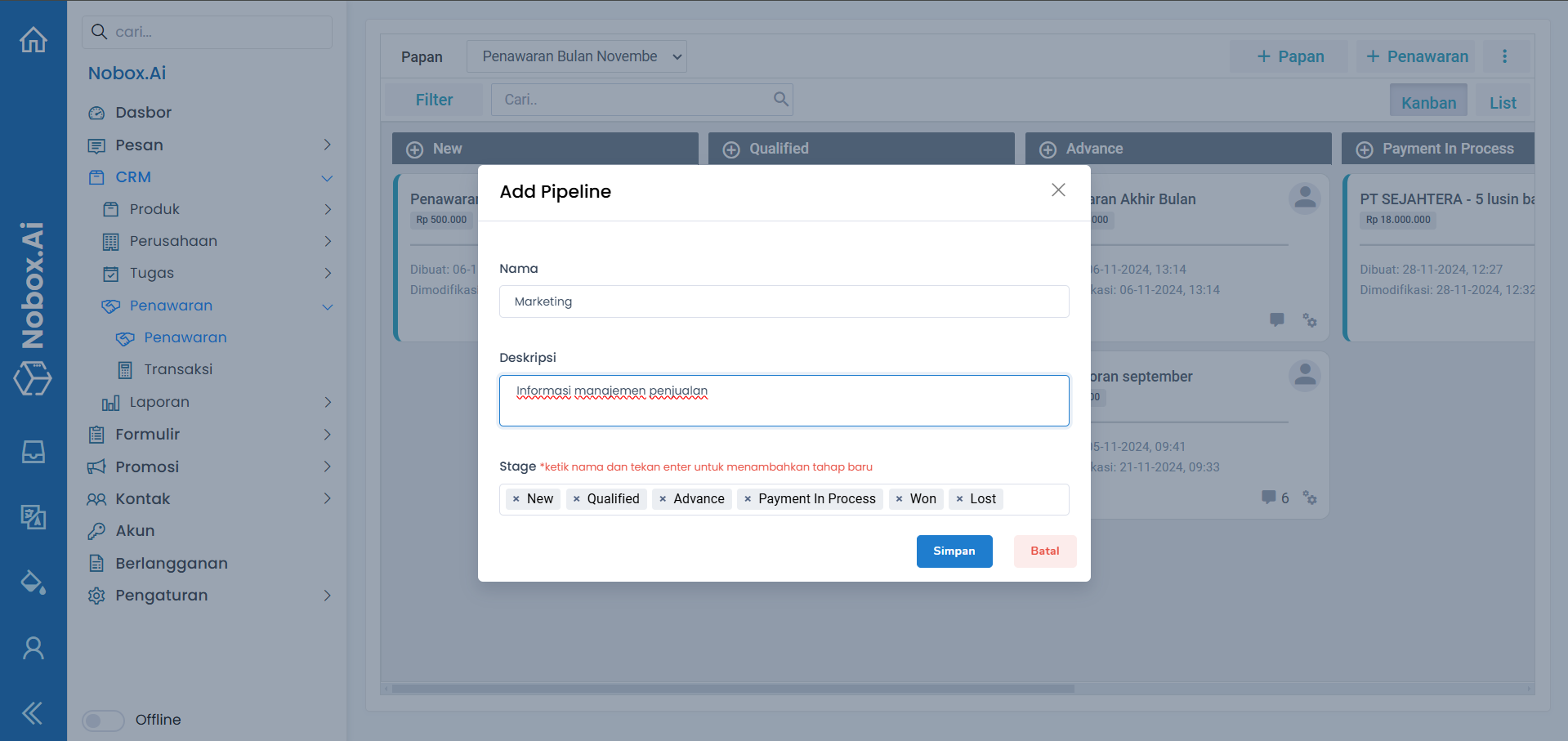
Complete the necessary fields, for example as follows:
| Entry | Description | Example |
|---|---|---|
| Name | Board Name | Marketing |
| Description | Board Description | Sales management information |
| Stage | Management Levels | New, Qualified, Advance, Payment In Process, Won, Lost |
If you have completed the form, click [Save] to save the newly created board data.
Edit and Delete Board Data
Untuk mengedit suatu data papan, silahkan pilih terlebih dahulu data mana yang akan diedit. Click [] button, a pop-up will appear, select the [Edit] button, then edit your data and click [Save] to save the changes.
To delete a data board, select the data you wish to delete. Then, click the button [] to show a pop-up. Choose the [Delete] button, and a confirmation dialog will appear asking if you want to delete the data. Click [Yes] to proceed or [No] to cancel.
Add Deal
To add Deal data, please click the [ ] button and the [Add Deal] dialog will appear.
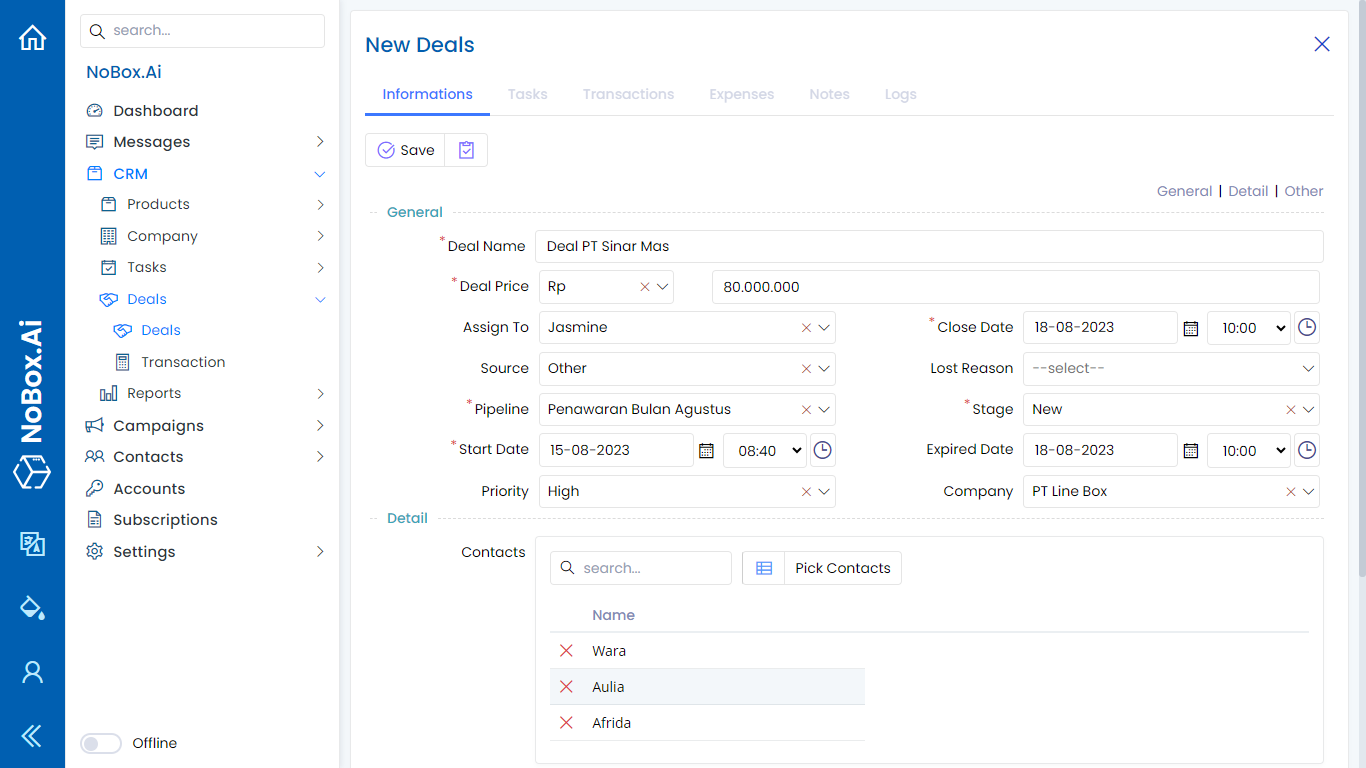
Fill in the required fields, as per the following example:
| Entry | Description | Example |
|---|---|---|
| Deal Name | Agreement Name | Deal PT Puspita |
| Price | Deal Price | Rp 10.600.000 |
| Assign to | Assigned to | Jasmine |
| Close Date | Close Date | 30-11-2024 |
| Source | Search | Other |
| Reason for failure | Reasons for failed bid | - |
| Board | Select Board | November 2024 Offers |
| Stages | Stages | New |
| Start Date | Start Date | 25-11-2024 |
| Expired Date | Expired Date | 30-11-2024 |
| Priority | Priority Level | Tinggi |
| Company | Company Deal | PT SEJAHTERA |
| Contact | Related contact list | Sherin, Sasi, Afrida |
| Product | List Product | Gamis Zeyaa, Hijab Pashmina Azzalea |
Once you have completed the fields, click [Save] to save the offer data you have just created.
Edit adn Delete Deals Data
To edit an offer data, please first select which data you want to edit. Edit your data and click [Save] to save the changes.
To delete an offer data, select the data you want to delete, then click [Delete]. A confirmation dialog will appear asking if you want to delete the data. Click [Yes] to proceed, or click [No] to cancel.
Comment
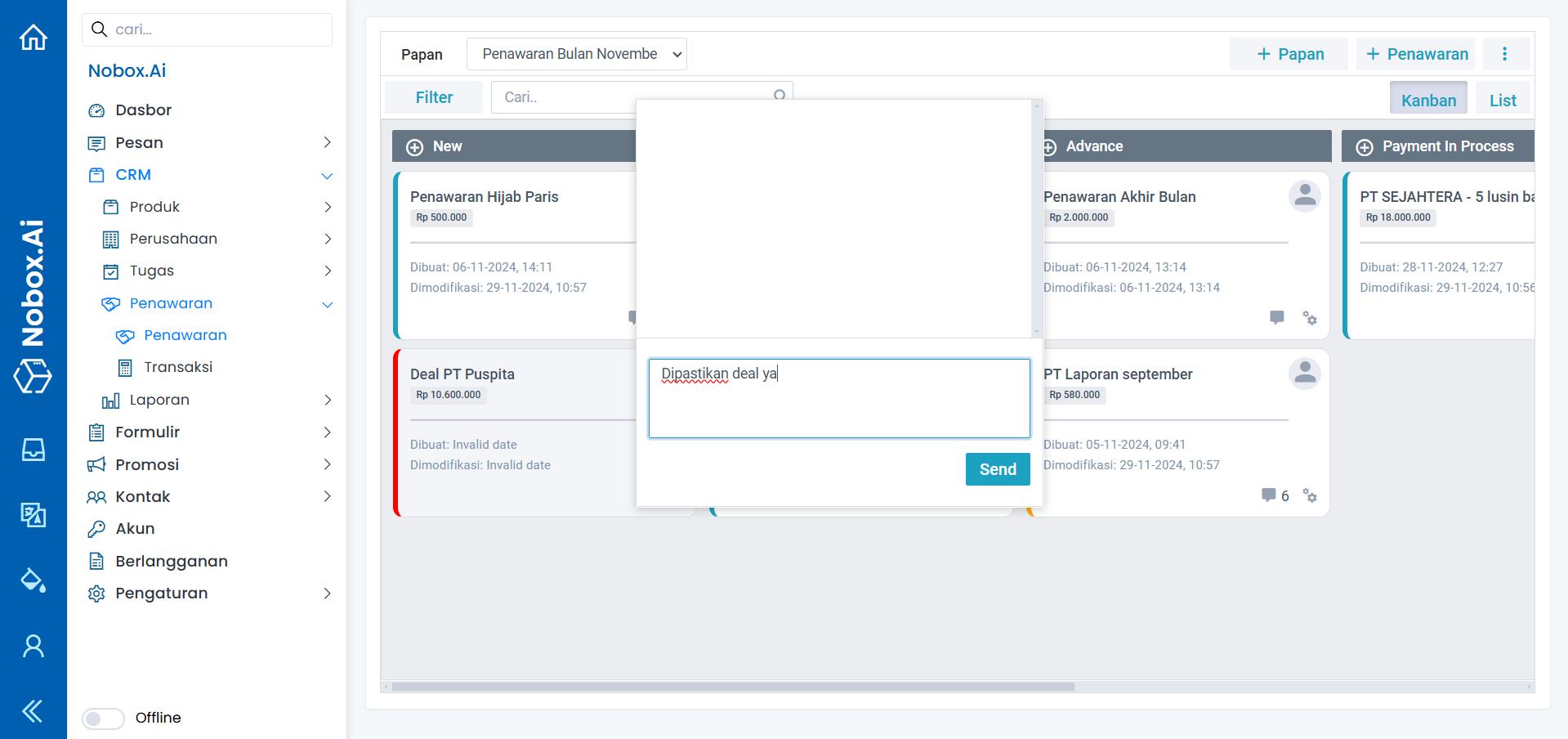
Comments are a feature of Nobox.Ai used to provide views, responses, or feedback regarding the offer.
Add Comment
To add a comment, click the [ ] button, and a comment dialog will appear. Enter your comment and click the [Send] button to submit it.
Edit adn Delete Comment
To edit a comment, first select the data you want to edit. Then click the [ ] icon, which will bring up the Edit and Remove pop-up. Choose the [Edit] button, edit your data, and click [Send] to save the changes.
To delete a comment data, select the data you want to delete. Then click the icon [], and then click [Remove]. A confirmation dialog will appear asking if you want to delete the data. If yes, click [OK]; if not, click [Cancel].
Copy Deal
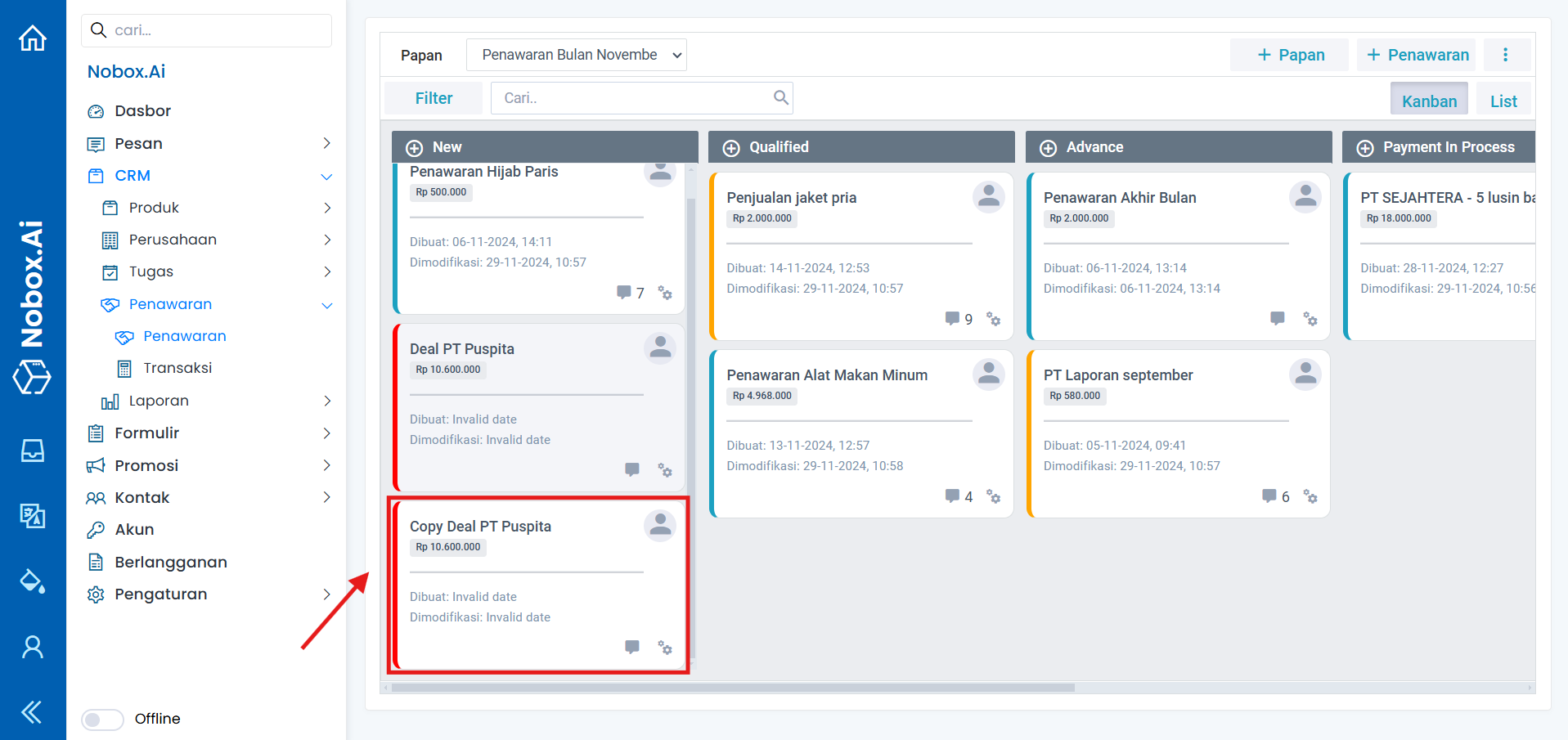
Copy Offer feature helps you to easily duplicate the offer data. To copy the offer data, please click the [ ] icon, then select [Copy]. This will generate a copy of the offer data.
Task
The Task tab is used for managing tasks to be carried out by the offer.
.png)
Add Task
To add a new Task, click the button [ ] to open the dialog [Add Task].
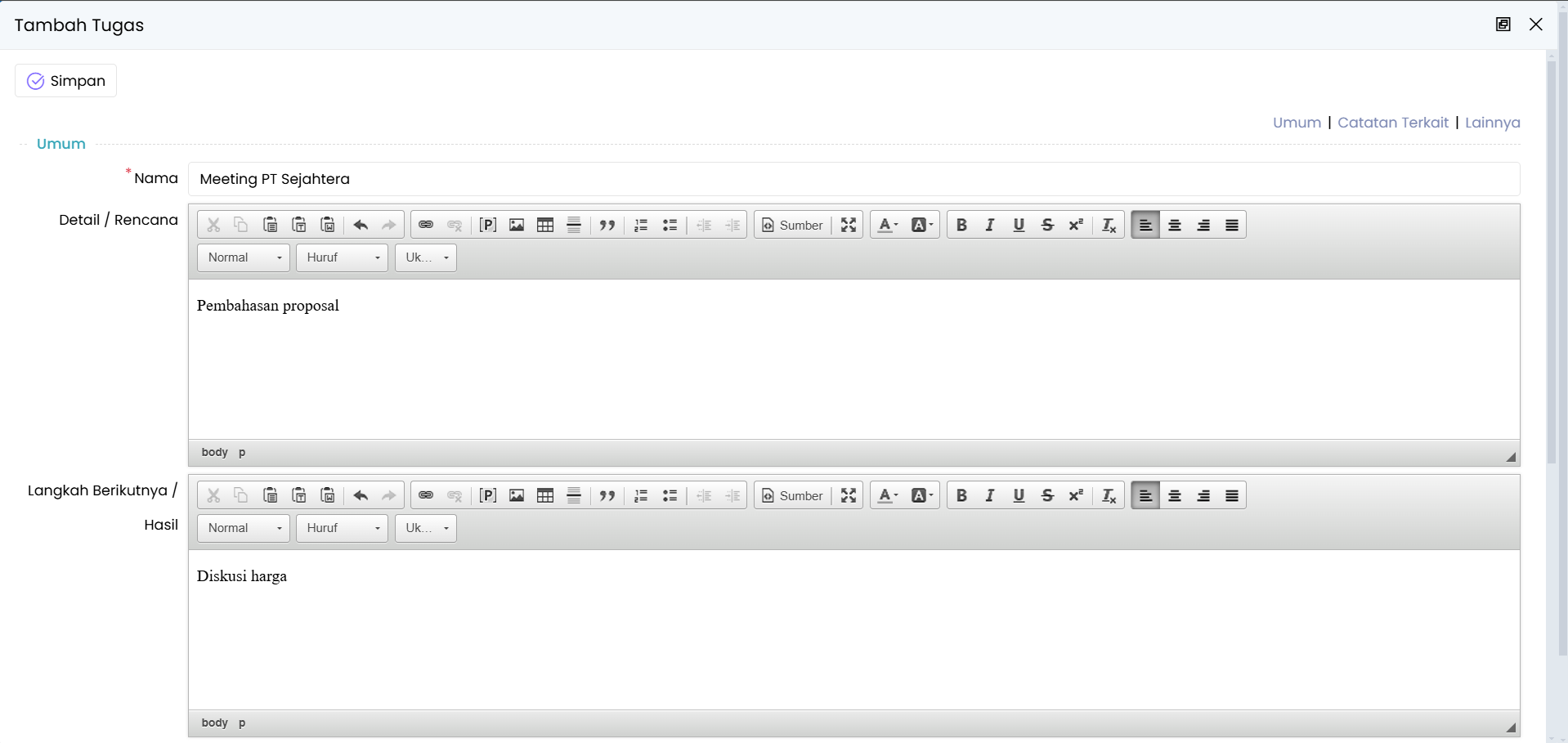
Fill in the required fields, as in the following example:
| Entry | Description | Example |
|---|---|---|
| Name | Task Name | Meeting PT Sejahtera |
| Detail/plan | Detail Task/ Plan | Discussion of proposal |
| Next Plan/ Result | Next steps or task results | Price Discussion |
| Attachment | Task Attachment | - |
| Owner | Task Owner | Jasmine |
| List | List Task | New |
| Category | Task Category | Marketing |
| Prioritas | Priority Level | High |
| Tag | Task Tag | Meeting |
| Start Date | Early Deadline | 29-11-2024 |
| End Date | End of deadline | 30-11-2024 |
| Contact | Contact who is working on the task | Sherin |
| Company | The company that carried out the task | PT SEJAHTERA |
| Transaction | Offers related to the task | Deal PT Puspita |
If you have completed the entries, click [Save] to save the task data you just created.
Edit and Delete Task Data
To edit a task data, first select the data you want to edit. Make your edits and click [Save] to save the changes.
To delete a task data, select which data to delete, then click [Delete]. A confirmation dialog will appear asking if you want to delete the data. If yes, click [Yes]; otherwise, click [No].
Transaction
Transactions are a feature of Nobox.Ai used to record payment-related transactions with the respective offers.
Add Transaction
To add transaction data, click [Add Transaction] to display the [Add Transaction] dialog.
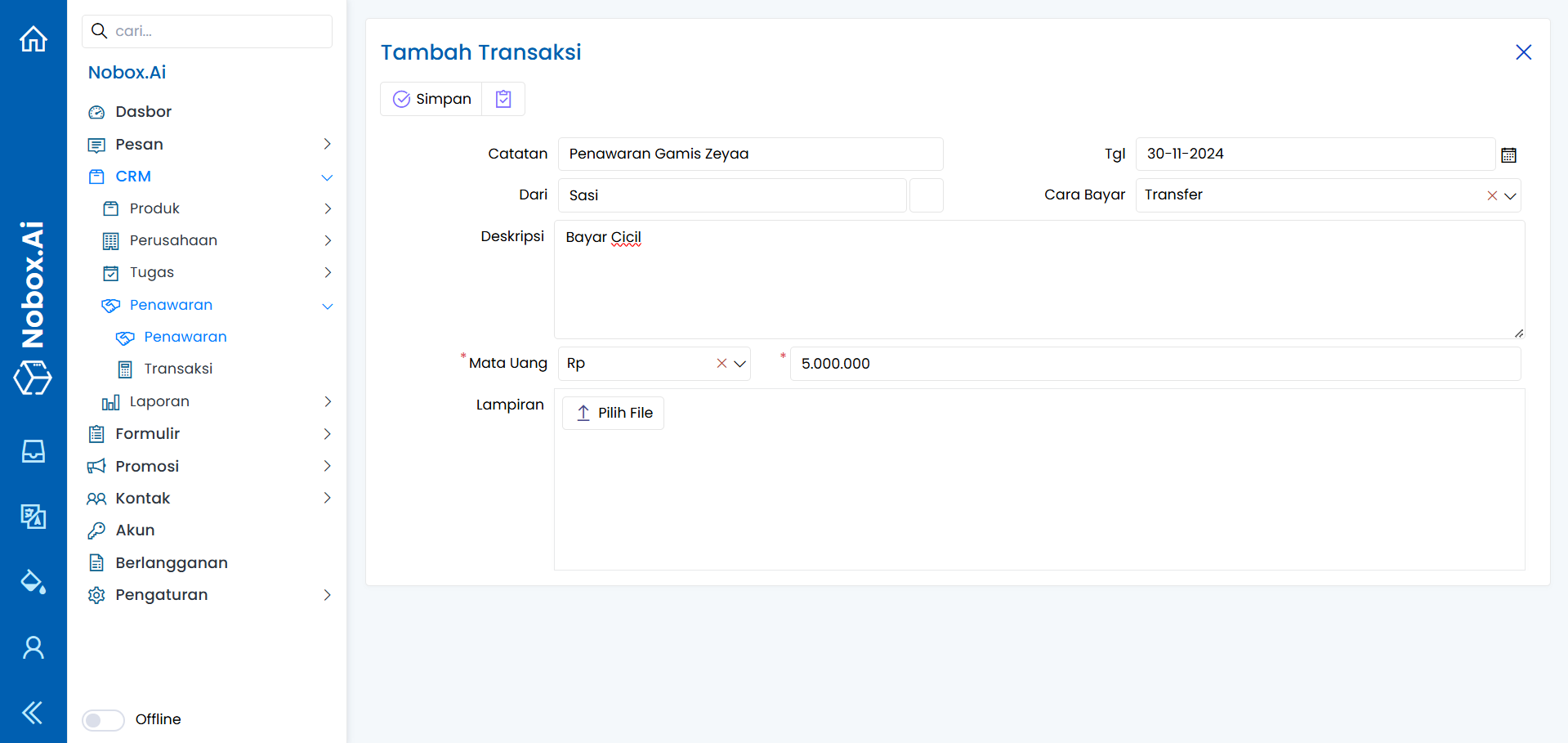
Complete the required fields, as shown in the following example:
| Entry | Description | Example |
|---|---|---|
| Note | Transaction Note | Gamis Zeyaa Deal |
| Date | Select the day transaction | 30-11-2024 |
| From | Select the contact related to the transaction | Sasi |
| How to Pay | Payment Methods | Transfer |
| Description | Transaction Description | Pay in Installments |
| Currency | Select the currency and enter the nominal amount. | Rp 5.000.000 |
| Attachment | Transaction Attachment | - |
If you have completed the fields, click [Save] to save the new transaction data you just created.
Edit and Delete Transaction Data
To edit a transaction record, please first select which data you want to edit. Make your changes and click [Save] to store them.
To delete a transaction record, select the data you want to delete, then click [Delete]. A confirmation dialog will appear asking if you want to delete the selected data. If yes, click [Yes]; if not, click [No].
Expense
Expenditure is one of the features of Nobox.Ai used to record expenses or costs, covering various items such as shipping costs, marketing expenses, etc.
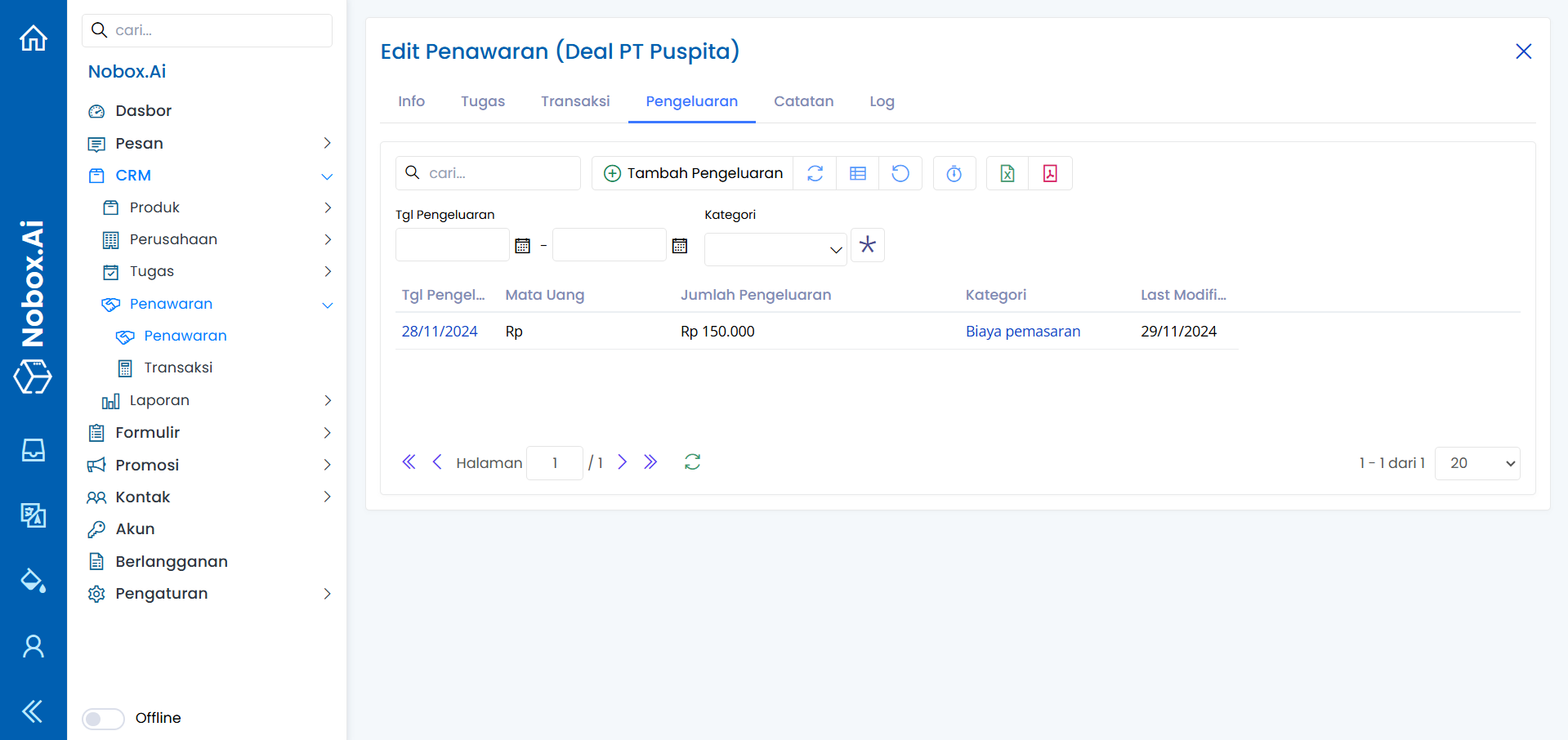
Add Expense
To add an expense entry, please click [Add Expense] to display the [Add Expense] dialog.
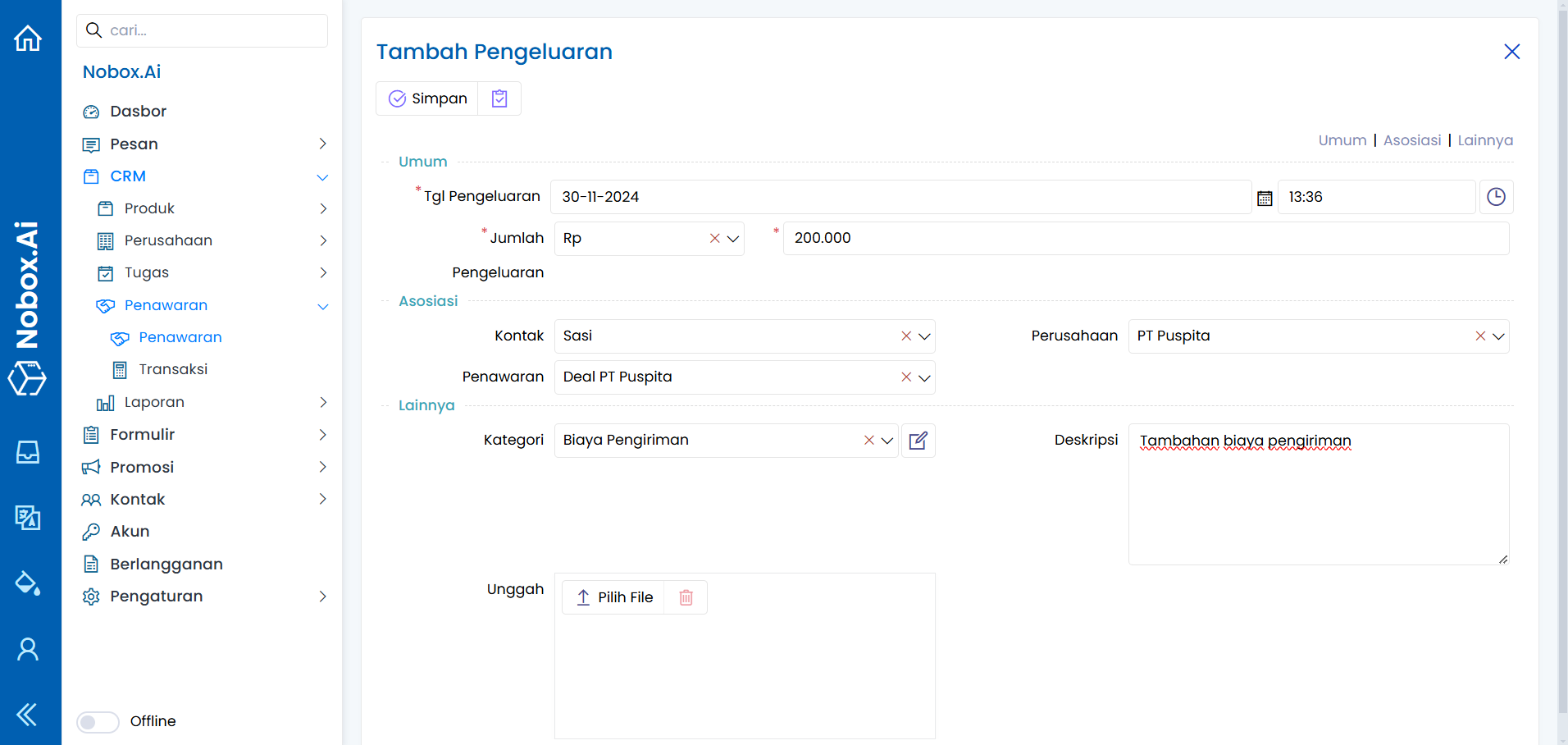
Complete the required fields, as in the following example:
| Entry | Description | Example |
|---|---|---|
| Expense Date | Select the release date and time | 30-11-2024, 13:36 |
| Amount of Expense | Select currency and denomination | Rp 200.000 |
| Contact | Contact regarding the expenditure | Sasi |
| Company | The company related to the expenditure | PT Puspita |
| Deal | Related deal (auto-populate) | Deal PT Puspita |
| Category | Select Category | Shipping costs |
| Description | Expense Description | Additional shipping costs |
| Upload | Expense Attachment | - |
If you have completed the form, click [Save] to save the new expense data you just created.
Edit and Delete Expense Data
To edit an expense record, please select the data you wish to edit first. Edit your data and click [Save] to save the changes.
To delete an expense record, select the data you wish to remove, then click [Delete]. A confirmation dialog will appear asking if you want to delete the selected data. Click [Yes] to proceed, or [No] to cancel.
Note
Notes is the tab used to record and store important information related to the offer.
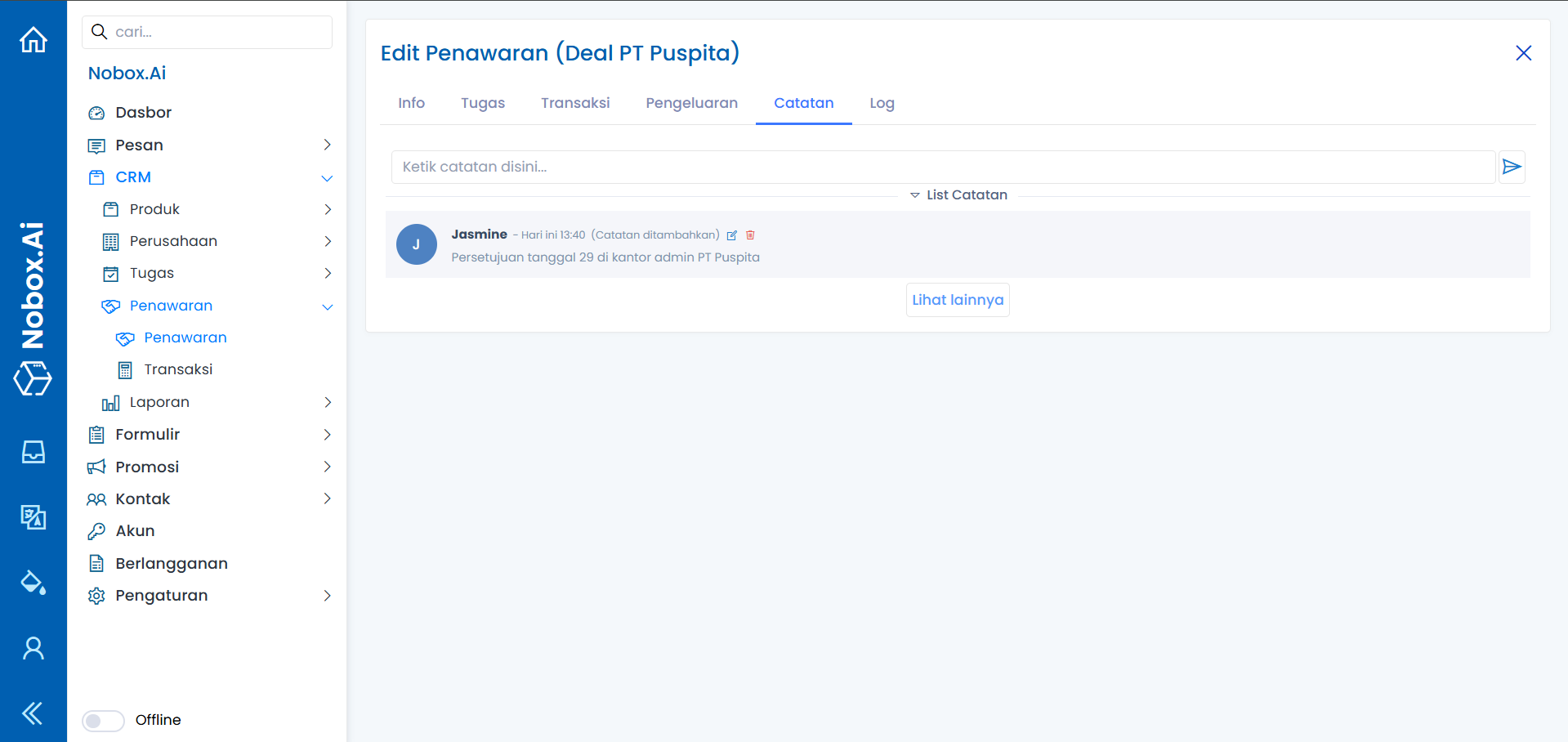
Add Note
To create a note, you can type directly in the section  . If you have filled in the note, please click the button
 to save the note.
Edit and Delete Note Data
This feature can only be used by NoBox Supervisors. Agents can add notes but cannot edit or delete note data.
To edit a note, click the icon [  ] next to the note you want to edit. Modify the data and click the send button or press enter on your keyboard to save the changes.
To delete a note, click the [ ] icon next to the note you want to remove. A confirmation dialog will appear asking if you want to delete the note. If yes, click [Yes]; if not, click [No].
Log
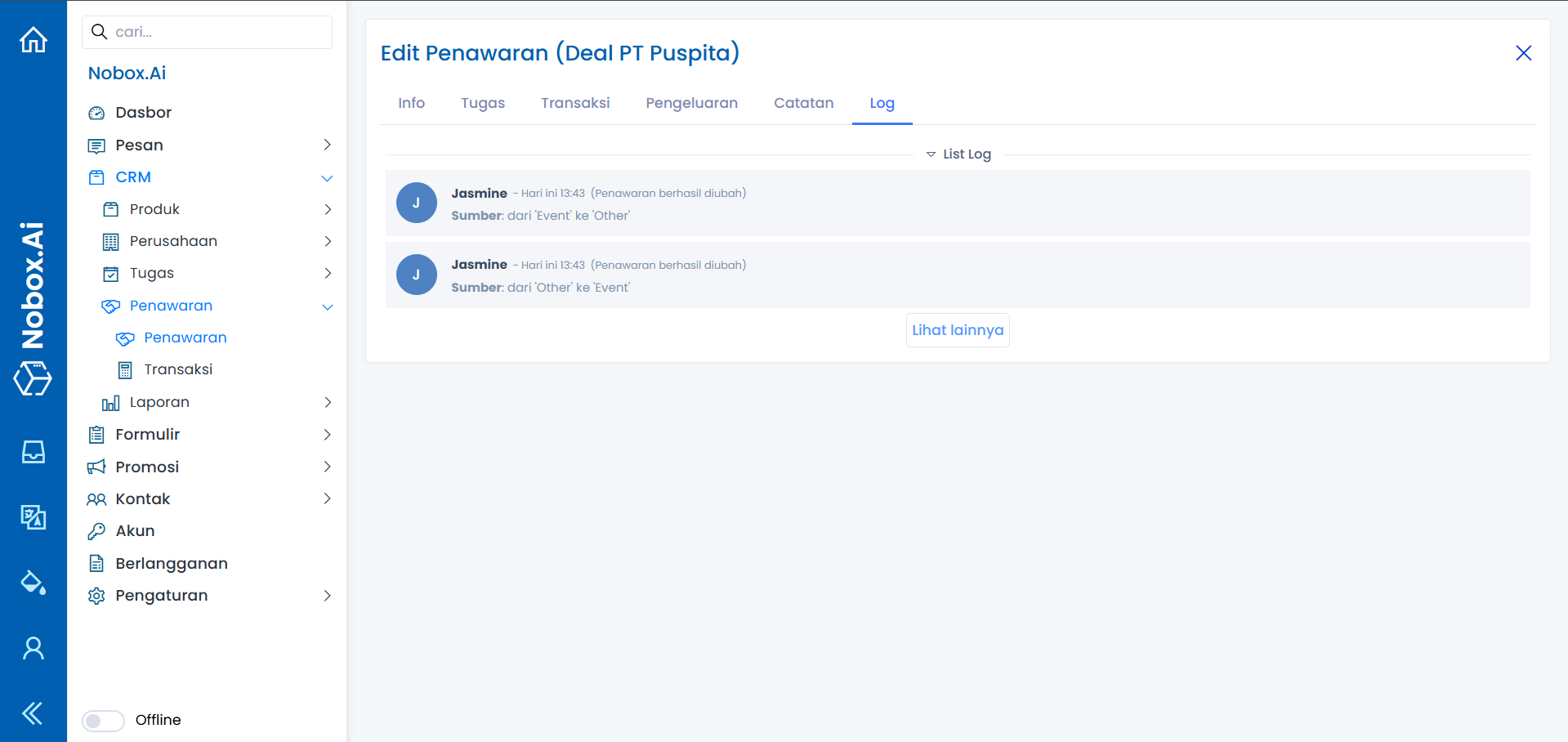
Log is one of the features of Nobox.Ai that provides information on activities related to the offer.
If you have any issues or difficulties related to Nobox.Ai, please contact us through Support Ticket