Billing
How to Subscribe
- Go to the [Product] menu and select a product.
- Click [Order] to purchase the product.
- You will be directed to the purchase invoice with the bill status still unpaid and product purchase information.
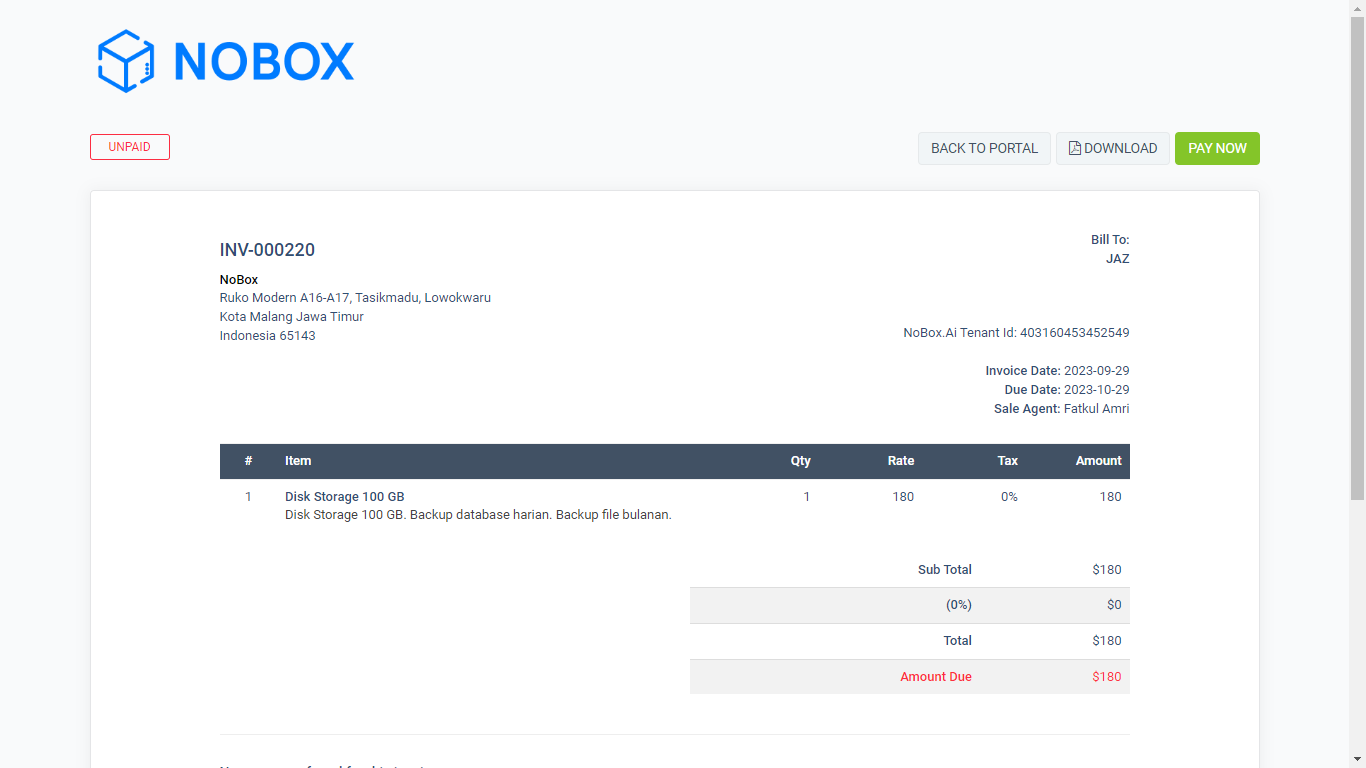
- Choose a payment method, online or offline (For online payment, there are 2 options using PayPal Smart Checkout or PayPal. For offline payment, you can choose either bank BCA or bank Mandiri).
Submit Proof of Payment via Bank Transfer
- Click [Back to Portal] to return to the invoice menu.
- Open the support menu and click [Open Ticket].
- Fill in the details as per the following example.
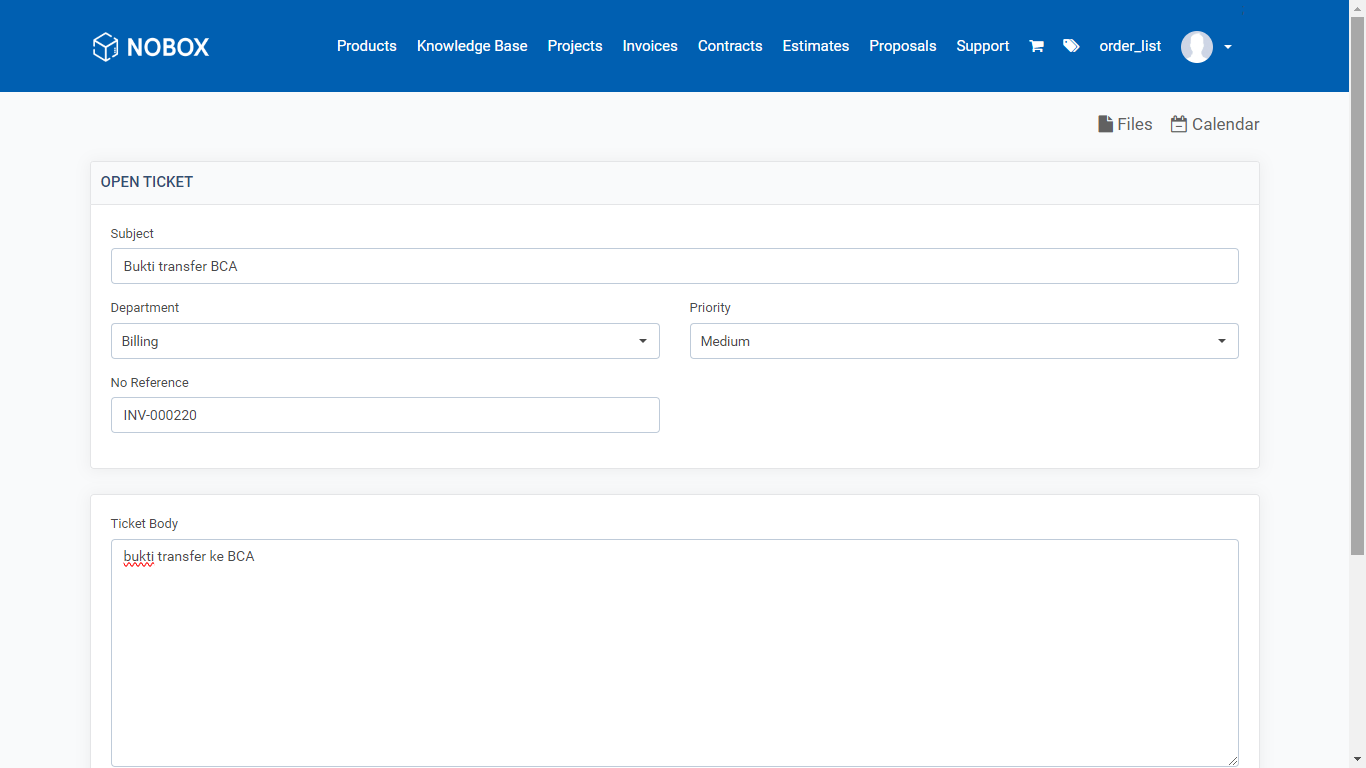
| Field | Description | Example |
|---|---|---|
| Subject | Billing name | BCA transfer proof |
| Department | Select billing type | Billing |
| Priority | Select priority | Medium |
| No Reference | Enter invoice number | INV-000220 |
| Ticket Body | Description | proof of transfer to BCA |
| Attachments | Payment proof |
- Click [Save] to display the Ticket Information to view the completed form.
- Once the Ticket Support is created and sent to admin, the status changes to [Open].
- When admin responds, the status changes to [Answered].
- Once payment is confirmed, the status changes to [Close].
- You can check the [Invoice] menu to see if the status has changed to paid and ensure that the new product information is updated in the [Subscription] menu on id.nobox.ai.
If you have any issues or difficulties related to Nobox.Ai, please contact us through Support Ticket