Accounts
The "Account" is a menu option in Nobox.Ai used for managing account data and the Nobox Desktop tools.
New WhatsApp Account
To add a WhatsApp account, please click on the [Account]➔[NewAccount] menu, and the [New Account] dialog will appear.
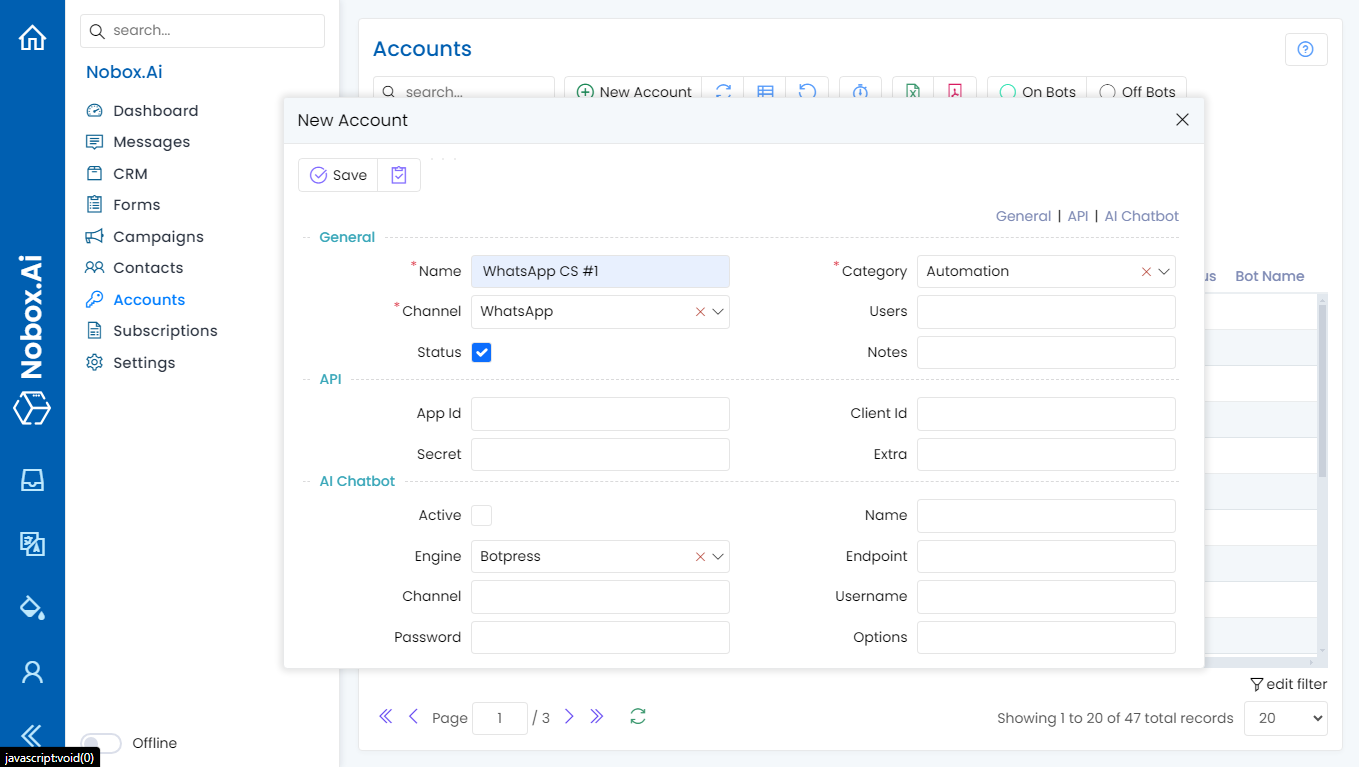
Complete the necessary fields, for example as follows:
| Field | Description | Example |
|---|---|---|
| Name | WhatsApp account name | s_WhatsApp Cs #1 |
| Category | Choose a category | Automation |
| Channel | Choose a channel | |
| Status | Information on the account status | Active |
| Notes | Provide notes about the account | - |
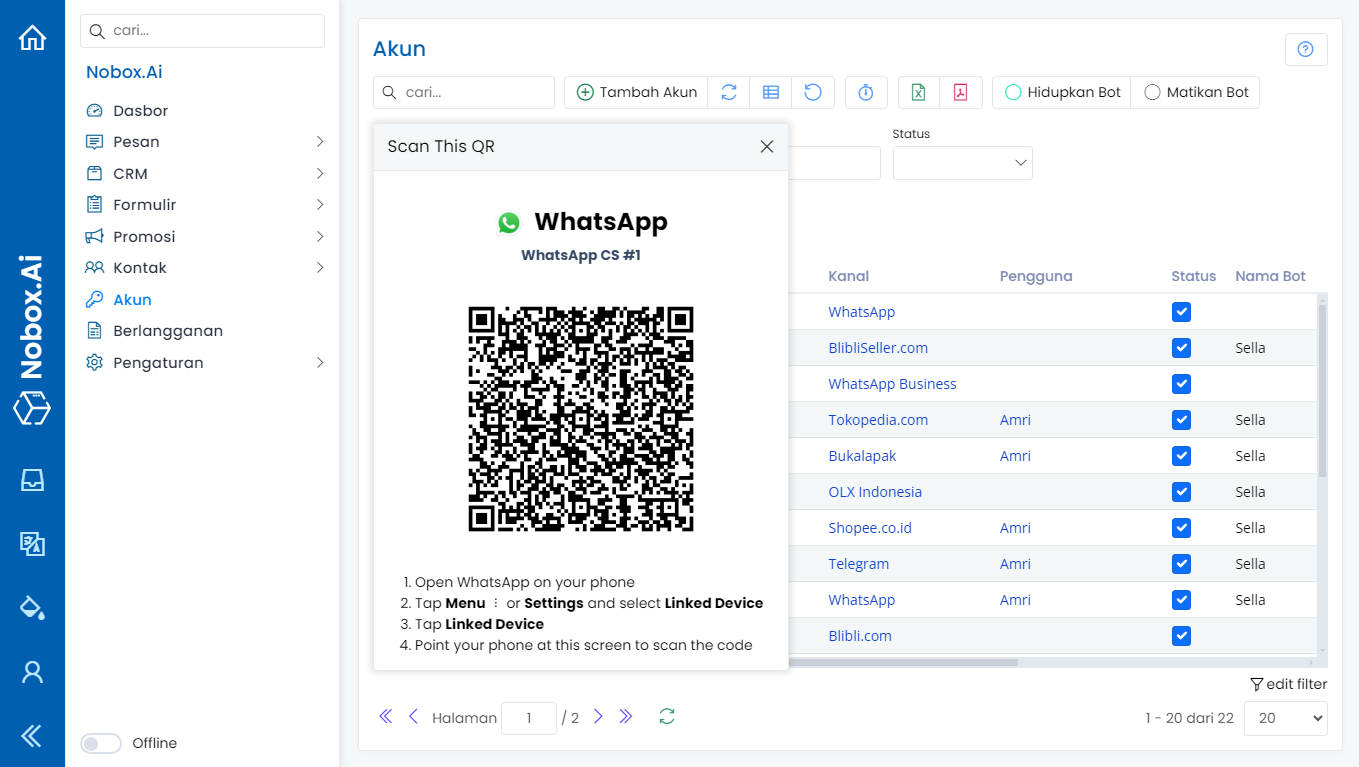
Once you have filled out the fields, click [Save] to save the new account data you just created. Scan the QR code to link with your WhatsApp.
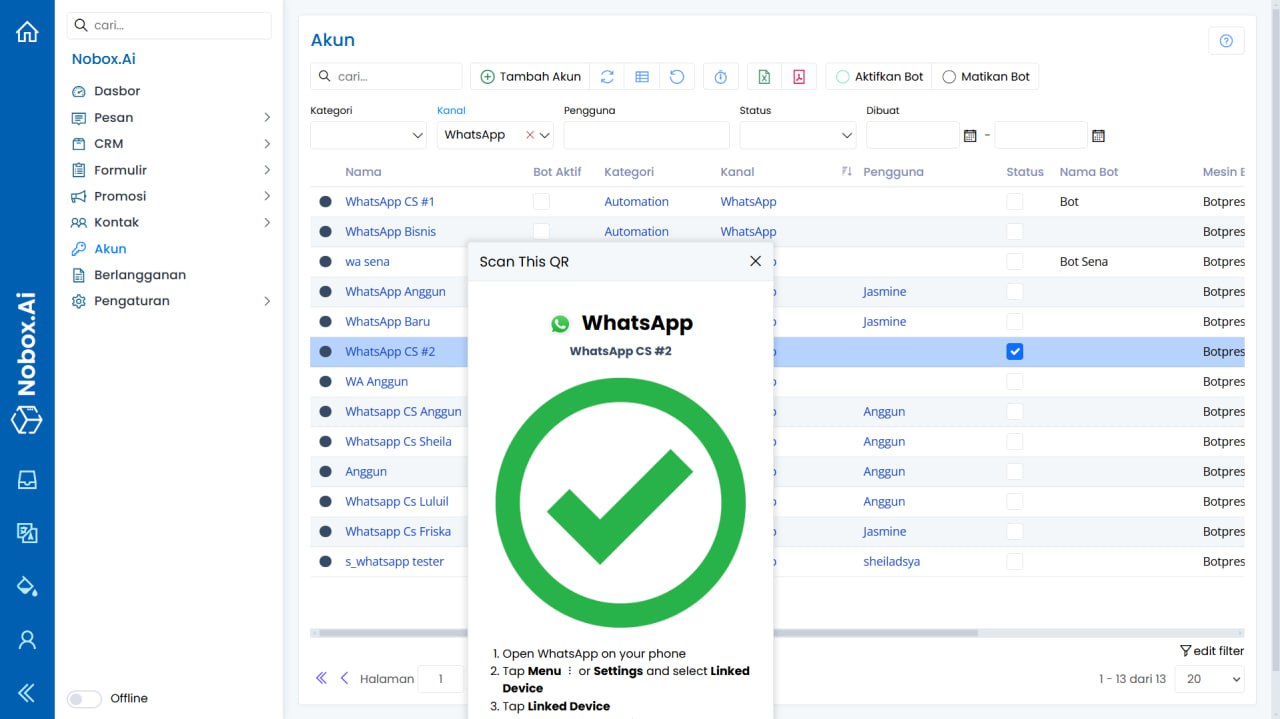
Here you can see that the WhatsApp account has been successfully created.
New Telegram Account
To add a Telegram account, click the [Account]➔[New Account] menu, and the [New Account] dialog will appear.
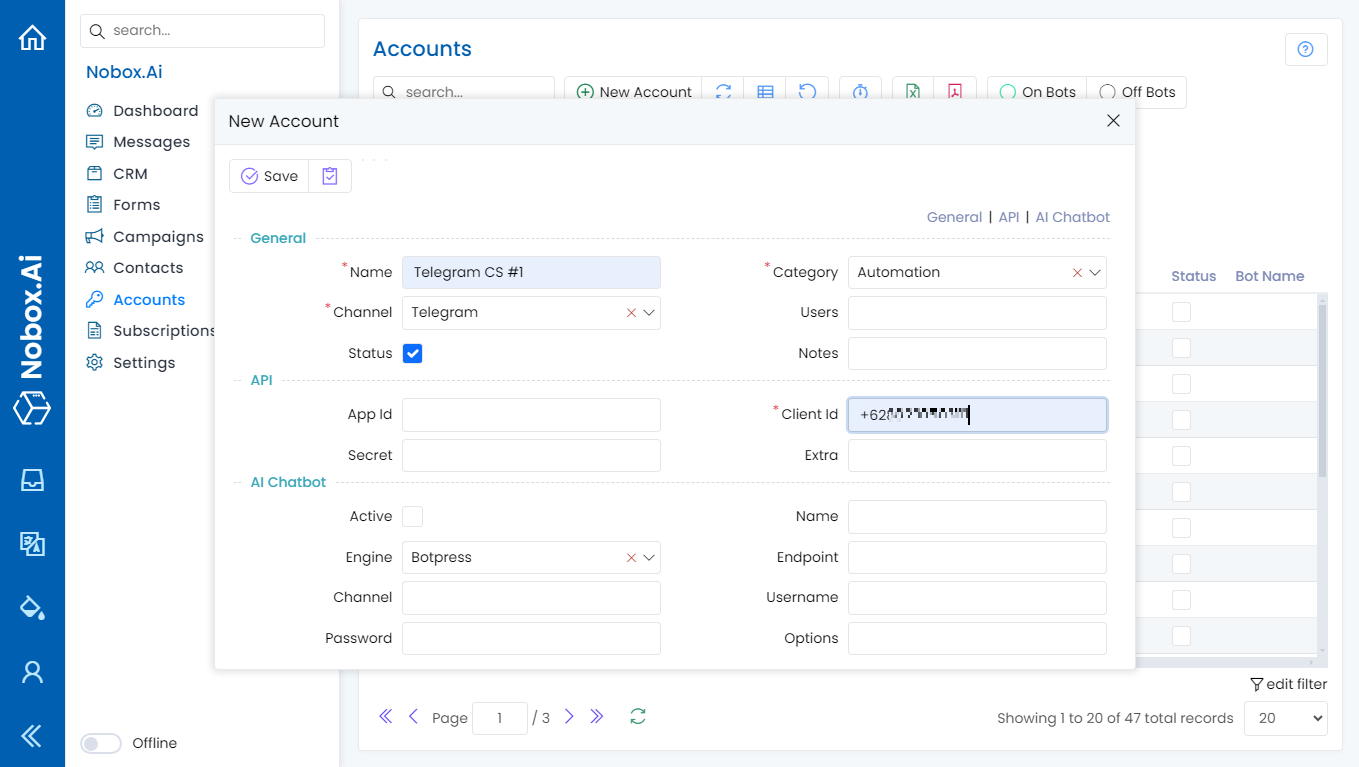
Fill out the required information, as shown in the following example:
| Field | Category | Example |
|---|---|---|
| Name | Telegram account name | s_Telegram CS #1 |
| Category | Choose a category | Automation |
| Channel | Choose a channel | Telegram |
| Status | Information on whether the account is active | Active |
| Notes | Provide notes about the account | - |
| Client Id | Your Telegram phone number | +628888888888 |
Once you have completed the fields, click [Save] to save the newly created account data. Please wait a moment until you receive an OTP from Telegram. An OTP dialog will appear on the Nobox website. Enter the OTP code you received, and click [Send].
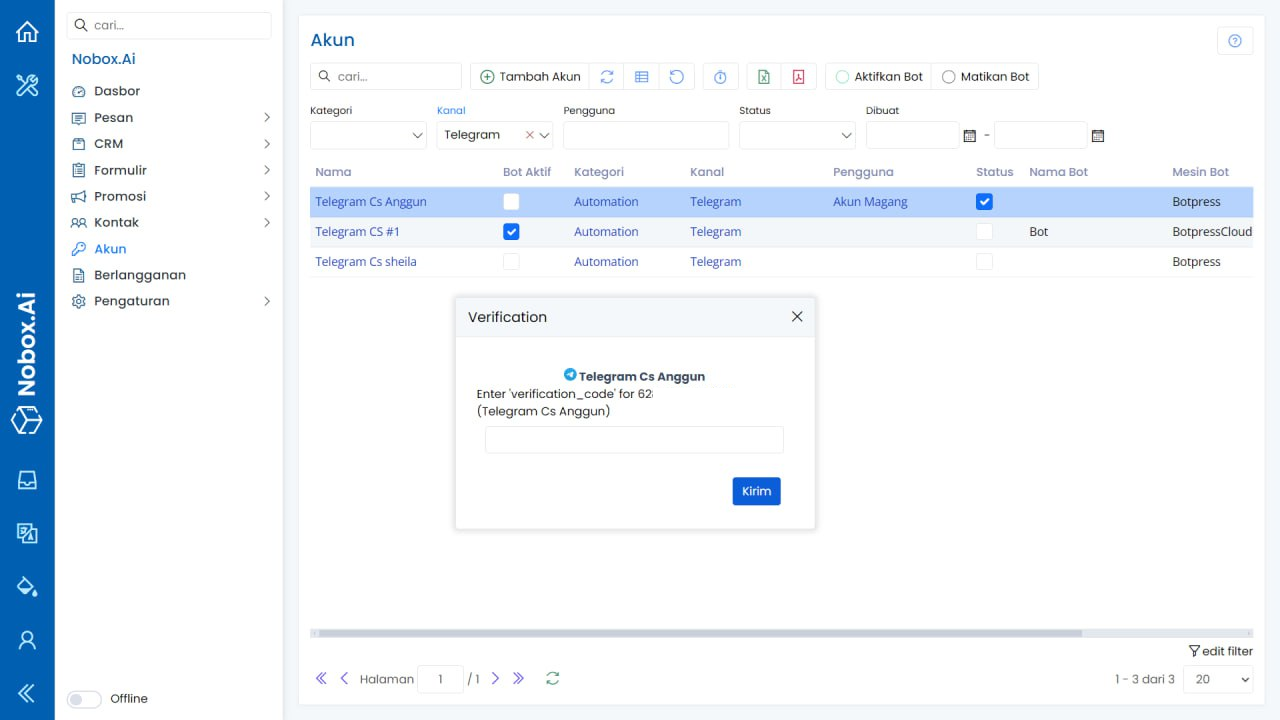
You can see here that the WhatsApp account has been successfully created.
New Bukalapak Account
To add a Bukalapak account, click on the [Account]➔[New Account] menu, and the [New Account] dialog will appear.
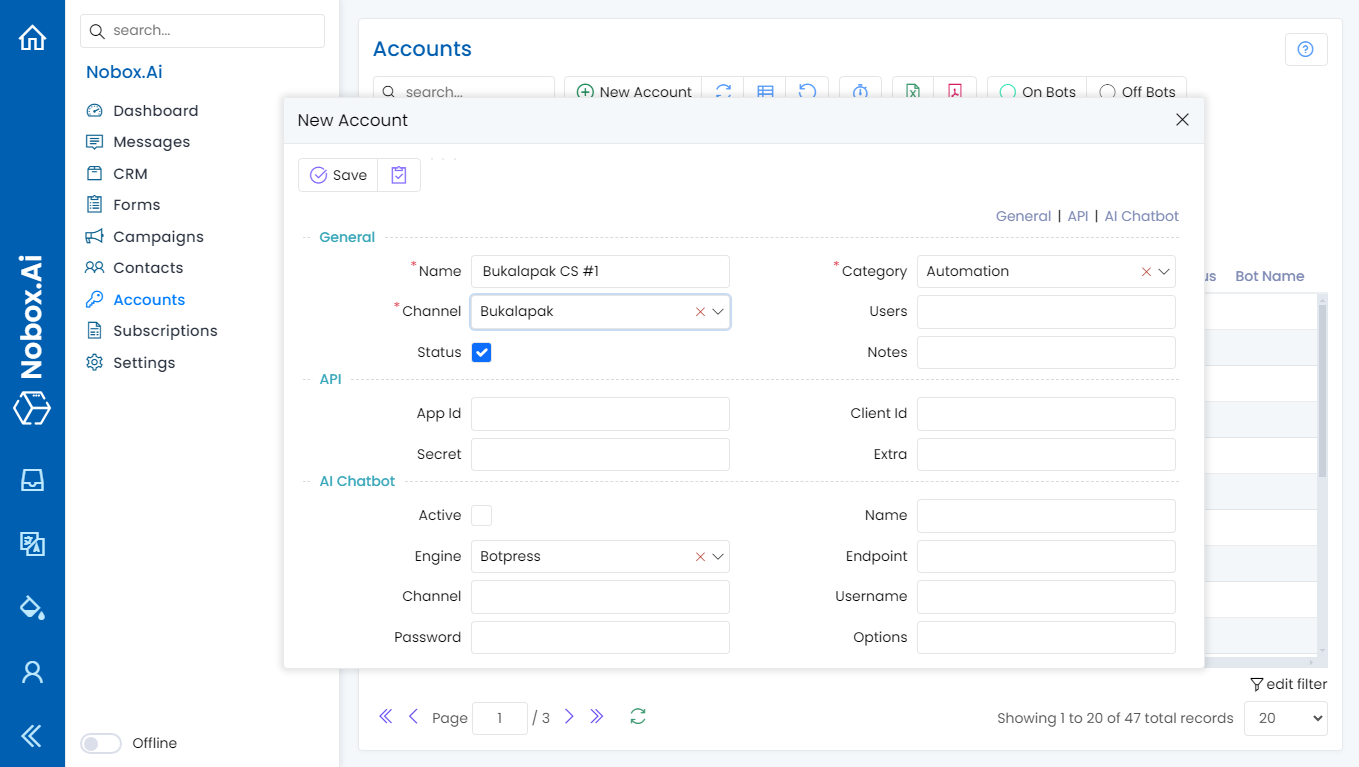
Please complete the required fields, as follows:
| Field | Description | Example |
|---|---|---|
| Name | Name of the account to be created | Bukalapak#1 |
| Category | Choose a category | Automation |
| Channel | Choose a channel | Bukalapak |
| Status | Information on whether the account is active | Active |
| Username | Your Bukalapak account username | the_crispysnack |
| Password | Your Bukalapak account password | password |
After filling in the fields, click [Save] to store the new account data. Please wait for a while until you receive an OTP from Bukalapak. An OTP dialogue will appear on the Nobox website. Enter the OTP code you have received and click [Ok].
Add Shopee.co.id Account
To add a Shopee.co.id account, click on [Account]➔[New Account] and a dialog box for [New Account] will appear.
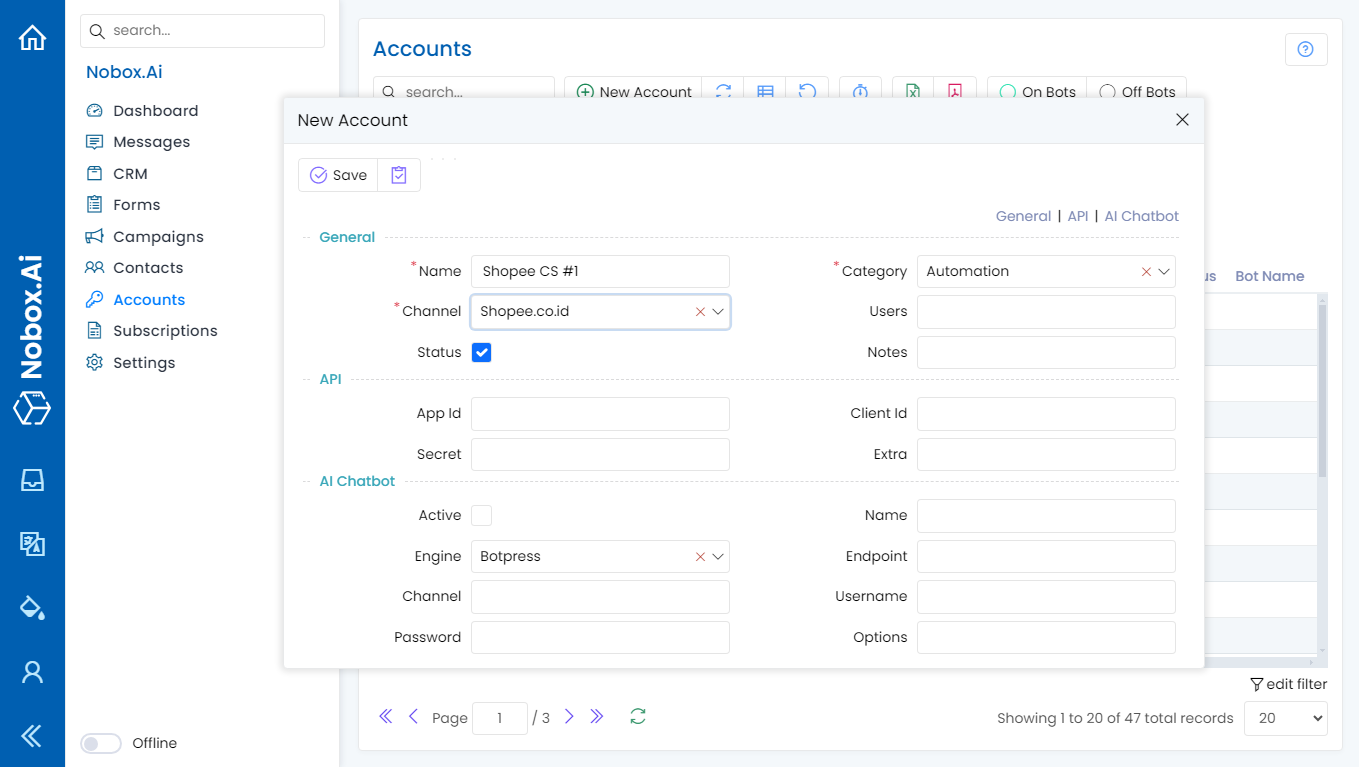
Complete the necessary fields, as shown in the following example:
| Field | Description | Example |
|---|---|---|
| Name | The name of the account to create | Shopee Sasi |
| Category | Choose a category | Automation |
| Channel | Choose a channel | Shopee.co.id |
| Status | Information on account activity | Active |
Once you have completed the fields, click [Save] to store the newly created account data. Please wait for a moment until you receive an OTP from Shopee.co.id. An OTP dialog will appear on the Nobox website. Enter the OTP code you have received, then click [Ok].
Add Tokopedia.com Account
To add a Tokopedia.com account data, please click on the menu [Account]➔[New Account] and the [New Account] dialog will appear.
.png)
Fill in the required fields, as shown in the example below:
| Field | Description | Example |
|---|---|---|
| Name | Name of the account to be created | Tokopedia CS Septi |
| Category | Select category | Automation |
| Channel | Select channel | Tokopedia.com |
| Status | Account active status information | Active |
| Username | Your Tokopedia account username | |
| Password | Your Tokopedia account password | password |
Once you have completed the fields, click [Save] to save the new account data you have just created. Please wait a moment until you receive an OTP from Tokopedia.com. An OTP dialog will appear on the Nobox website. Enter the OTP code you have received and click [Ok].
Add Instagram Account
To add Instagram account data, click the [Account]➔[New Account] menu, which will display the [New Account] dialog.
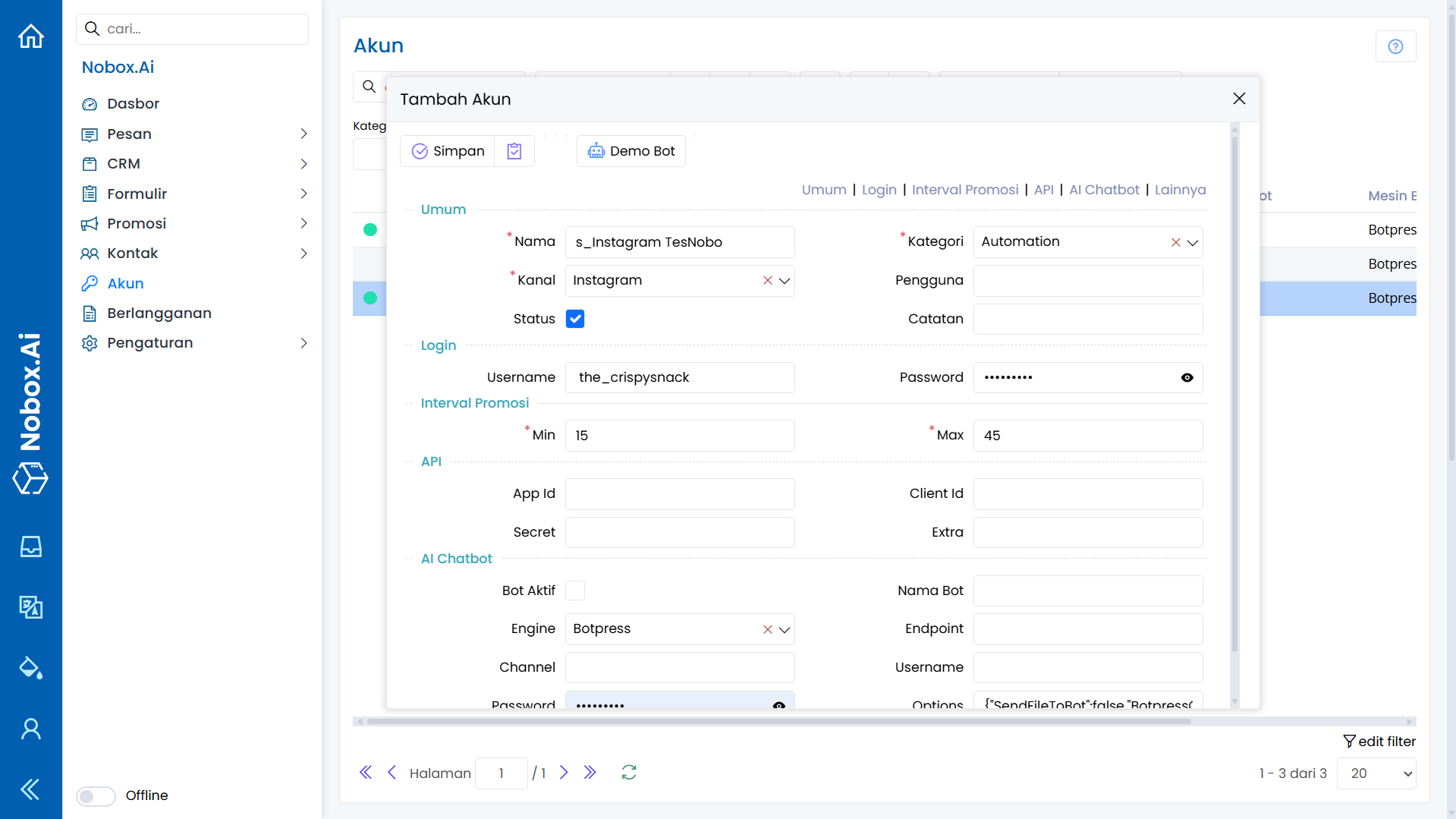
Fill in the required fields as illustrated in the following example:
| Field | Description | Example |
|---|---|---|
| Name | Name of the account to be created | s_instagram tesNobo |
| Category | Choose a category | Automation |
| Channel | Choose a channel | |
| Status | Account active status information | Active |
| Username | Your Instagram account username | the_crispysnack |
| Password | Your Instagram account password | password |
Once you have completed the required fields, click [Save] to save the newly created account data. Wait for the verification dialog to appear.
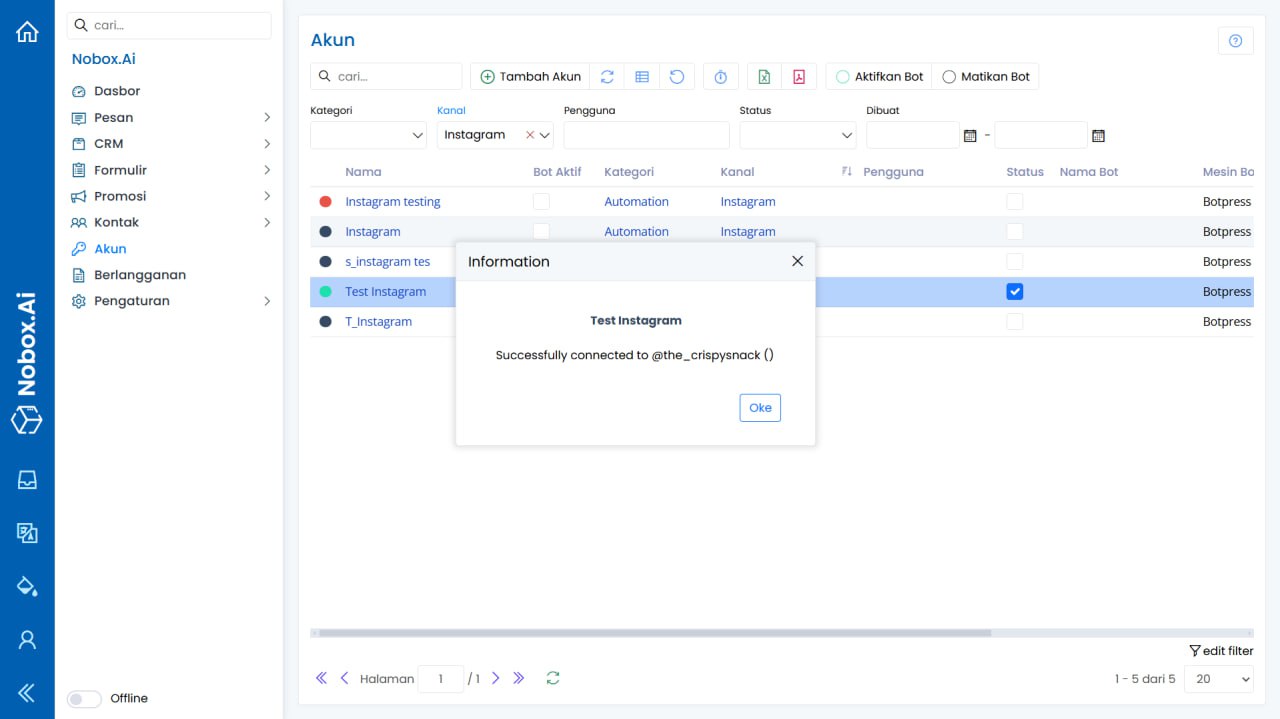
The Instagram account has been successfully created.
Add Account Extractor
To add extractor account data, please click the [Account] menu ➔ [New Account]. A dialog box titled [New Account] will appear; select the desired channel.
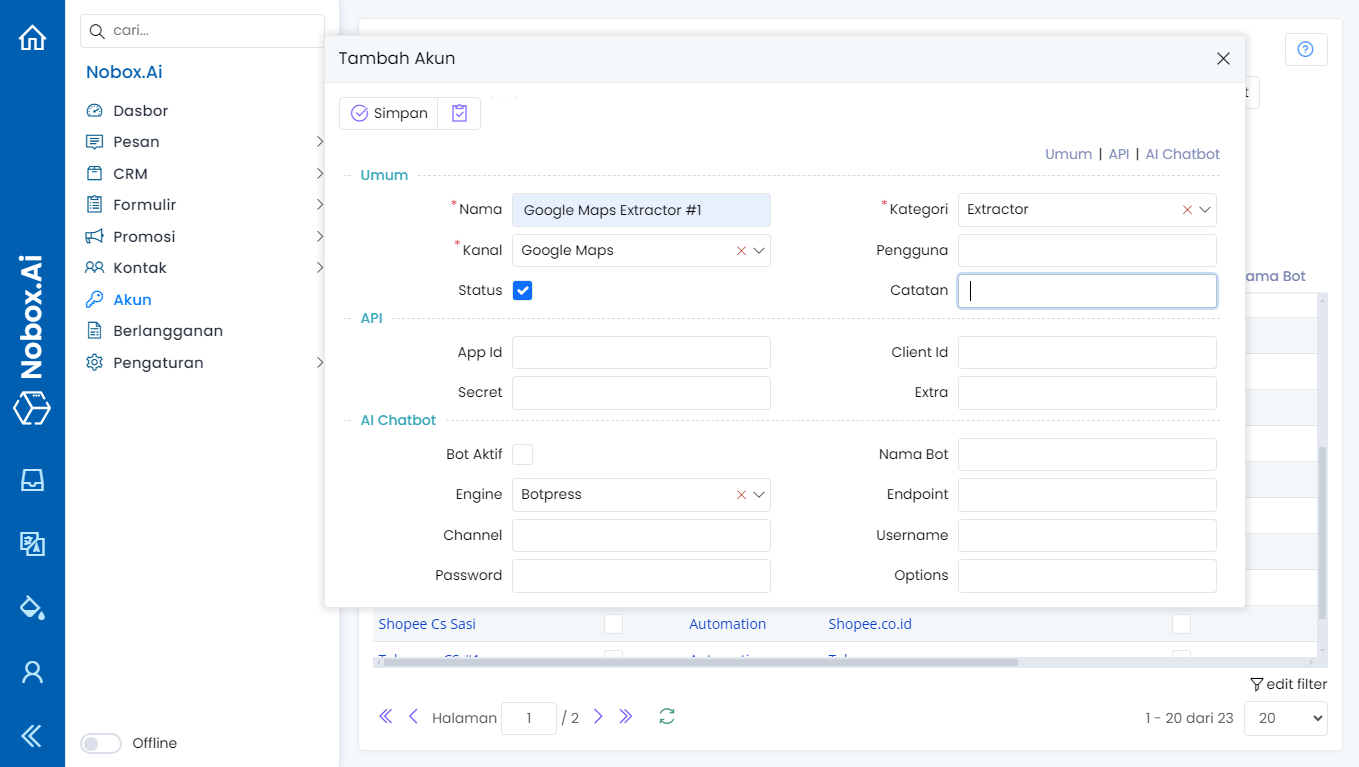
Complete the required fields, as shown in the following example:
| Field | Description | Example |
|---|---|---|
| Name | Your account name | Google Maps Extractor#1 |
| Category | Select category | Extractor |
| Channel | Select channel | Google Maps |
| Status | Information if the account is active or not | Active |
If you have filled in all the fields, click [Save] to save the newly created account data. To add account data for another extractor site, follow the same steps and adjust the channel selection accordingly.
Deactivating an Account
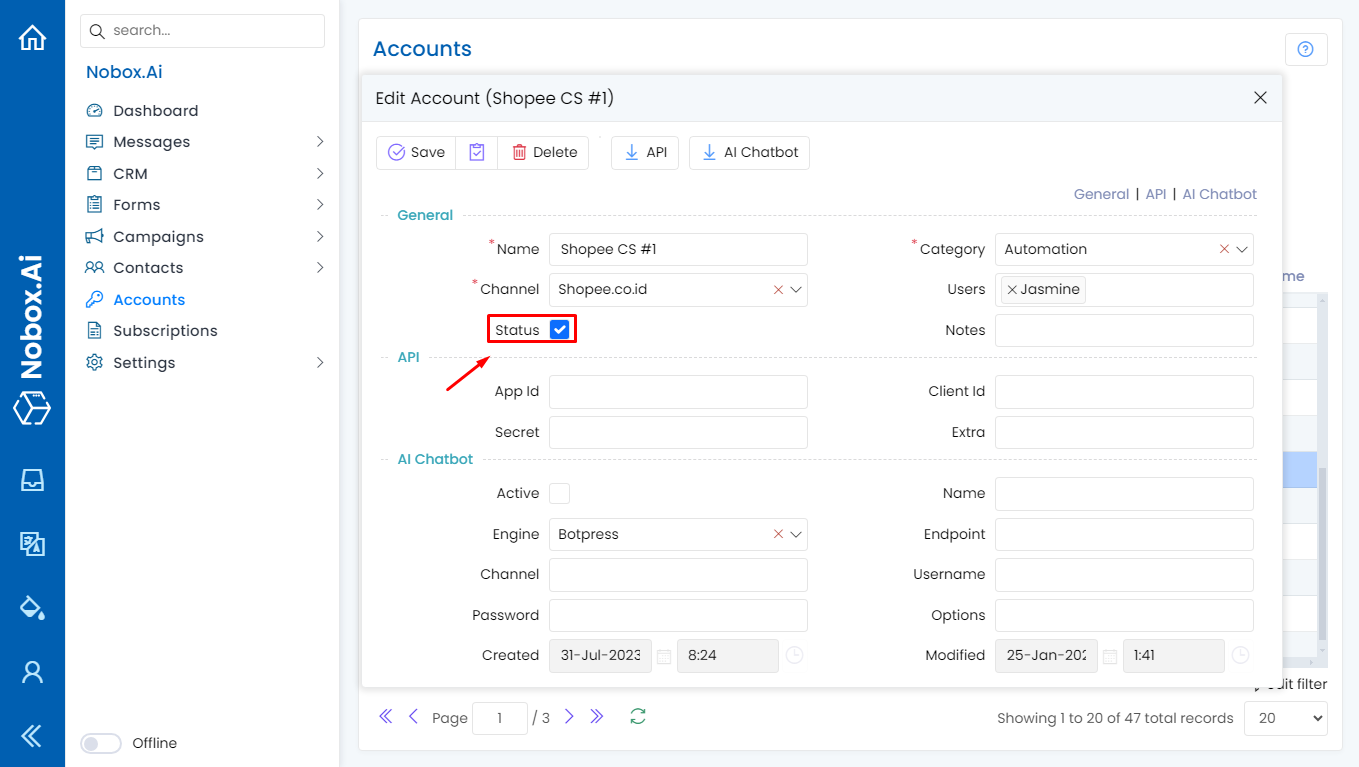
You can deactivate an account by selecting an account, then unchecking the status box. This feature helps reduce RAM usage of the Nobox Desktop application on your computer.
Edit and Delete Account Data
To edit account data, first select the data you wish to edit. After making your changes, click [Save] to store the changes.
To delete account data, select the account data you wish to delete, then click [Delete]. A confirmation dialog will appear asking if you want to delete the selected data. If yes, click [Yes], otherwise click [No].
If you have any issues or difficulties related to Nobox.Ai, please contact us through Support Ticket