Bukalapak
Bukalapak Automation efficiently automates follow-ups for your potential customers and sends messages to Bukalapak with the best speed and quality. This software assists your business by automatically sending messages to your potential customers and can deliver various types of messages tailored to your business needs.
New Account
Ensure you are subscribed to Bukalapak Automation. To add a new account, please open the NoBox Desktop ➔ [Automations] ➔ [New Account] application, a [New Account] dialog will appear.
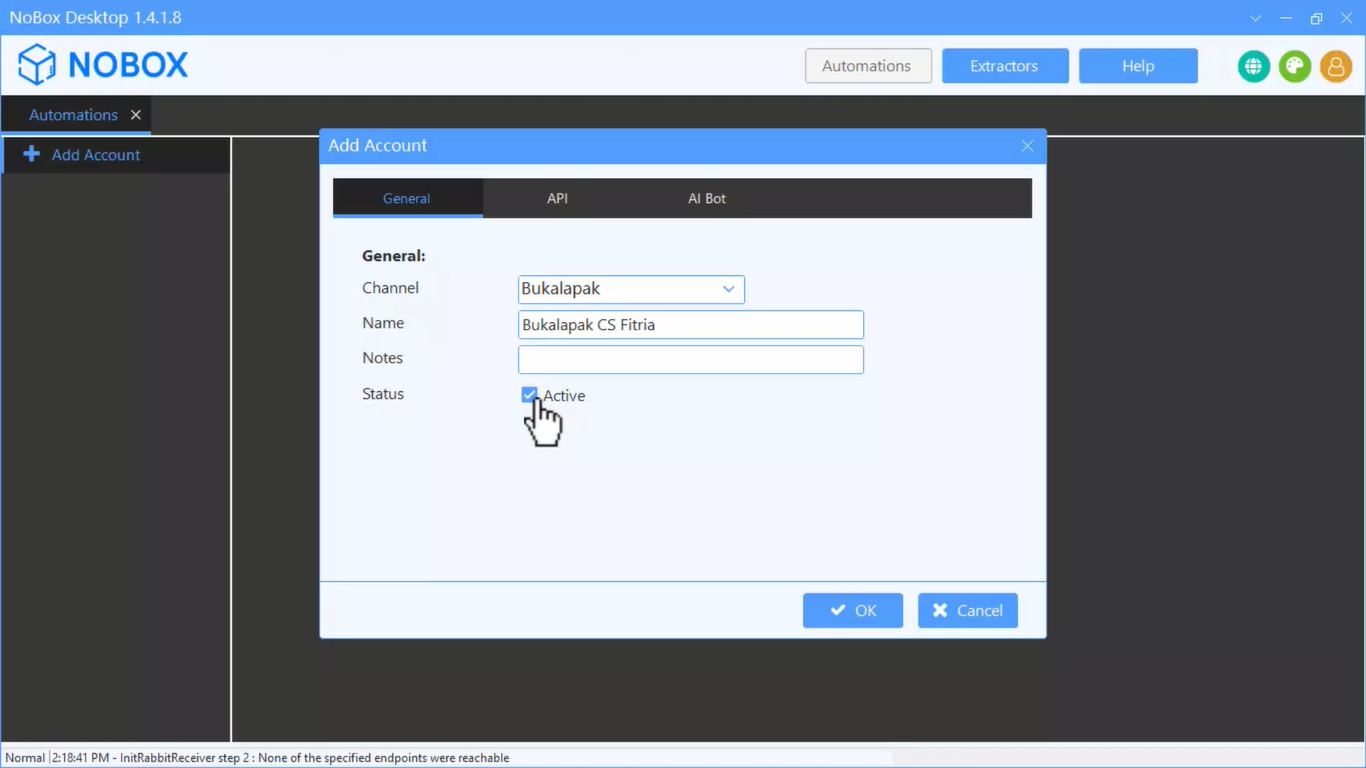
| Field | Description | Example |
|---|---|---|
| Channel | The channel you choose | Bukalapak |
| Name | Your account name | Bukalapak CS Fitria |
| Notes | Provide notes about the account | - |
| Status | Information on whether the account is active | Active |
If you have completed the fields, click [OK] to save the account you just created.
Configuration
After adding a new account, you only need to open the Bukalapak account you have created via PC/laptop.
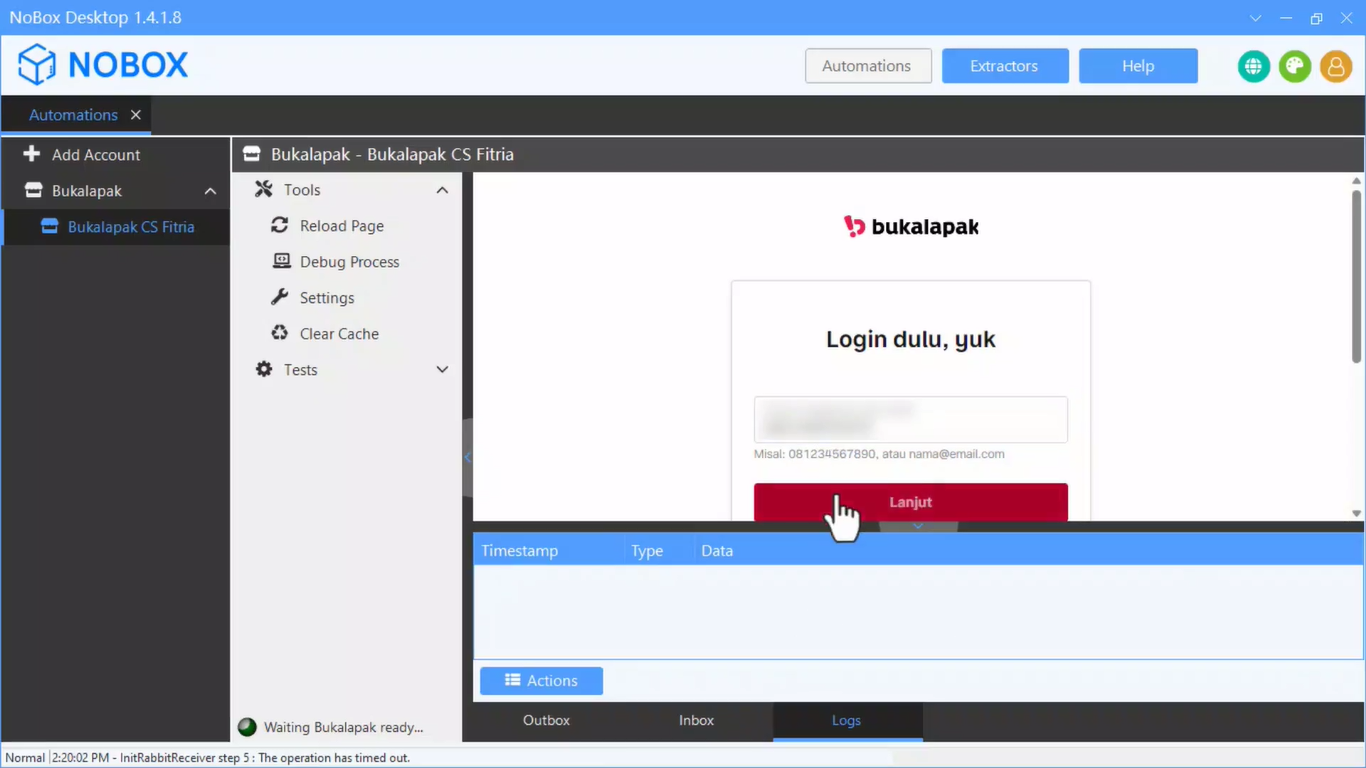
- Open the NoBox Desktop application.
- For newly created accounts, it will appear on NoBox Desktop. Then log in to your Bukalapak account to link it with your Bukalapak.
- Ensure that the [Logs] tab contains the information "Bukalapak Automation is ready".
- In the [Outbox] tab, make sure the status is [Worker On]. The account is then ready for use.
Automatic Login
You can also use the automatic login feature in NoBox Desktop by clicking the [Settings] menu. Enter your Bukalapak account username and password, then click [OK].
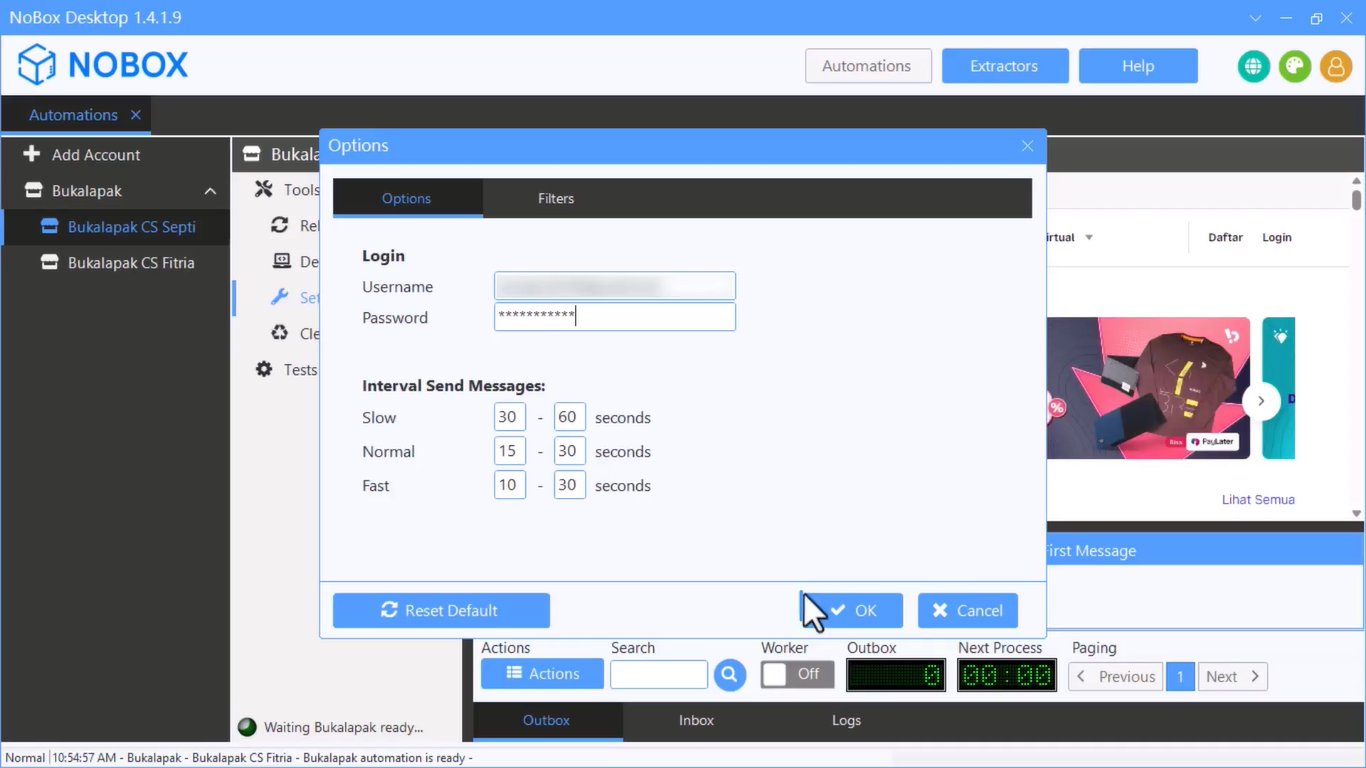
Setting Up Your Bukalapak Account
Your username and password will be set automatically on the Bukalapak login page. Ensure the logs tab shows "Bukalapak Automation is ready" and the [Outbox] tab status displays [Worker On]. If both are confirmed, your account is ready to use.
How to Use a Bukalapak Account
You can use your Bukalapak account to send campaigns as follows:
- Open the id.nobox.ai website, click on the [Campaigns] module, and select the [Campaigns] menu.
- Choose an existing campaign or create a new one, select the [Bukalapak] channel, and choose the [Bukalapak Jasmine] account you just created. Ensure the Bukalapak account is active.
- Verify that the campaign data is correctly filled in, then process the campaign.
- You can monitor the campaign delivery from NoBox Desktop in the [Outbox] tab.
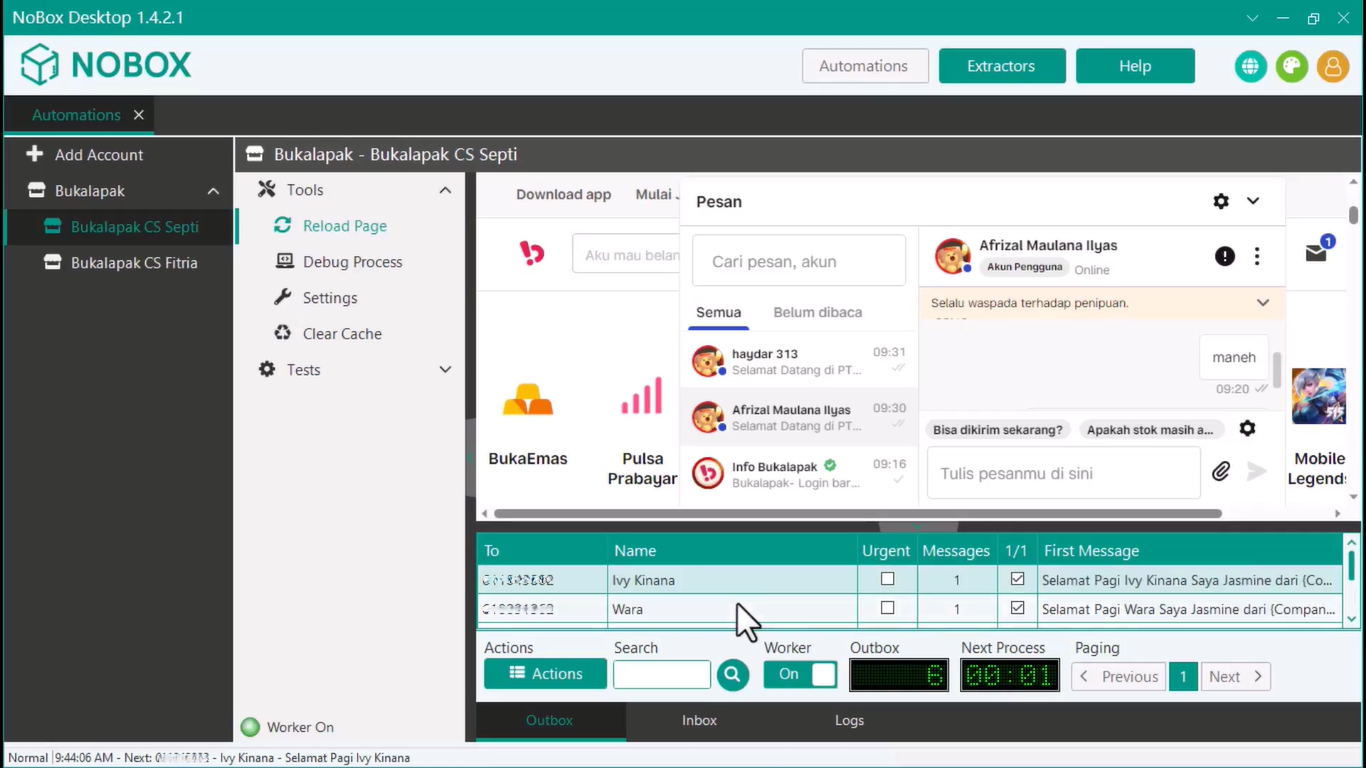
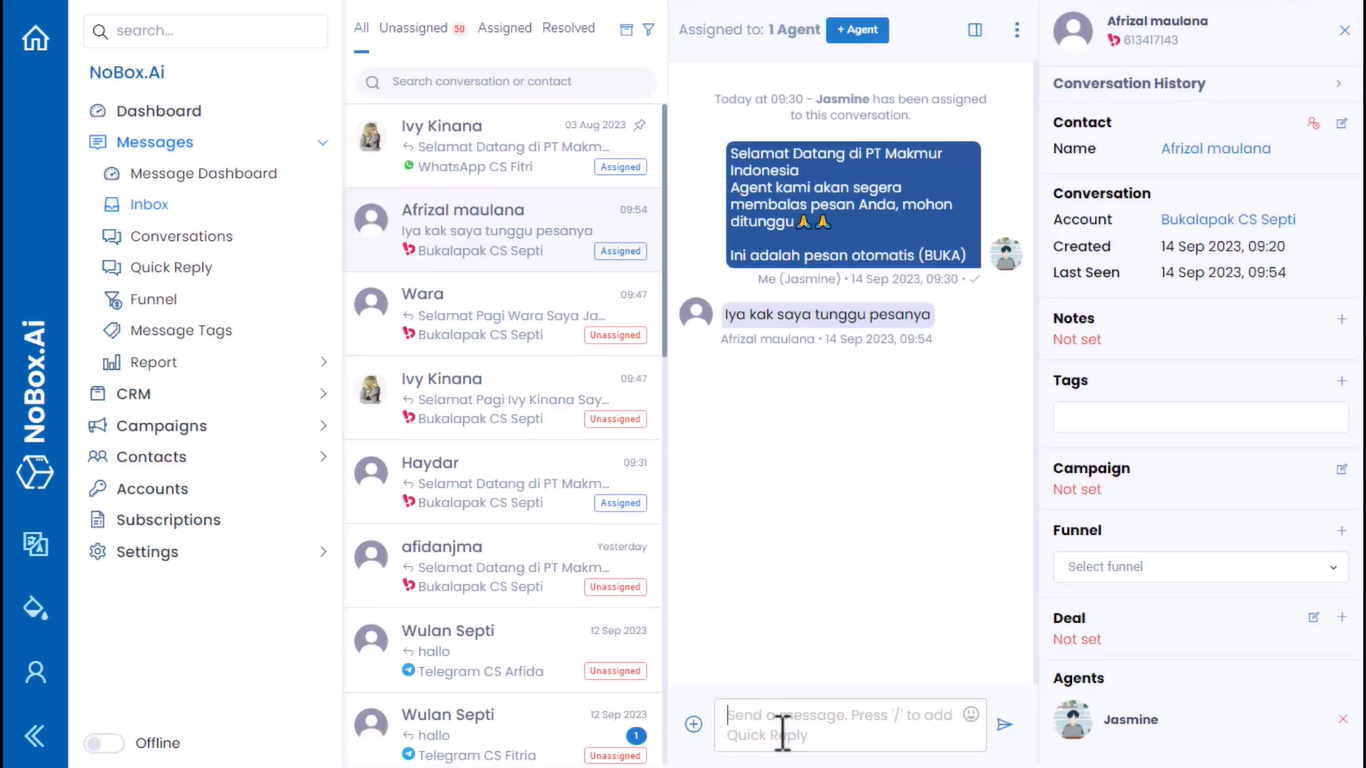
- Additionally, you can view the campaign results in the [Inbox] menu, allowing you to monitor campaign outcomes and directly respond to chat messages from your campaign targets.
Pause Campaign Process
This feature allows you to easily pause the campaign sending process. Here's how:
- In the [Outbox] tab, click the [Worker] button and ensure the worker status is [OFF].
- The sending process will then be paused.
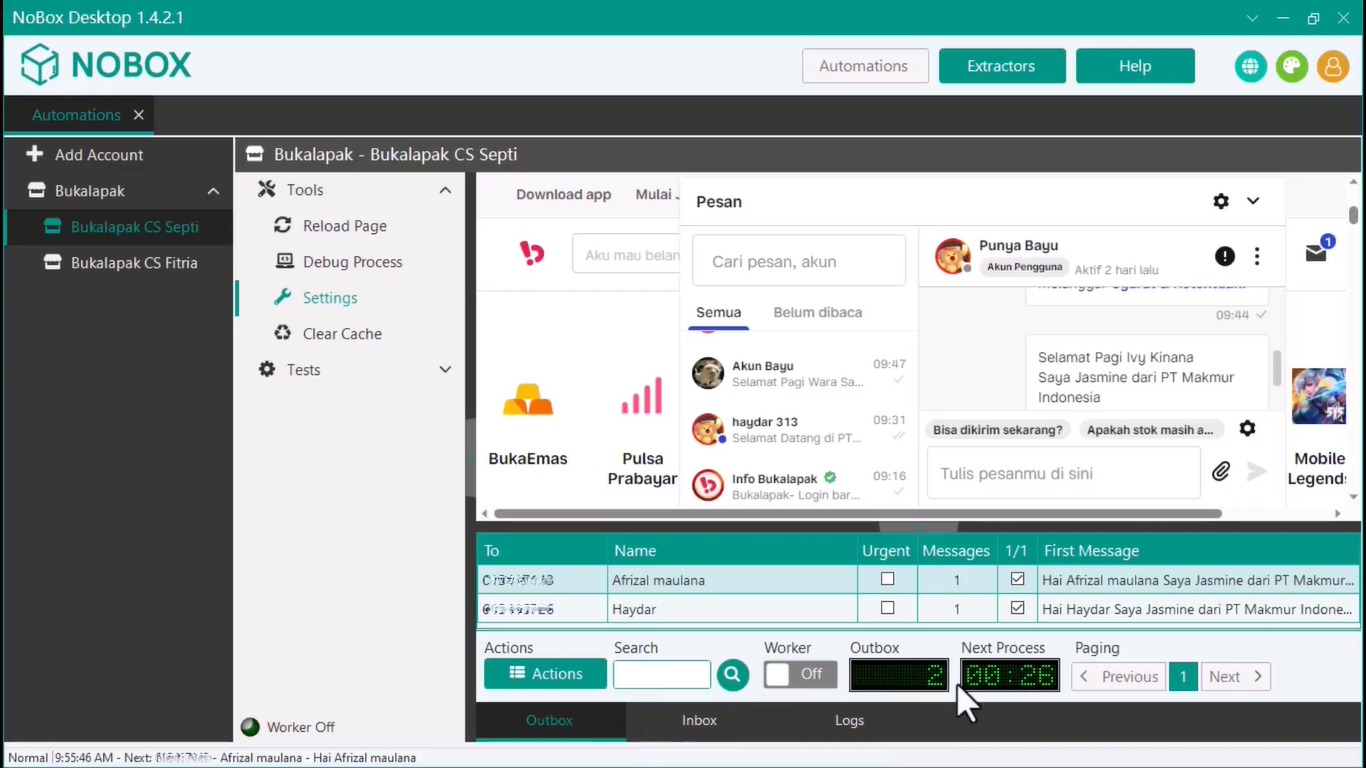
- To continue the shipping process, you can click the [Worker] button and ensure the worker status is [ON].
- The shipping process will then proceed.
Deactivating Bukalapak Account
This feature helps reduce the RAM usage of the NoBox Desktop application on your device.
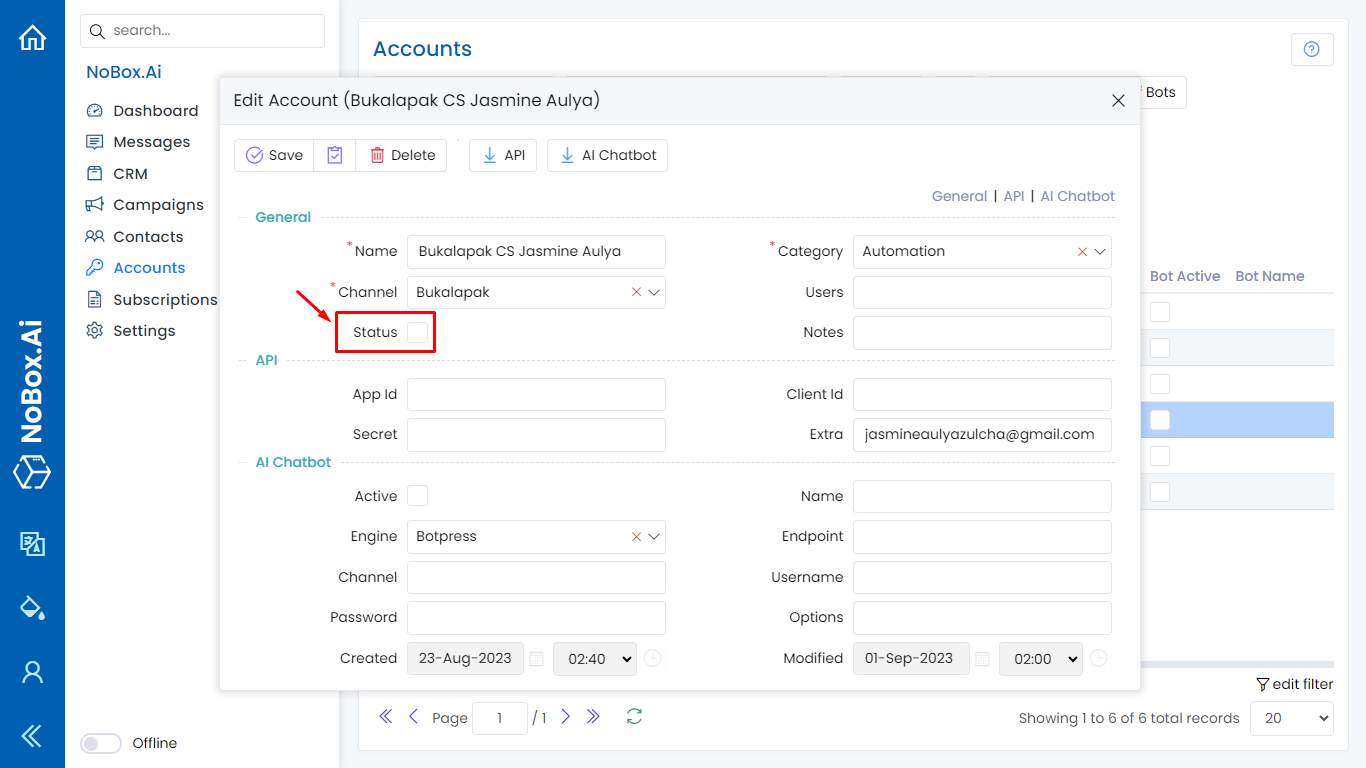
To deactivate an account, select one of your Bukalapak accounts, then uncheck the status box. Once done, click [Save] to save the changes.
You can check the NoBox Desktop application, the recently deactivated Bukalapak account does not appear.
Edit and Delete Account
To edit an account, please visit and log in to the website id.nobox.ai. Click on the [Accounts] menu. Select the account you want to edit, make the necessary changes to your data, and then click [Save] to save the changes.
To delete an account, select the account you wish to delete, then click [Delete]. A confirmation message will appear asking if you want to delete the account. Click [Yes] to proceed or [No] to cancel.
If you have any issues or difficulties related to Nobox.Ai, please contact us through Support Ticket