Tokopedia
Tokopedia Automation bisa secara efisien mengotomatisasi follow up calon pelanggan Anda dan mengirim pesan ke Tokopedia dengan kecepatan dan kualitas hasil yang terbaik. Software ini dapat membantu bisnis Anda untuk mengirimkan pesan secara otomatis kepada (calon pelanggan Anda) dan bisa mengirimkan berbagai jenis pesan yang dapat disesuaikan dengan kebutuhan bisnis Anda.
New Account
Ensure you are subscribed to Tokopedia Automation. To add a new account, click the [Accounts] ➔ [New Account] menu, and a [New Account] dialog will appear.
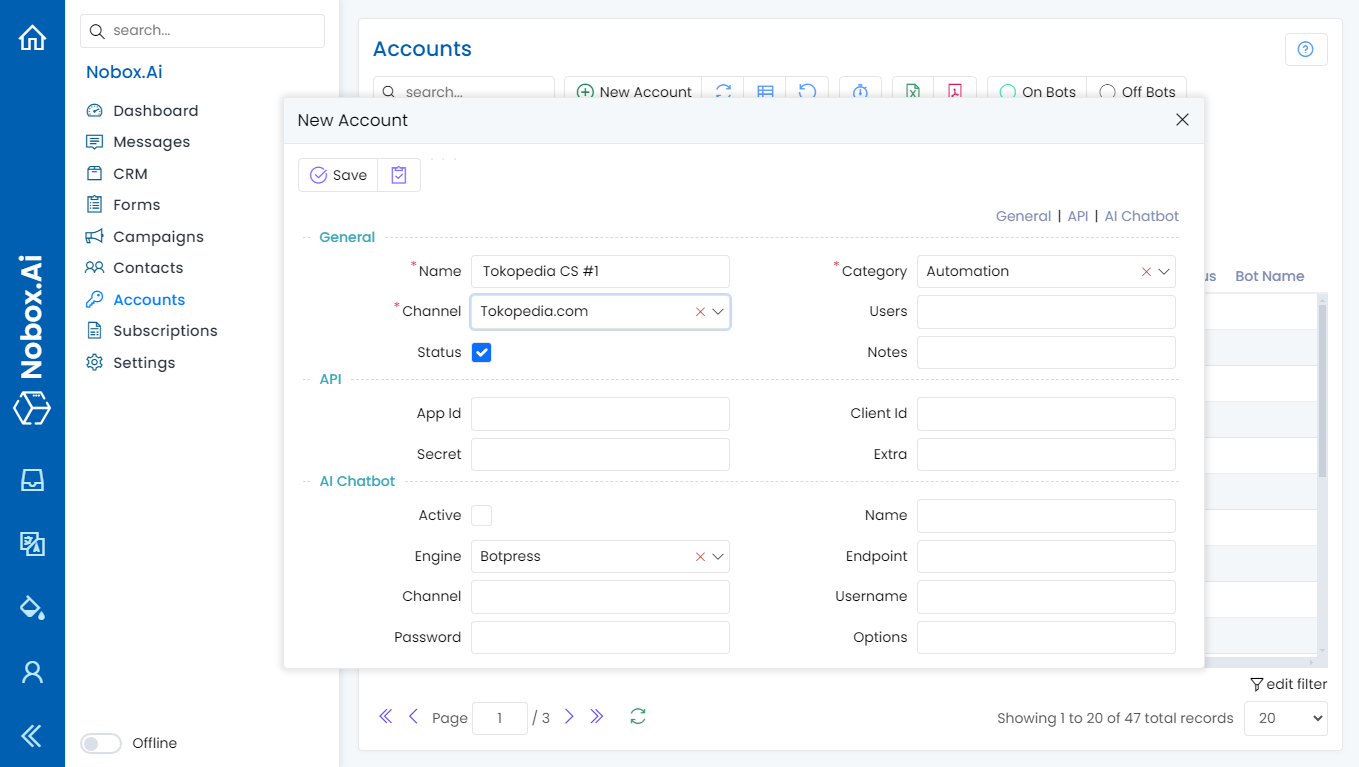
| Field | Description | Example |
|---|---|---|
| Channel | The channel you choose | Tokopedia |
| Name | Your account name | Tokopedia CS Septi |
| Notes | Provide notes about the account | - |
| Status | Information if the account is active | Active |
If you have completed the fields, click [Save] to save the newly created account.
Configuration
Here you can see that the Tokopedia account has been successfully created. The newly created account will appear in the Chat Session.
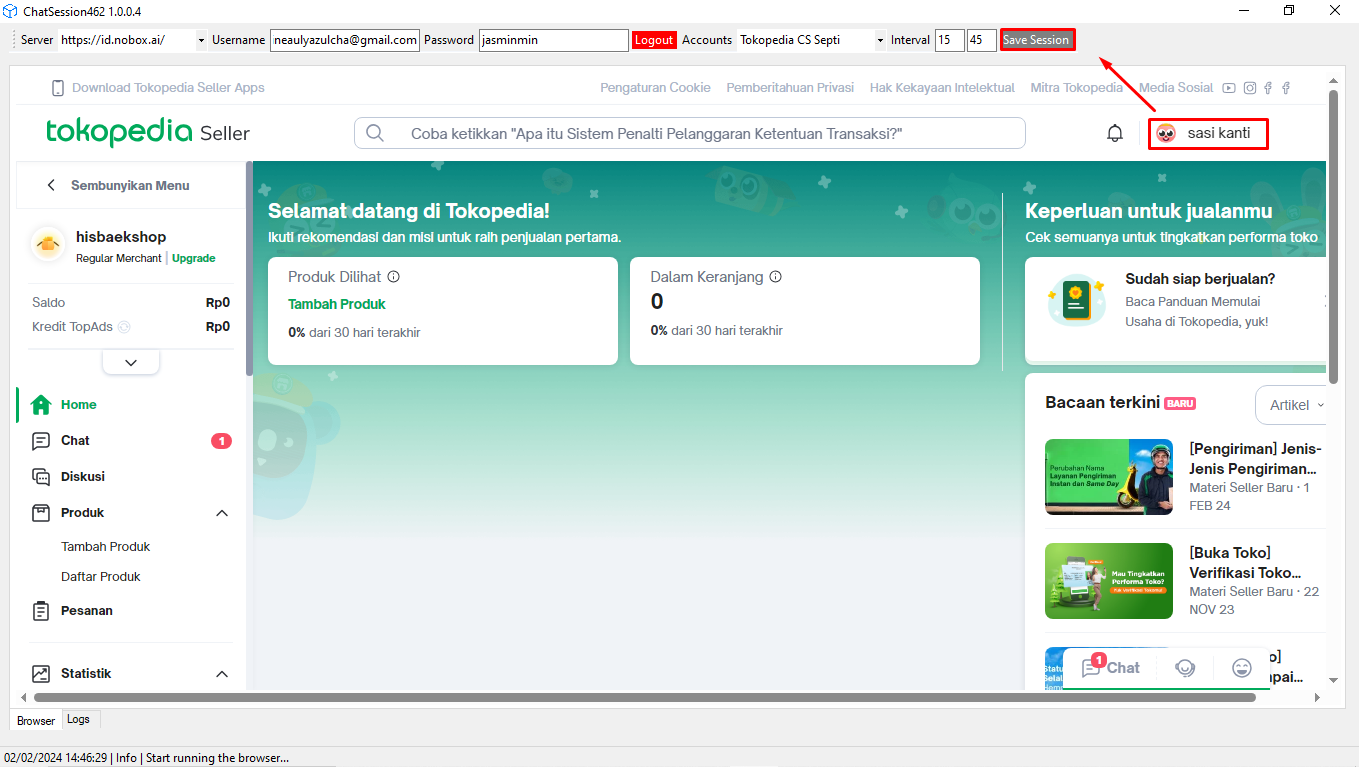
- Open Chat Session.
- Log in to Tokopedia to link it with your Tokopedia account.
- Click 'Save Session'.
- Ensure in the 'Logs' tab, there is information saying “Save session Shopee Automation successfully”.
Using Tokopedia Account
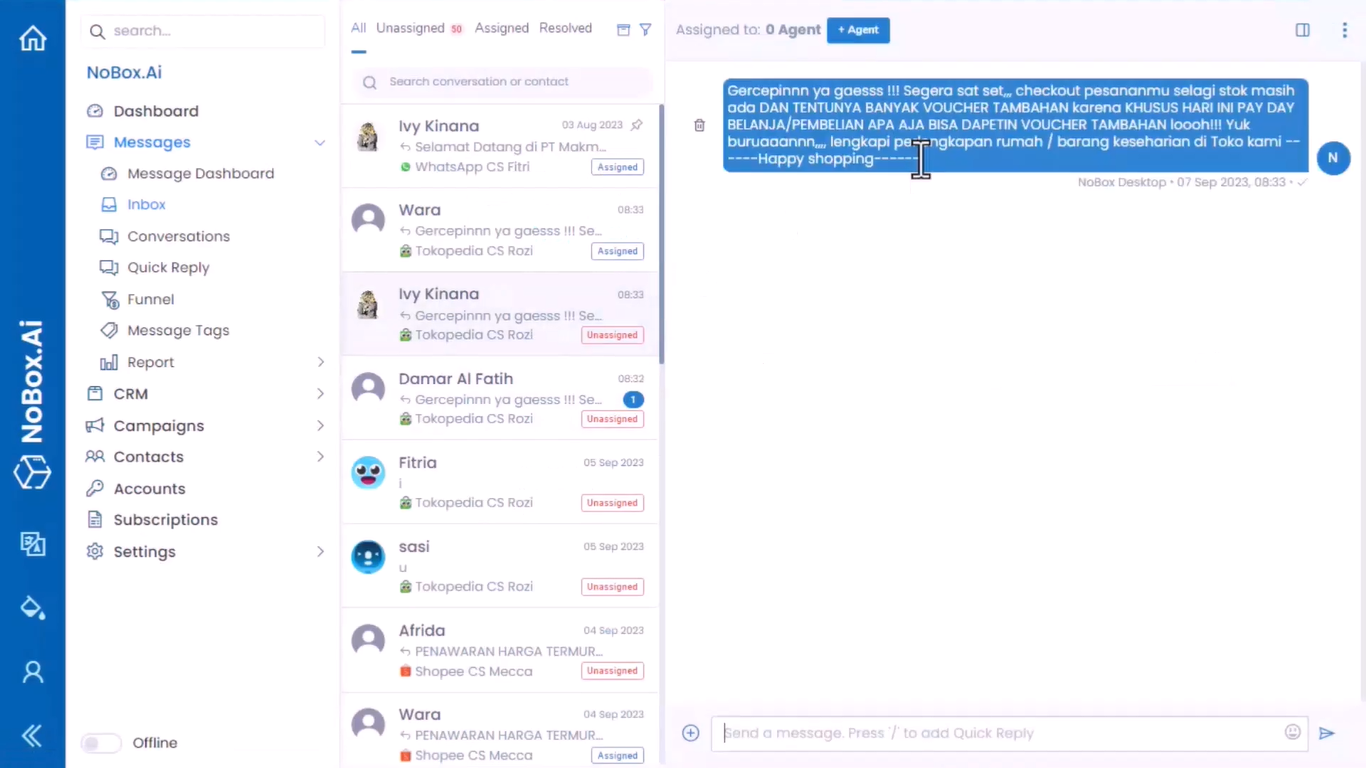
If the Tokopedia account has been successfully added, incoming messages to your Tokopedia account will automatically be directed to id.nobox.ai. Click the [Messages] module, then click [Inbox]. All messages from your accounts will be displayed. Choose one message from Shopee and respond to it.
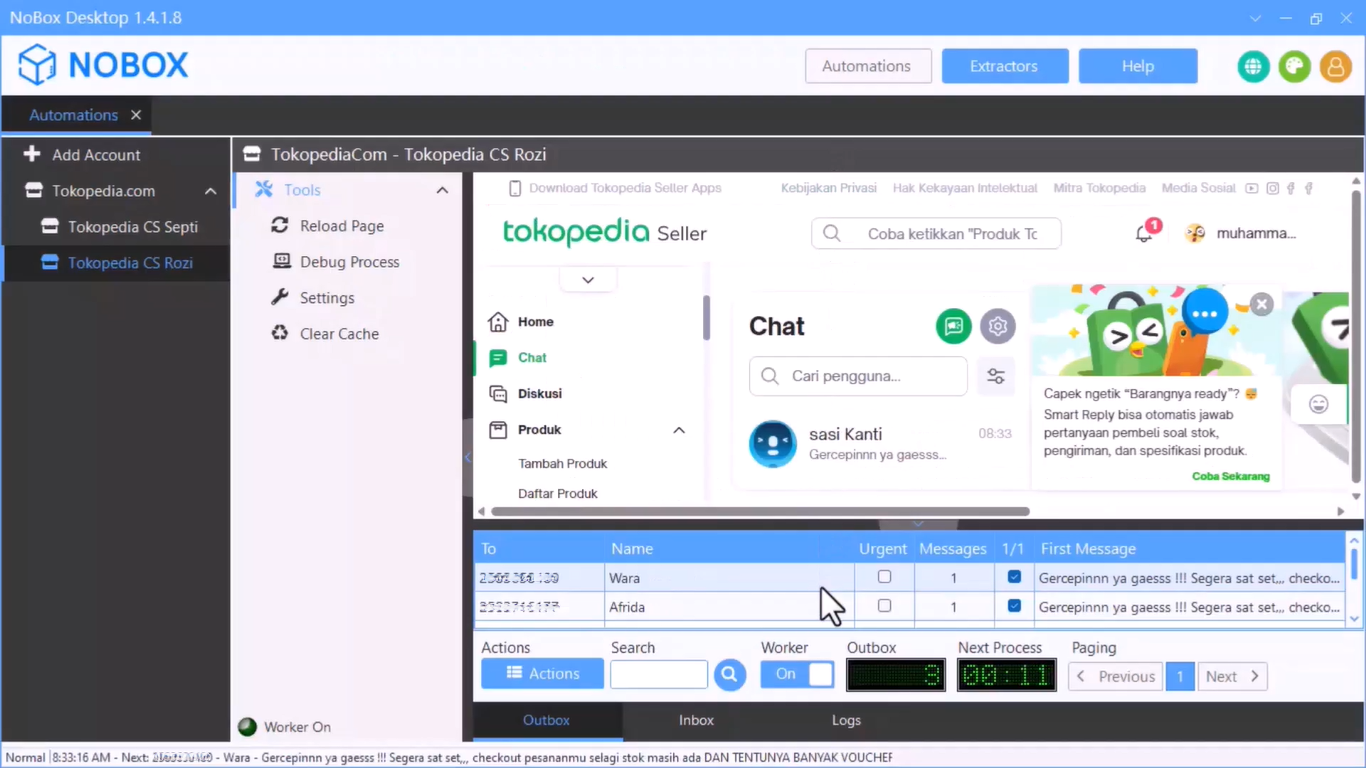
Additionally, you can view the campaign results in the [Inbox] menu, allowing you to monitor the campaign outcomes and directly reply to your campaign targets.
Deactivating a Tokopedia Account
To deactivate your account, select your Tokopedia account and uncheck the status box. Once done, click [Save] to save the changes.
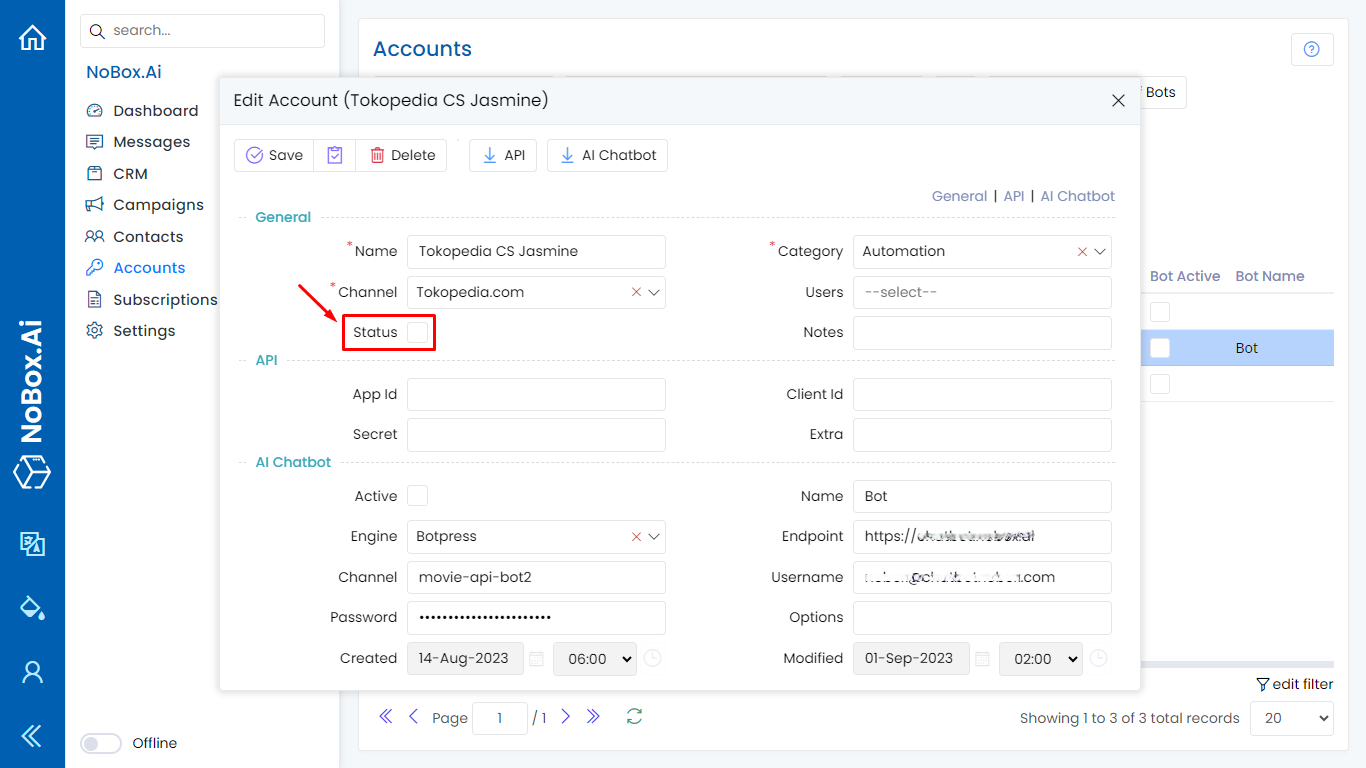
You can check the Chat Session, the recently deactivated Tokopedia account will not be displayed.
Edit and Delete Account
To edit an account, please open and log in to the website id.nobox.ai, click the [Accounts] menu. Choose the account you wish to edit, then proceed to edit your data and click [Save] to save the changes.
To delete an account, please select the account you wish to delete, then click [Delete]. A confirmation message will appear asking if you want to delete the account. If yes, click [Yes]; if not, click [No].
If you have any issues or difficulties related to Nobox.Ai, please contact us through Support Ticket