Telegram
Efficient Telegram automation can streamline your follow-ups with prospective customers, delivering messages to Telegram quickly and with high quality. It enables the sending of customizable automated messages tailored to your needs and can be integrated with a chatbot to enhance interactions with potential customers effectively.
New Account
Ensure that you are subscribed to Telegram. To add a new account, click the [Account] module ➔ [New Account] and a [New Account] dialog will appear.
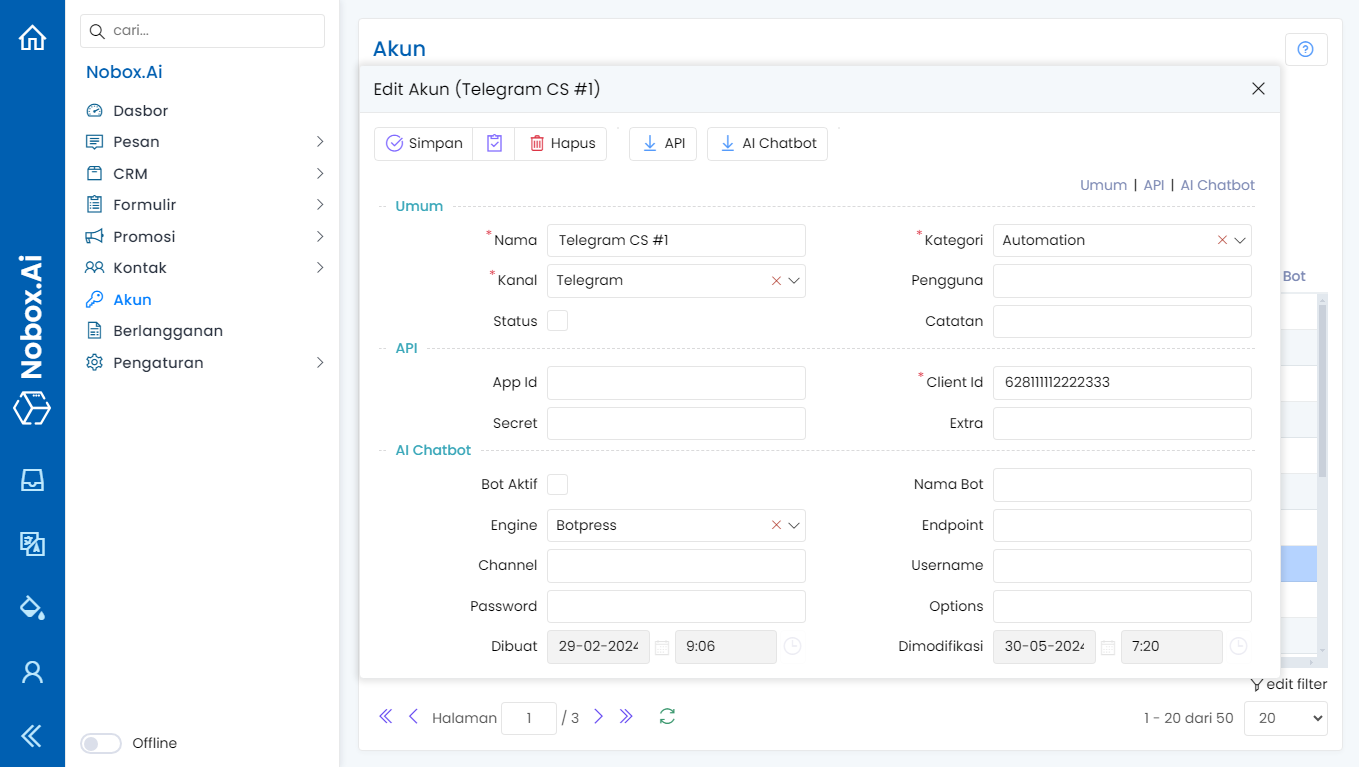
| Field | Description | Example |
|---|---|---|
| Channel | The channel you select | Telegram |
| Category | Select category | Automation |
| Name | Your account name | Telegram CS #1 |
| Notes | Provide notes about the account | - |
| Status | Information whether the account is active or not | Active |
| Client Id | Enter your Telegram number, number format should be +62 | +6281111112222 |
After you complete the fields, click [Save] to save the newly created account.
Configuration
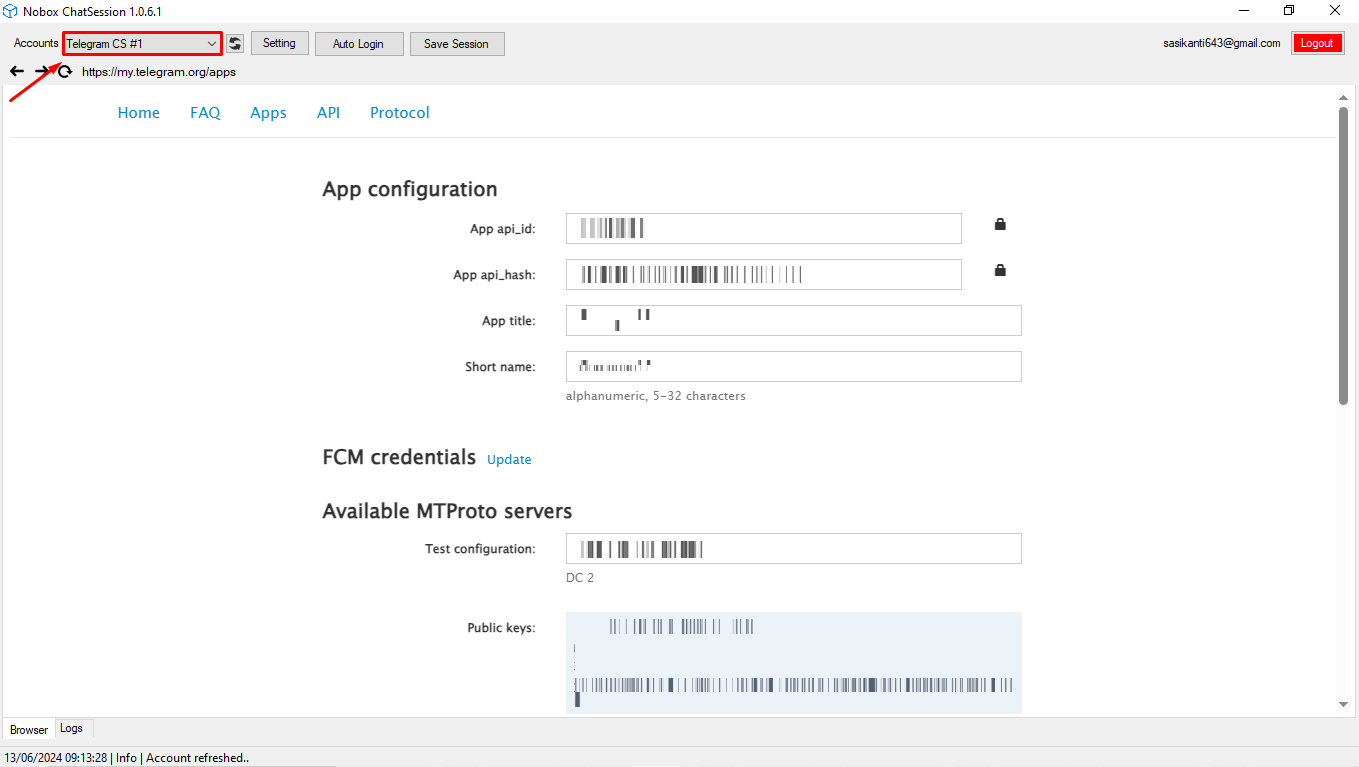
Here you can see that the Telegram account has been successfully created. The newly created account will appear in NoboxChatSession. Follow the steps below to configure your Telegram account.
- Accessing API Development Tools:
- Enter your Telegram number, click [Sign In], open settings, and select [API Development Tools].
- If this is your first time using the Telegram API, follow these steps:
- Enter App Title: Enter the title of your application.
- Enter Short Name: Enter a short name for your application.
- Select Platform: Select the platform used, such as Android, iOS, or others.
- Creating a Telegram API:
- After filling in all the required information, click the [Create Application] button to create a Telegram API application.
- Once the application is successfully created, your Telegram API data will be displayed.
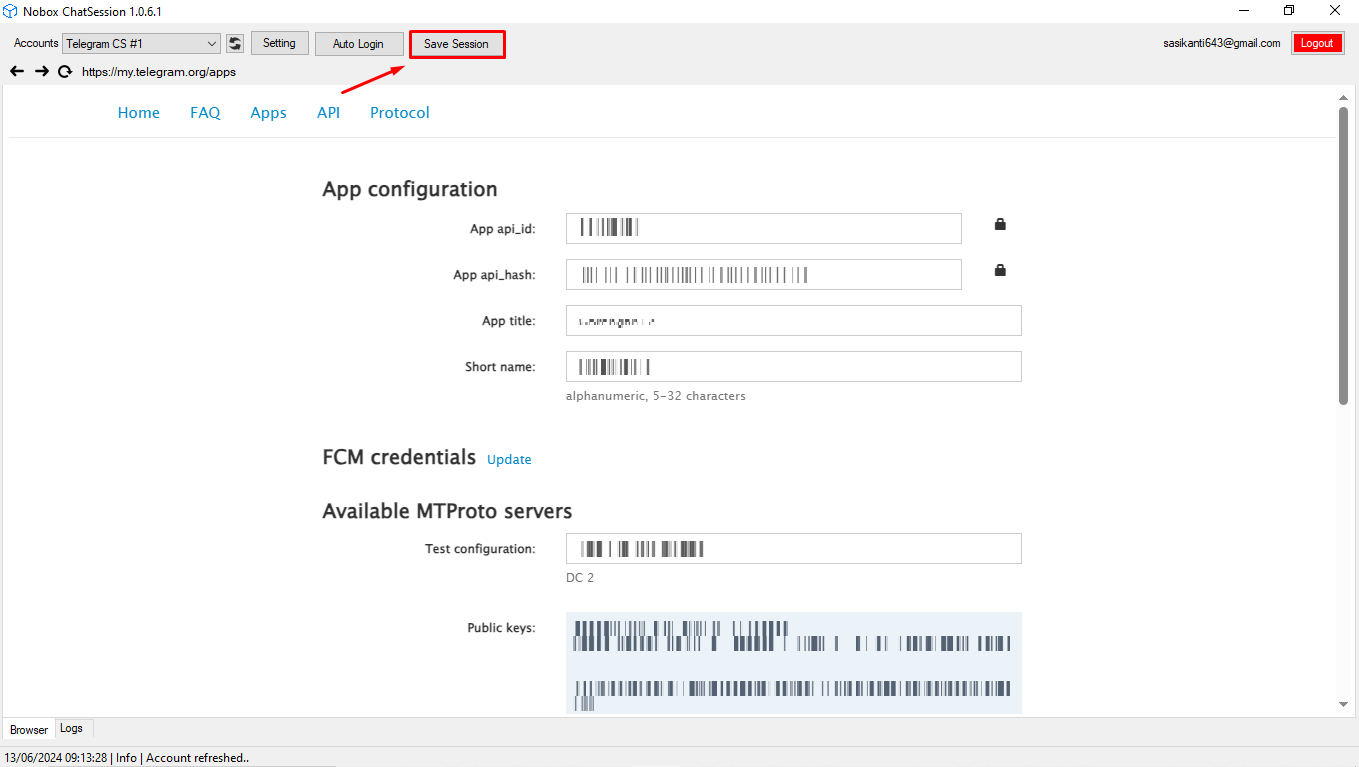
- Save Session
- Then click the [Save Session] button, a notification will appear indicating that the session saving process is in progress. Click [OK] to continue.
- Wait a moment until a dialog appears to enter the verification code.
- Enter the verification code sent by Telegram, click [OK].
- Ensure there is information in the logs tab stating “Save session Telegram Automation successfully”.
- The configuration process is successful, and your Telegram account is ready to use.
How to Use a Telegram Account
You can use a WhatsApp account to send promotions, follow these steps:
- Click on the [Promotions] module, then click [Promotions].
- Select an existing promotion or create a new one, choose the [Telegram] channel, select the [Telegram] account you just created, and ensure your Telegram account is active.
- Make sure the promotion data is filled out correctly, then proceed.
- To monitor promotion delivery, you can open the [Send Message] tab.
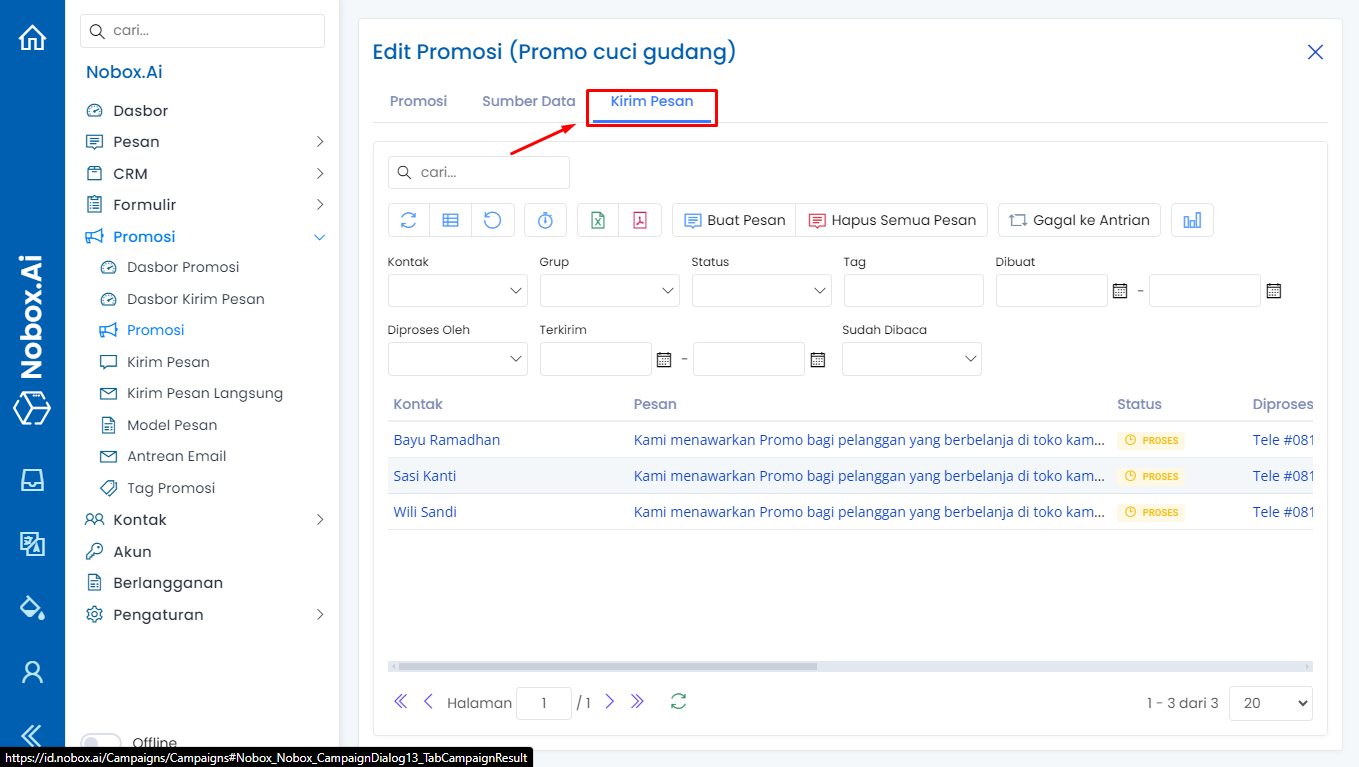
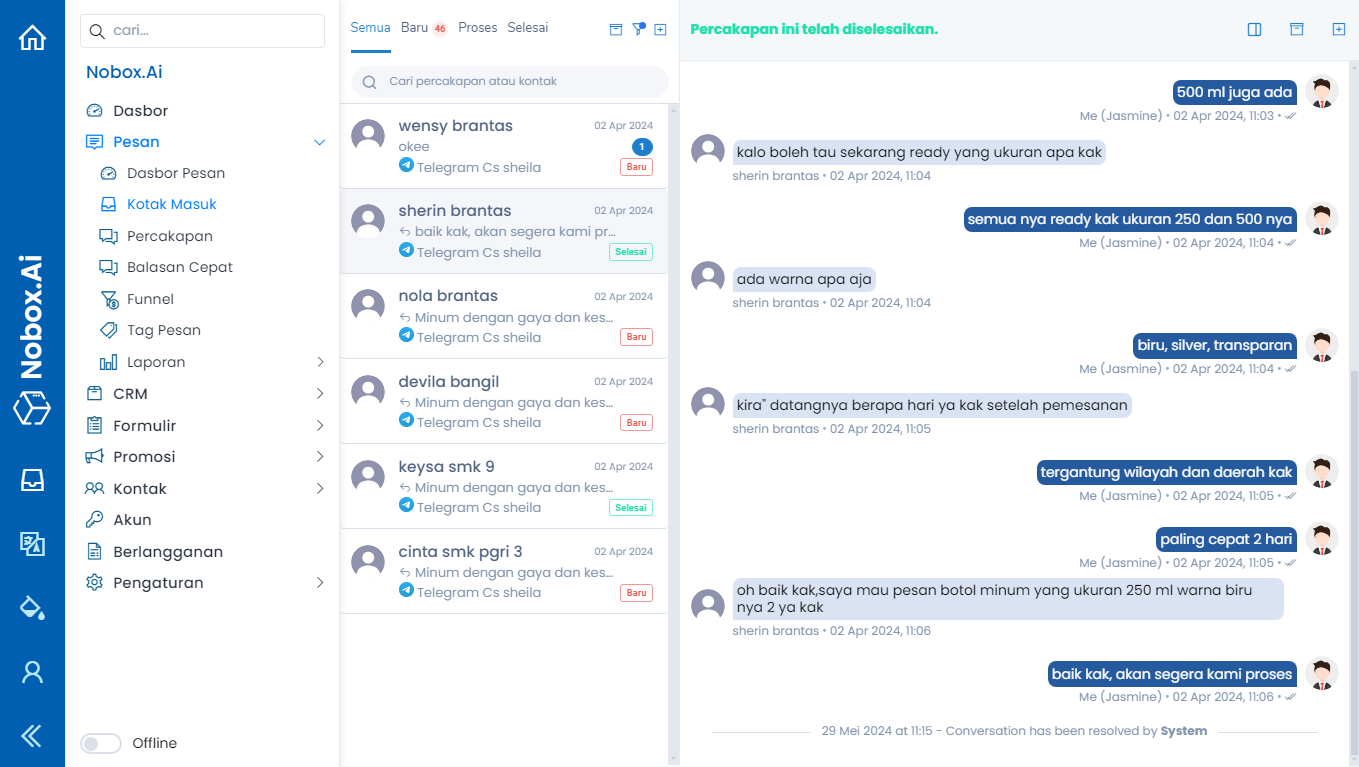
- Additionally, you can also view promotion results in the [Inbox] menu, allowing you to directly monitor promotion outcomes and respond to chats with your promotion targets.
Deactivating a Telegram Account
To deactivate your account, select one of your Telegram accounts and uncheck the status section. Once done, click [Save] to apply the changes.

Edit and Delete Account
To edit an account, please visit the Nobox website, click on the [Account] menu. Choose the account you wish to edit, then update your information and click [Save] to save the changes.
To delete an account, select the account you wish to delete, then click [Delete]. A confirmation notification will appear asking if you want to delete the account. Click [Yes] to confirm, or [No] to cancel.
If you have any issues or difficulties related to Nobox.Ai, please contact us through Support Ticket