Scrape Google Maps
The Google Maps Extractor can efficiently extract business prospect data (your potential customers) from Google Maps with the best speed and quality of results. This software extracts various available data from Google Maps, including links, business names, addresses, phone numbers, websites, ratings, total views, opening hours, image links, latitude, longitude, plus code, and business fields. The data is automatically stored in NoBox.Ai. You can export the data in Excel (.xlsx, .csv) and JSON (.json) file formats.
Add Account
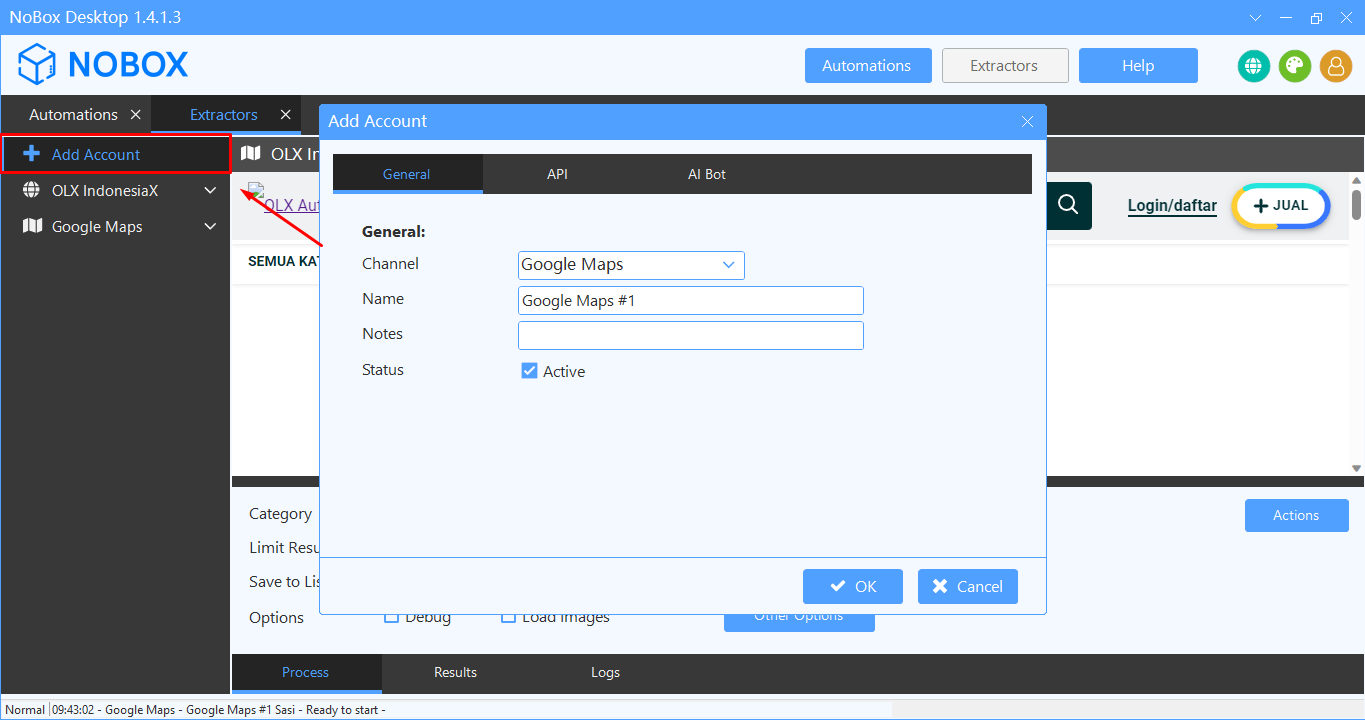
To add a new Extractor, please open the NoBox Desktop ➔ [Add Account] application, and a dialog box [Add Account] will appear.
| Entry | Description | Data Example |
|---|---|---|
| Channel | The channel you choose | Google Maps |
| Name | Your Account Name | Google Maps #1 |
| Notes | Provide notes regarding the account. | - |
| Status | Check if the account is active or not. | Active |
If you have completed the required fields, click [OK] to save the account you just created.
Based Operational
Before proceeding to the data scraping stage, you need to understand the basic operation of the application and the functions of the Google Maps Extractor features as follows:
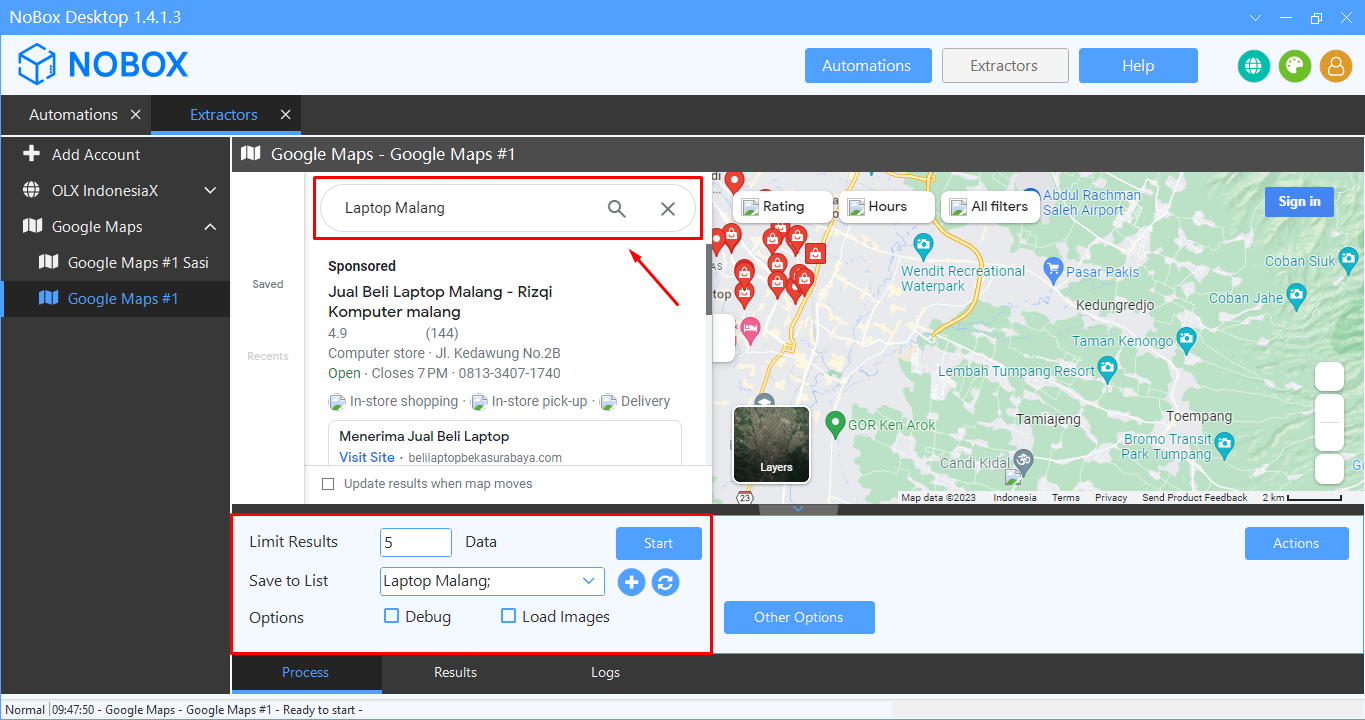
- Open the NoBox Desktop application
- Enter the data search term in the [Search Google Maps] field.
- Content for section [Process]
- Enter [Limit Result] to specify the number of data entries to retrieve.
- Select a list to save the extraction data in [Save to List] or add a new list.
- Select [Options] to display debug mode or an image of the item.
| Entry | Description | Data Example |
|---|---|---|
| Limit Result | Enter the amount of data to retrieve | 5 |
| Save to list | Select/add a data list to store the extracted data. | Laptop Malang |
| Options | Check if you want to debug and load images | - |
Scrape Data
Google Maps data scraping allows you to quickly, easily, and efficiently extract information about sellers or advertisers from various product and service listings.
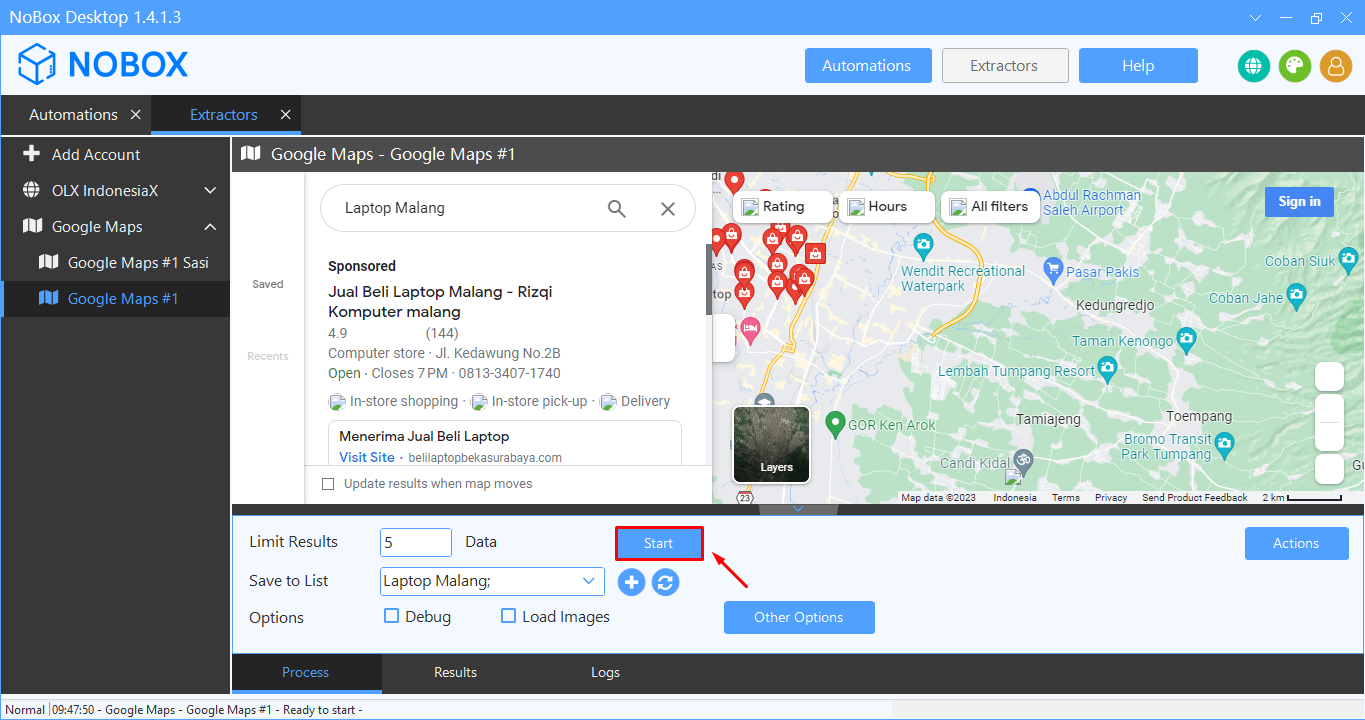
- After data processing is complete, click [Start] to begin data extraction.
- Wait a moment until you receive a notification that the data extraction is complete.
- If the amount of data taken is less than the entered amount, then there are some duplicate data issued by the same installer.
- Data automatically collected will be saved to the Contacts menu in NoBox.Ai.
Filter Google Maps
In Google Maps features, there are several types of filters, including:
Filter By Category
You can filter the data we will retrieve based on its category. Here's how to do it:
- Open the Google Maps app and select the category you want to search.
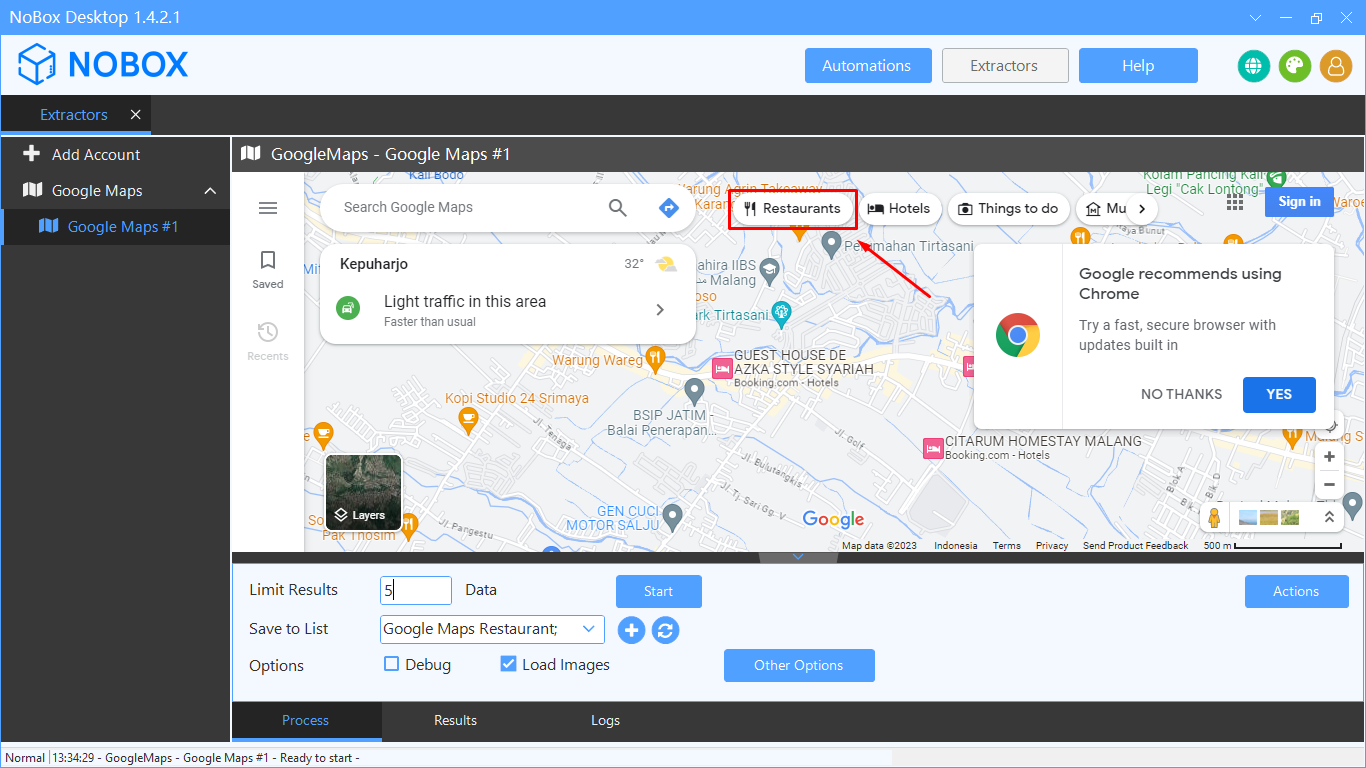
- Enter [Limit Result] to determine the number of data entries to retrieve.
- Select a list to save the extracted data in [Save to List] or add a new list.
- Select [Options] to display debug mode or item images.
- After the data operation is complete, click [Start] to begin data extraction.
Filter By Open Hours
You can filter the data based on the opening hours of the place. Here's how:
- Open the Google Maps channel, enter the search data to be retrieved in the [Search Google Maps] field, and select the opening hours you want to check.
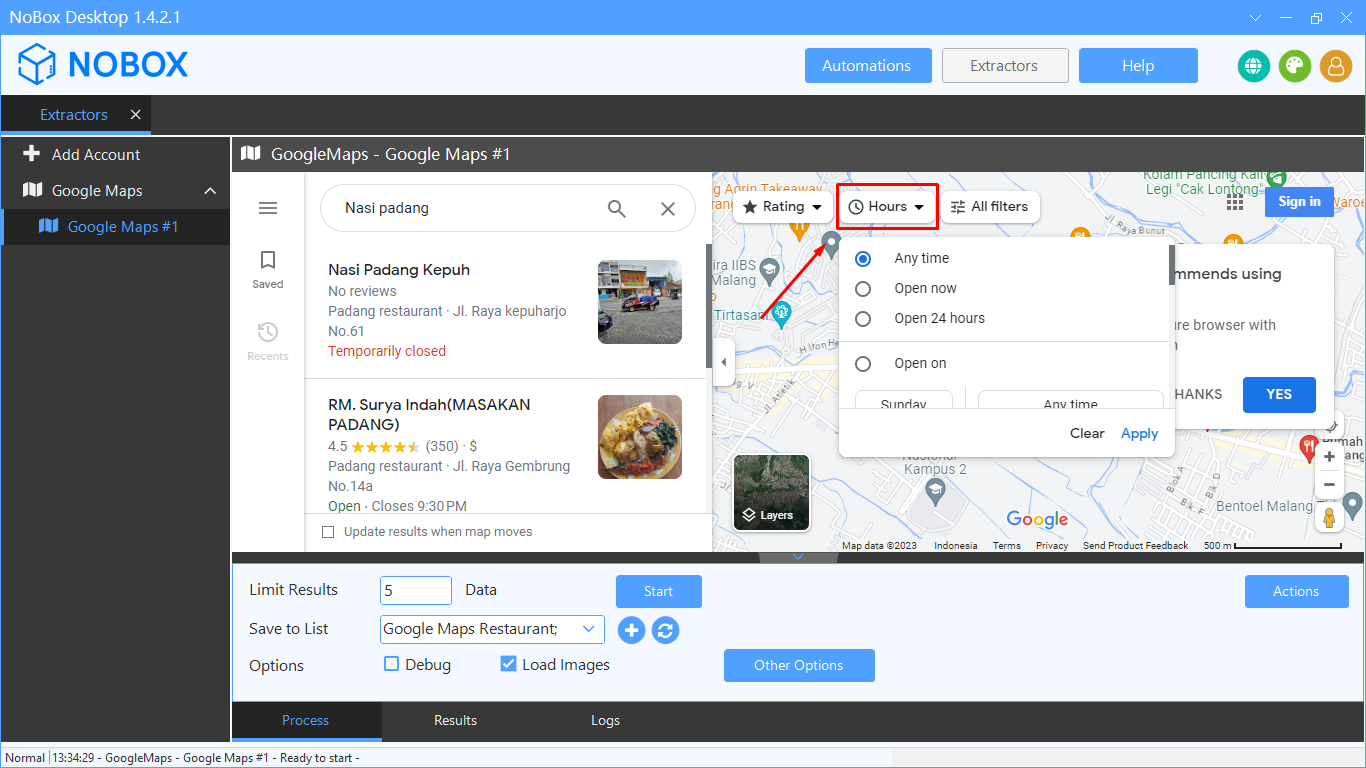
- Enter [Limit Result] to specify how many data entries will be retrieved.
- Choose a list to store the extracted data in [Save to List] or create a new list.
- Select [Options] to display debug mode or images of the items.
- After the data operation is complete, click [Start] to begin data extraction.
Filter By Rating
You can filter the data we will take based on the rating of the place, the procedure is as follows:
- Open Google Maps, enter the data to be retrieved in the [Search Google Maps] field, and select the desired rating.
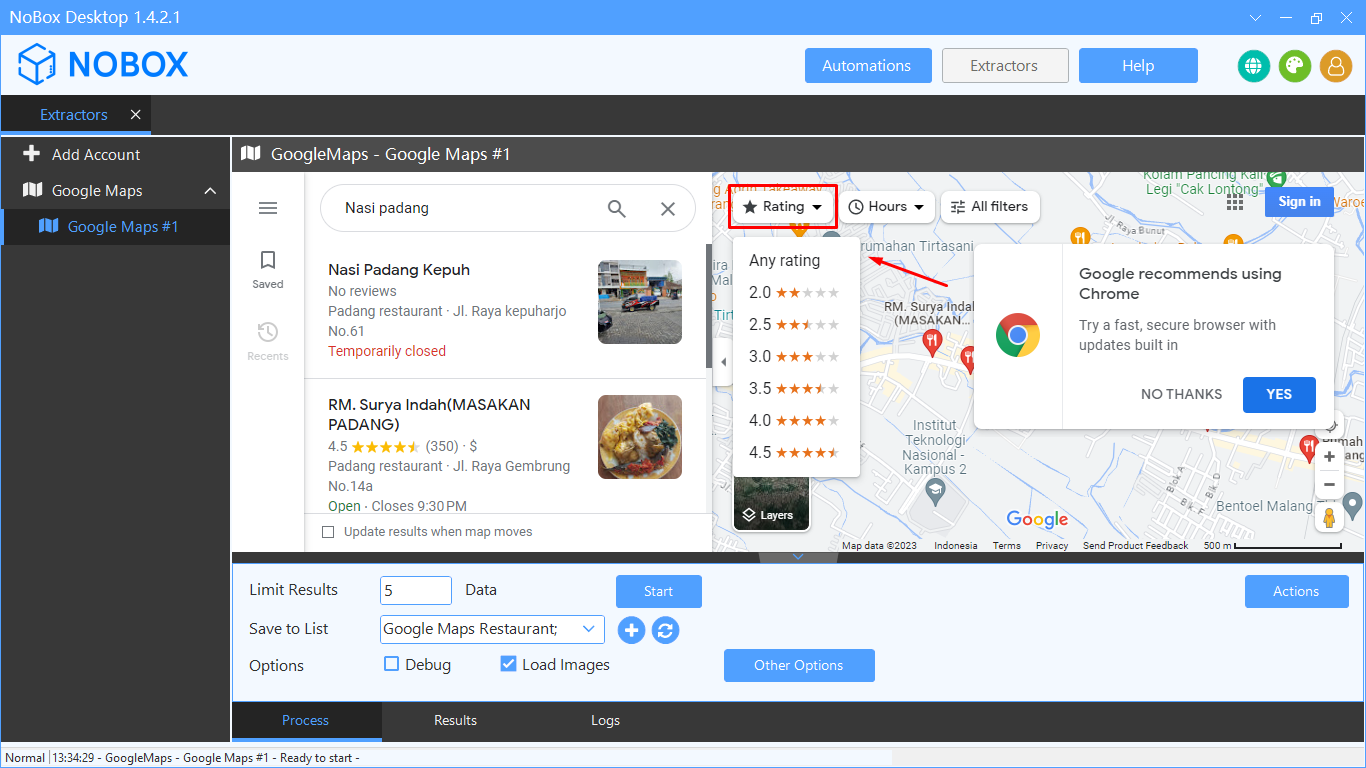
- Enter [Limit Result] to specify the number of data entries to retrieve.
- Choose a list to store the extracted data in [Save to List] or add a new list.
- Select [Options] to display debug mode or images of the items.
- After the data operation is complete, click [Start] to begin data extraction.
Filter By Multiple
You can filter the data we will retrieve based on several criteria. Here's how:
- Open the Google Maps channel, enter the data you want to search for in the [Search Google Maps] field, and select some filters. For example, opening hours and the place's rating.
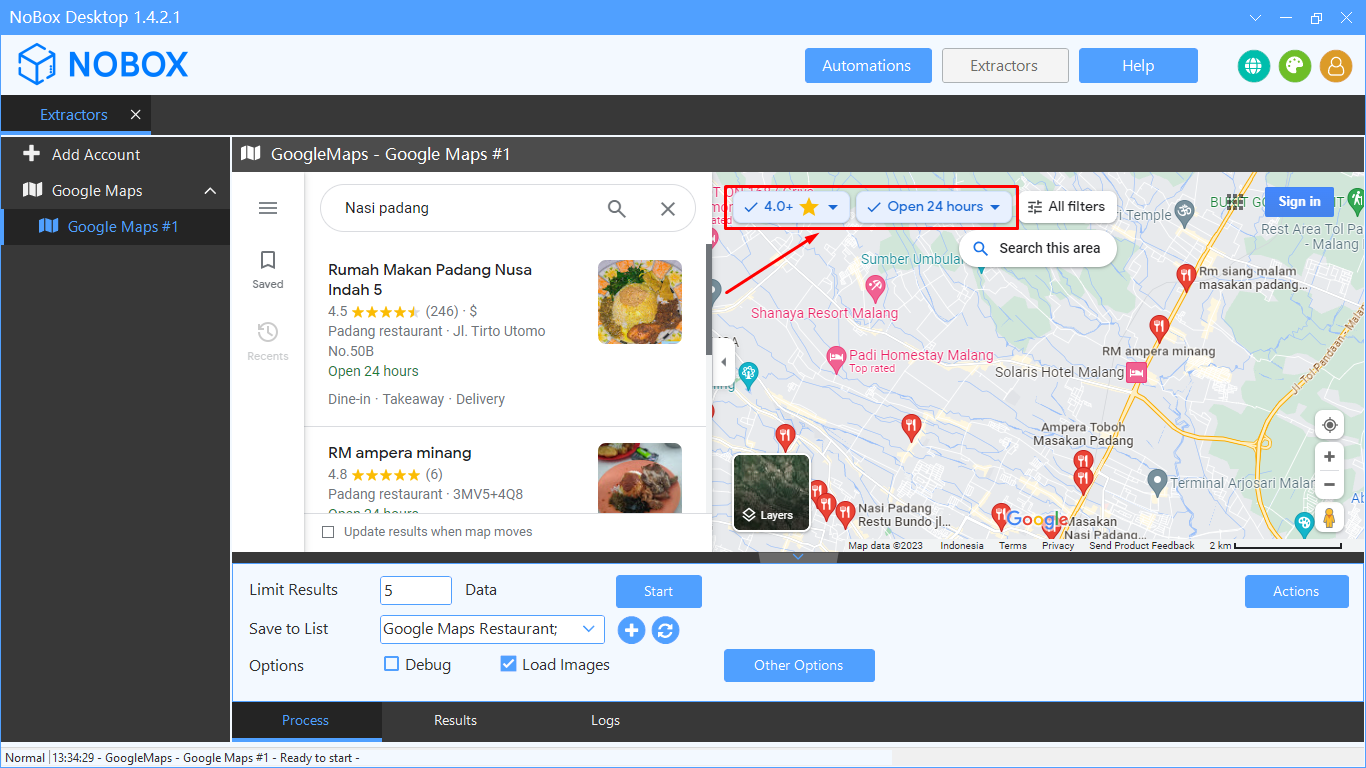
- Enter [Limit Result] to specify the number of data entries to retrieve.
- Select a list to store the extracted data in [Save to List] or add a new list.
- Select [Options] to display debug mode or item images.
- After completing data operations, click [Start] to begin data extraction.
Edit and Delete Account
To edit an account, please open and log in to the website at id.nobox.ai, click the [Accounts] menu. Choose the account you wish to edit, then update your information and click [Save] to save the changes.
To delete an account, please select the account you wish to delete and click [Delete]. A confirmation message will then appear, asking if you want to delete the selected account. Click [Yes] to proceed or [No] to cancel.
If you encounter any issues or difficulties related to NoBox Desktop, please contact us via Support Ticket