Feature
The Automation NoBox Desktop menu includes several features, such as the following:
Manage Chat
Manage chat is a feature that functions to display all message data from your account.
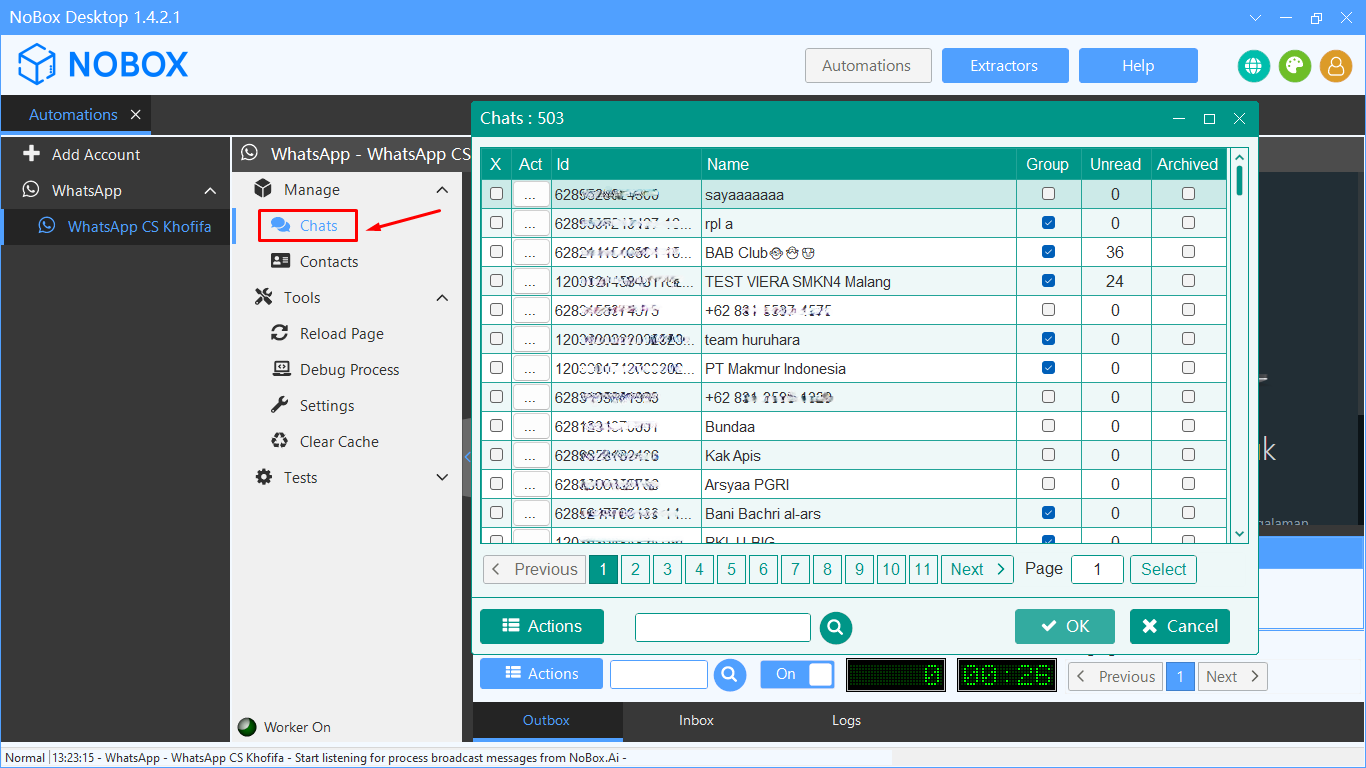
| Column | Description |
| Act | Button to perform specific actions like (send message, open chat window, and extra) |
| Name | Your account contact name |
| Type | Type of group you are in (Chat, channel, etc.) |
| Participants Count | Number of group members |
| Username | Group username |
Get Group Members
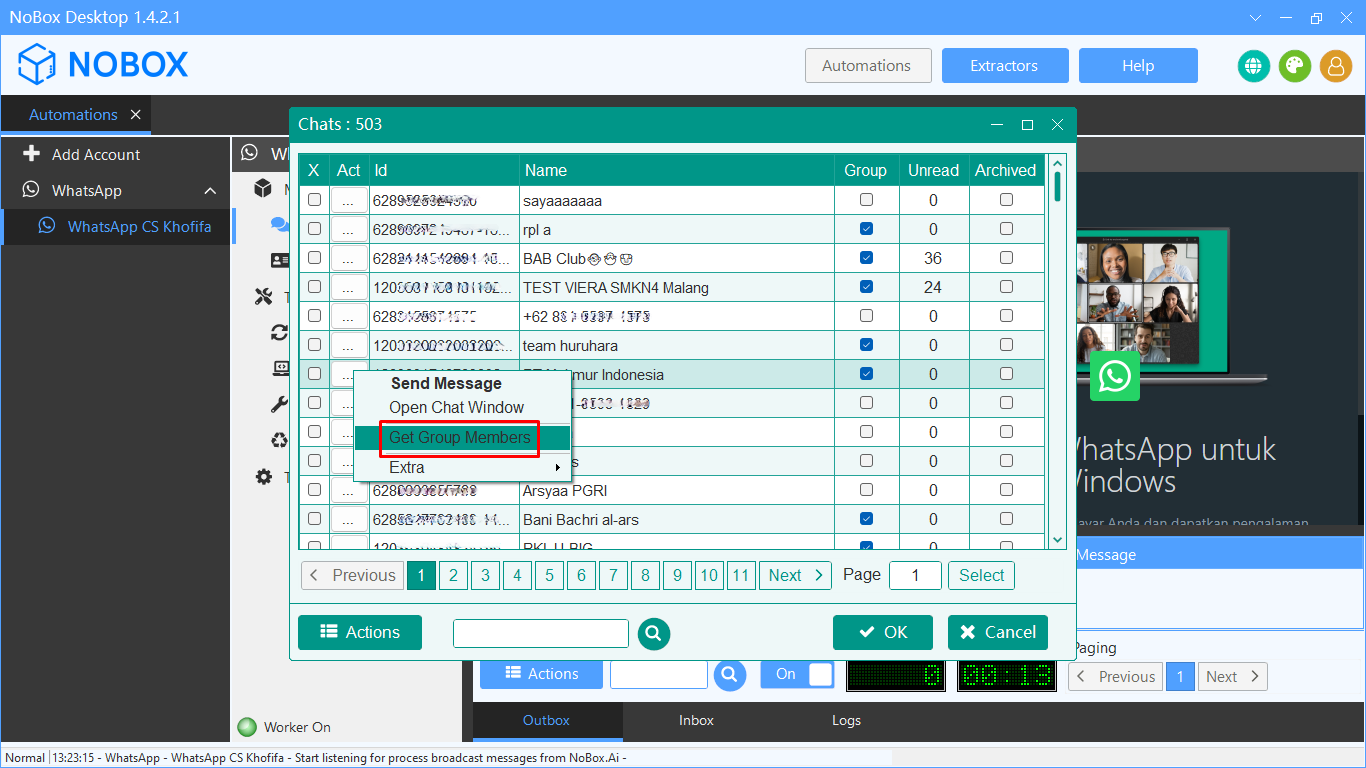
This feature is used to extract contact data of group or channel members from your account to NoBox.Ai as follows:
- Click the [Chats] menu, a list of chats will appear on your account, then select a group or channel.
2. Click  Select [Get Group Members] and choose the members to add to NoBox.Ai
- Click the [Actions] ➔ [Add to NoBox.Ai] button, select the target list, and click [OK].
- Wait until the process is complete. An information dialog will appear once the process is finished.
- You can also check the data through the [Contacts] menu in NoBox.Ai by filtering the data according to the list you selected earlier.
- A contact list that has been added will be displayed.
Manage Contact
Manage contact is a feature used to check Telegram contact numbers connected with you.
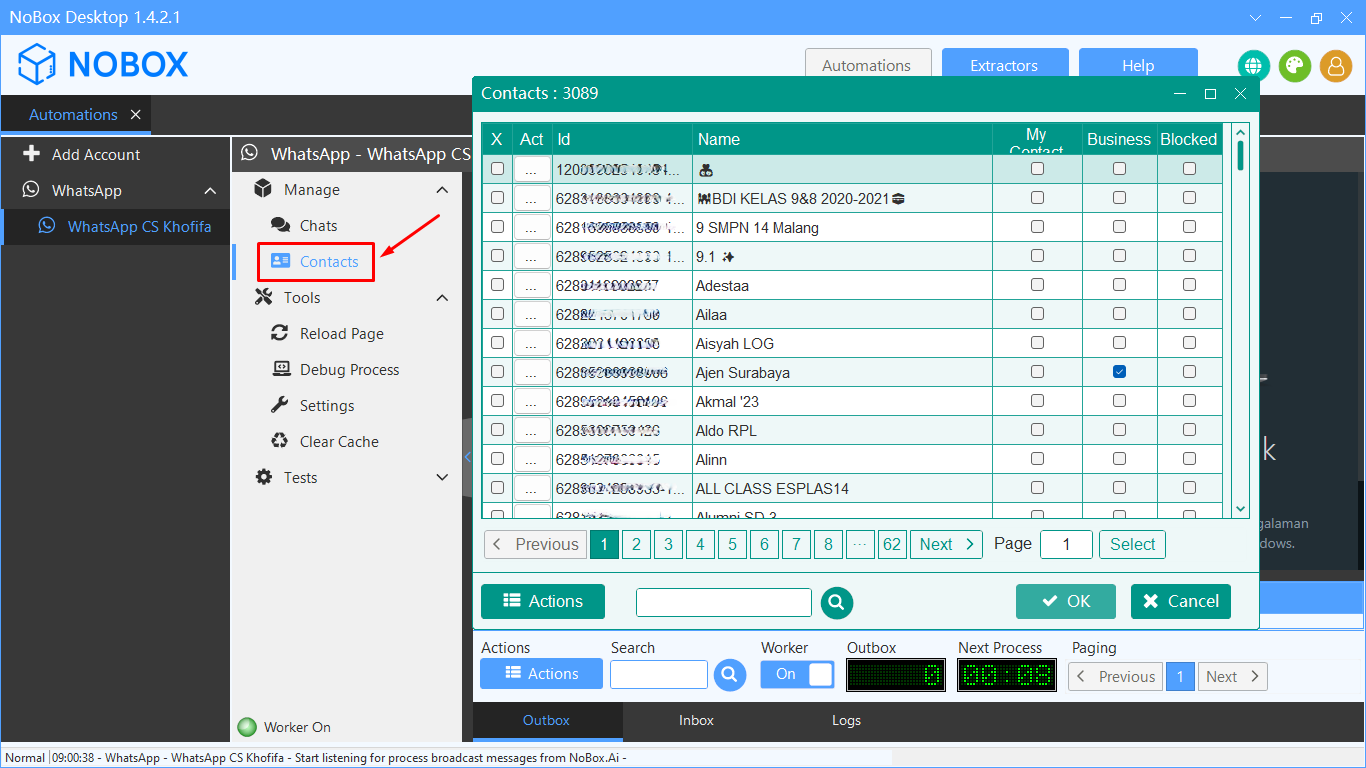
| Column | Description |
|---|---|
| Action | Button used to perform specific actions |
| Name | The name of your account contact |
| MyContact | Checkbox to mark whether the number is in your contacts or not |
| Username | Username of each Telegram contact |
| Phone | Telegram phone number |
Add Contact Chat to Nobox.Ai
This feature is used to store your account's contact data in NoBox.Ai as follows:
- Click the [Chat] or [Contacts] menu to display a list of chats or contacts on your account. Select the contact or chat you want to add to NoBox.Ai.
- Click the [Actions] ➔ [Add to NoBox.Ai] button, choose the target list, and click [OK].
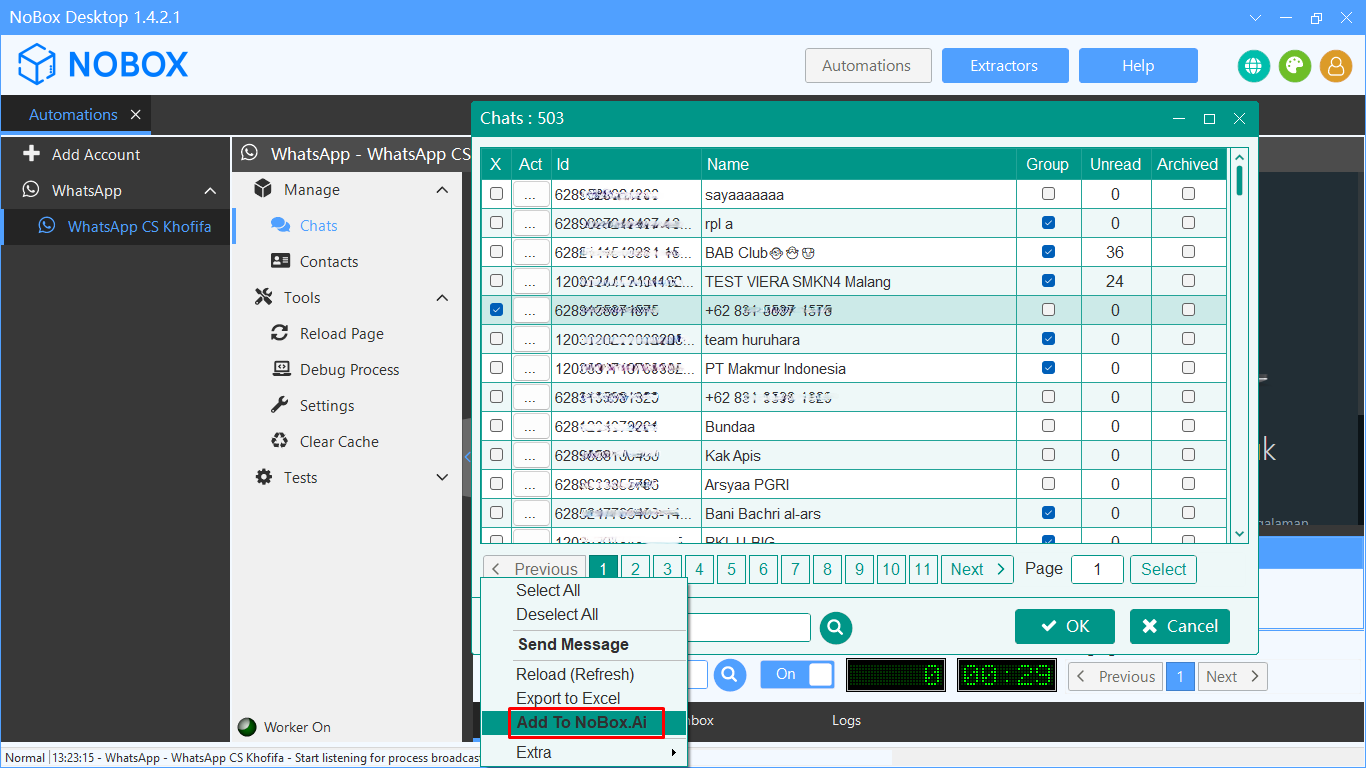
- Wait until the process is complete, and an information dialog will be displayed once the process is finished.
- You can also check the data through the [Contacts] menu on NoBox.Ai by filtering data according to the list you selected previously.
- A list of added contacts will then be displayed.
Contact Export to Excel
This feature is used to save contact data in Excel format (.xls, .csv) using the following method:
- Click on the [Chats] or [Contact] ➔ [Actions] ➔ [Export to Excel] menu, and the selected contacts will be saved.
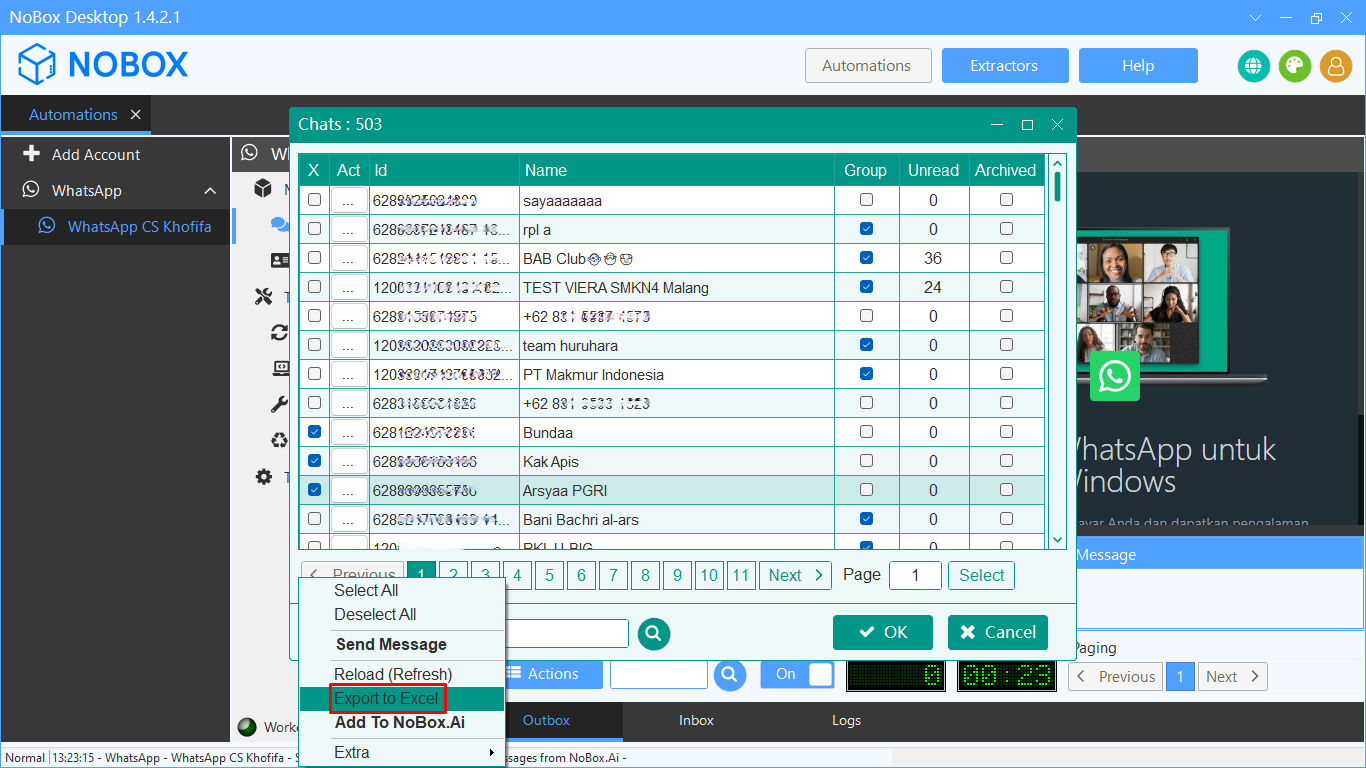
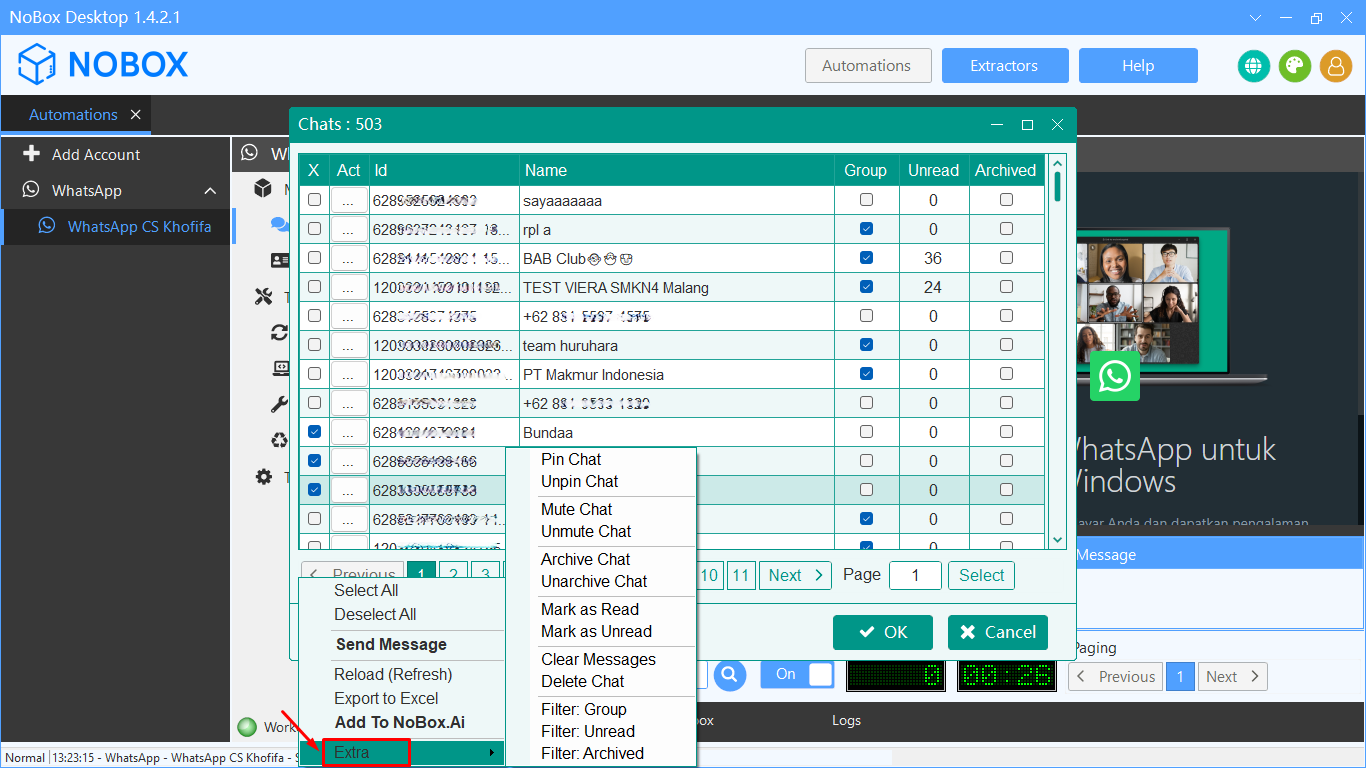
Extras
Additional features used for pinning chats, unpinning chats, filtering chats, and so on.
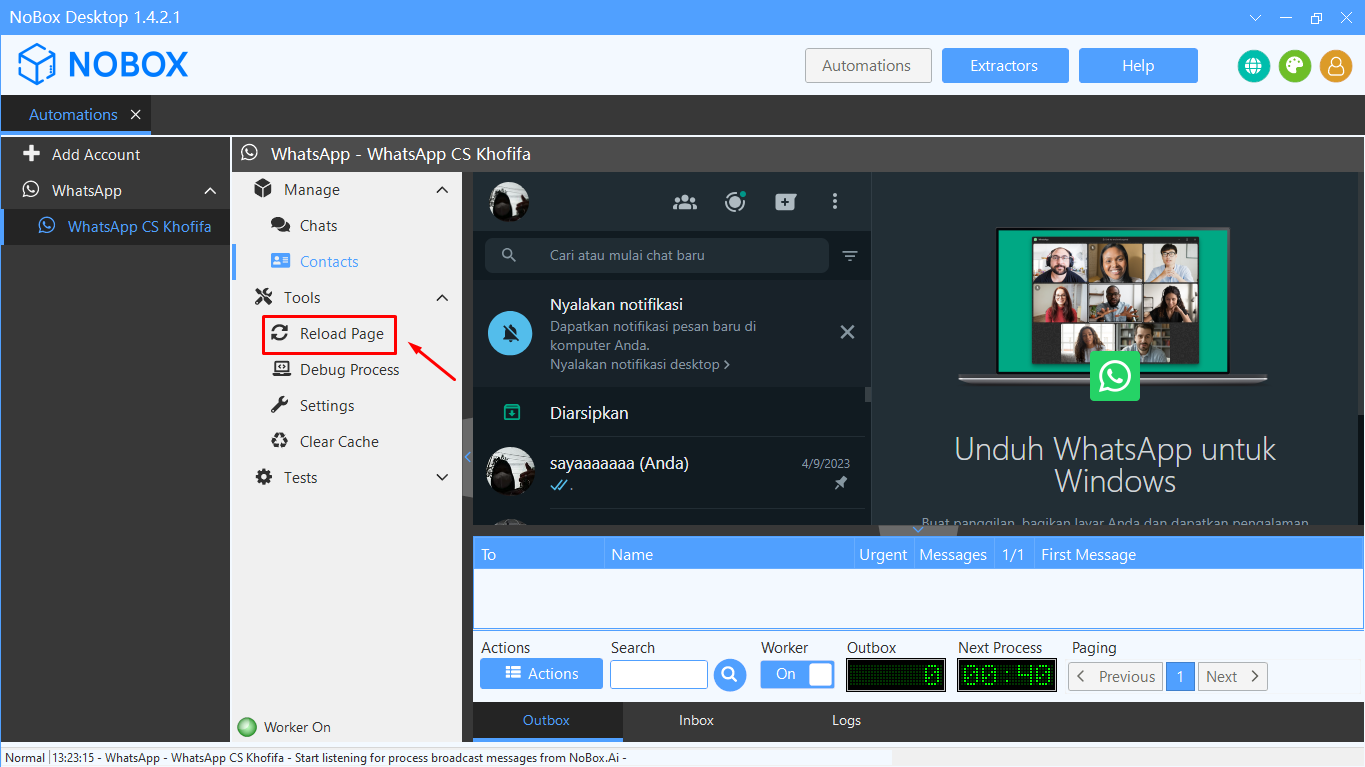
Tools Reload Page
Tools Reload Page is a feature used to refresh the appearance of Telegram.
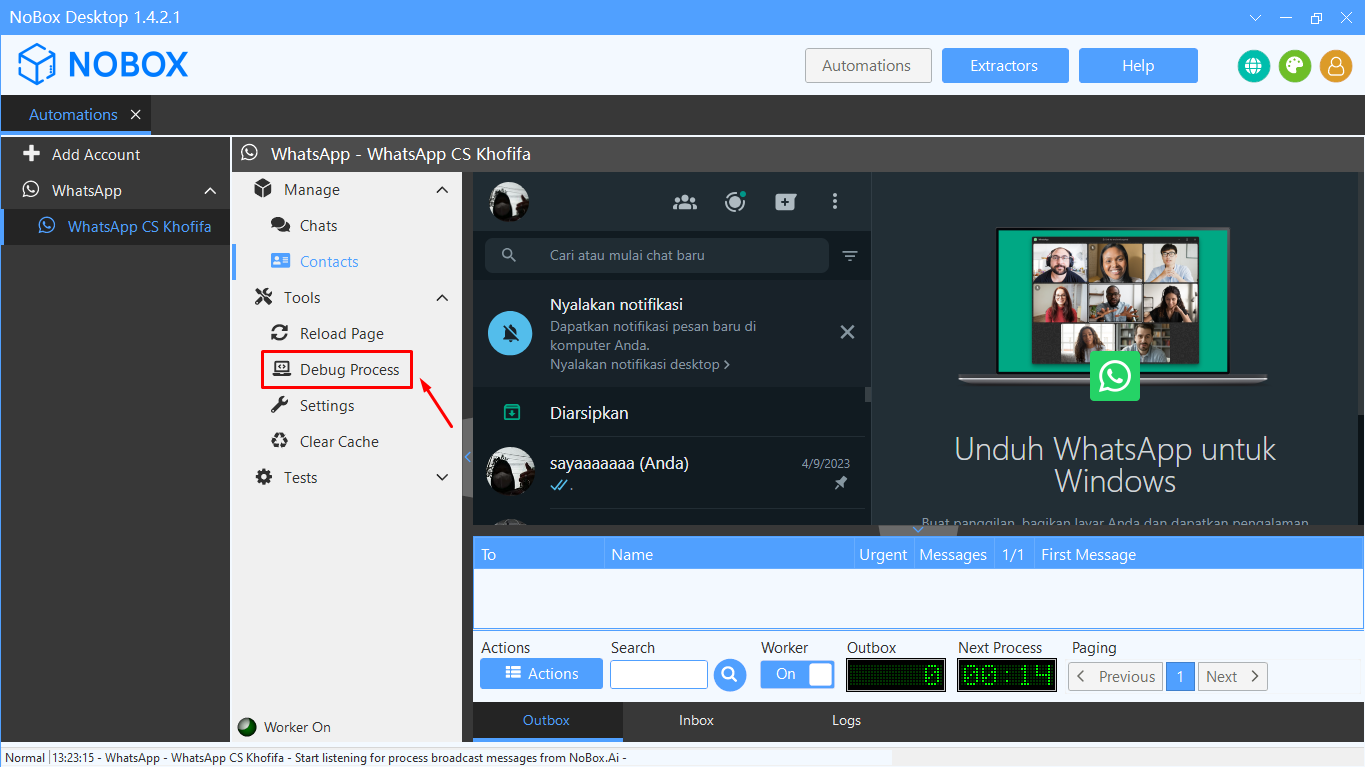
Tools Debug Process
Tools Debug Process is a feature used to display detailed activity logs.
Tools Setting
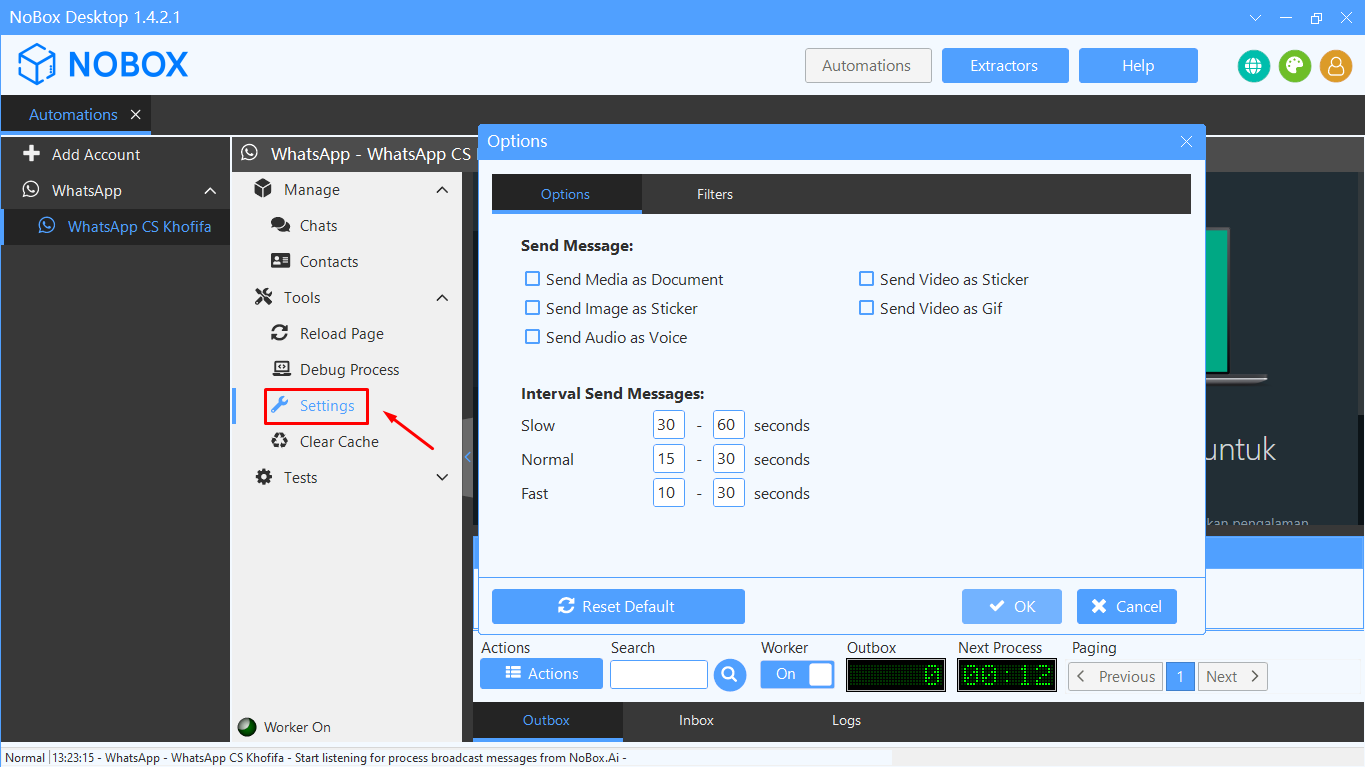
In the Tools Setting, there are several options to choose the type of message to send and Interval Send Messages, which functions to set the timing between sending one message to another to avoid blocking.
| Feature | Description |
|---|---|
| Send Message | Select the type of message to be sent. |
| Interval Send Messages | Set the time interval between sending messages to avoid getting blocked. |
Clear Cache
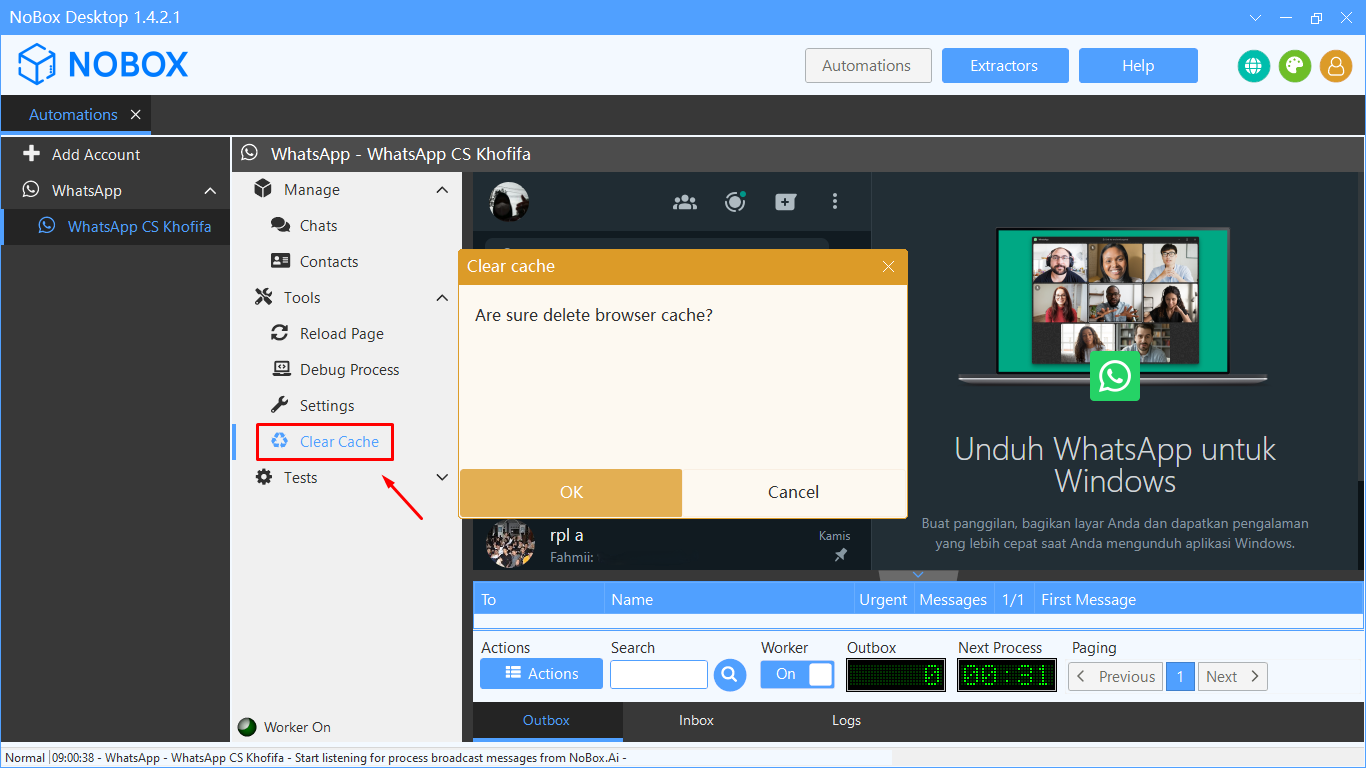
The Clear Cache tool is used to remove browser cache.
Test
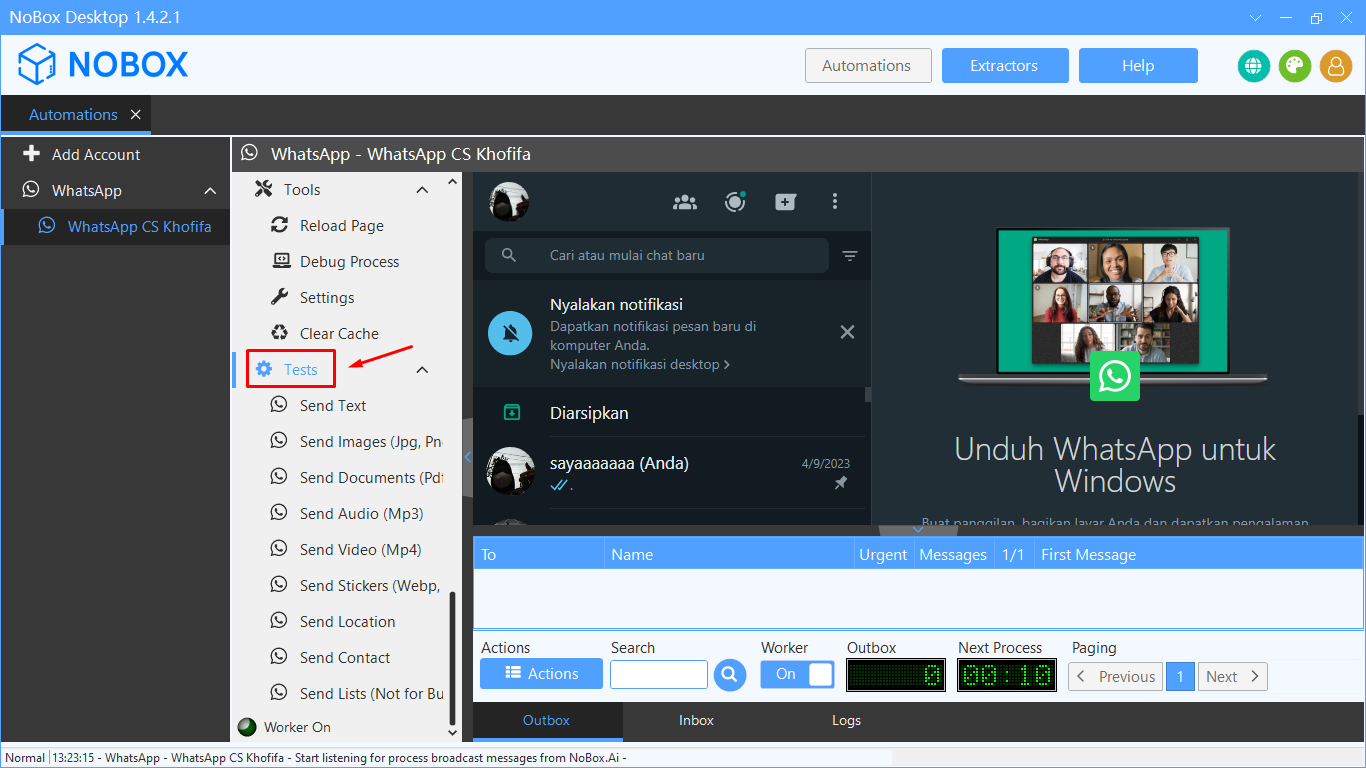
Test is a feature used to test the delivery of the files you need.
| Feature | Description |
|---|---|
| Send Text | Test feature to send text messages |
| Send Images | Test feature to send image messages in Jpg or Png format |
| Send Documents | Test feature to send document messages like pdf etc. |
| Send Audio | Test feature to send audio messages |
| Send Video | Test feature to send video messages |
| Send Stickers | Test feature to send sticker messages in Webp and Png |
| Send Location | Test feature to send your location |
| Send Contact | Test feature to send contact messages |
| Send Lists | Test feature to send other file types |
If you have any issues or difficulties related to Nobox.Ai, please contact us through Support Ticket