Email Automation allows businesses to automatically send emails to customers or prospects based on certain rules or triggers. This system enables the delivery of relevant and timely messages without the need for manual intervention, thus enhancing the efficiency and effectiveness of your business communications.
Add Account
Make sure you are subscribed to Email Automation. To add a new account, please go to [Account] ➔ click on the [New Account] button ➔ a dialog [New Account] will appear.
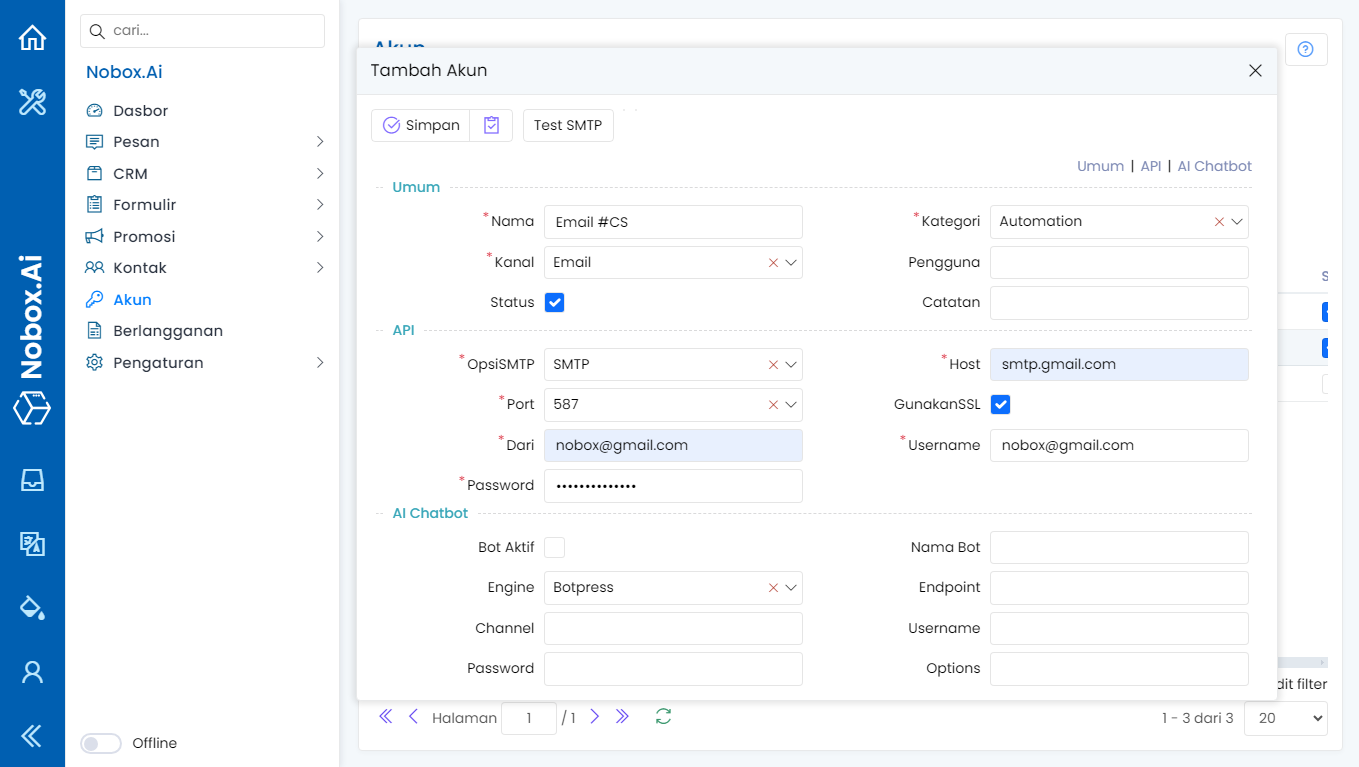
| Field | Description | Example |
|---|---|---|
| Name | Your account name | Email #CS |
| Category | Account category | Automation |
| Channel | The channel you choose | |
| Status | Information if the account is active or not | Active |
Then, choose the SMTP option you want next, fill in the fields in the Email configuration section, and enter the email address and email provider password you selected.
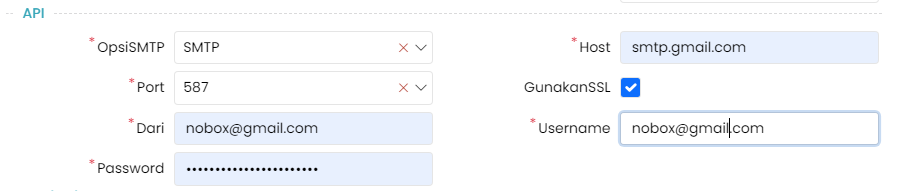
Once you have filled in all the required fields, click [OK] to save the new account you just created.
Configuration
After adding a new account, you just need to open the WhatsApp account you've created through your PC/laptop.
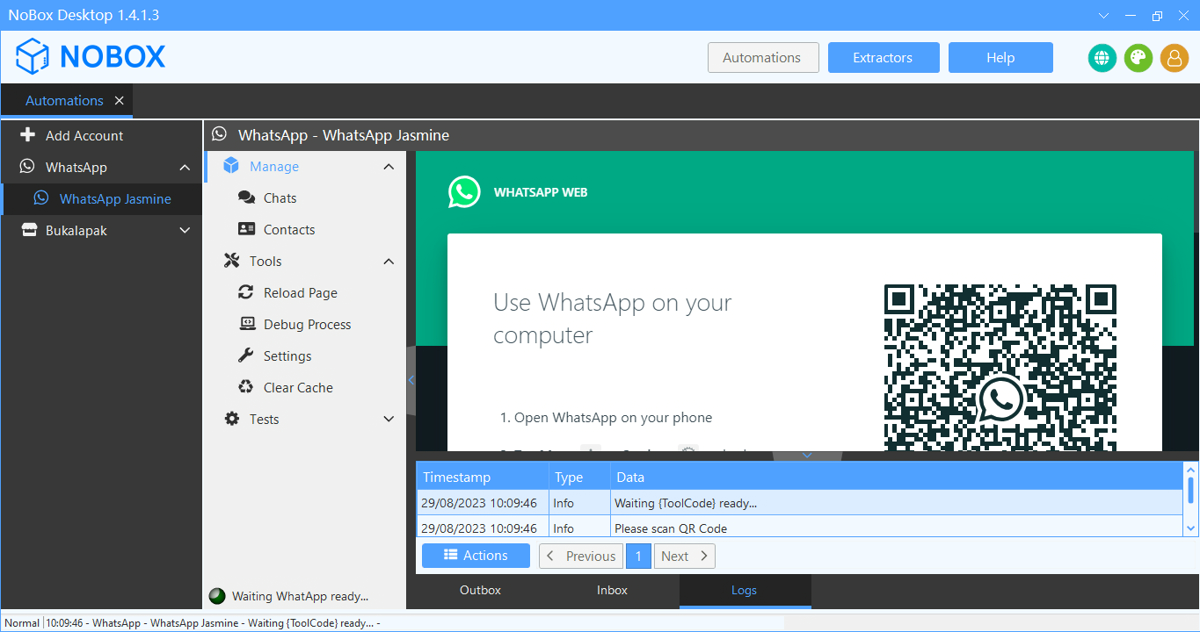
- Open the NoBox Desktop application.
- Scan the QR code to activate the account.
- Ensure the [Logs] tab displays the message "WhatsApp Automation is ready".
- In the [Outbox] tab, make sure the status is [Worker On]; the account is then ready for use.
How to Use Your WhatsApp Account
You can use your WhatsApp account to send campaigns by following these steps:
- Visit the id.nobox.ai website, click on the [Campaigns] module, and then select the [Campaigns] menu.
- Choose an existing campaign or create a new one. Select the [WhatsApp] channel and choose the [WhatsApp Jasmine] account you recently created. Ensure the WhatsApp account is active.
- Make sure the campaign data is correctly filled out, and then click to process the campaign.
- You can monitor the campaign delivery from NoBox Desktop in the [Outbox] tab.
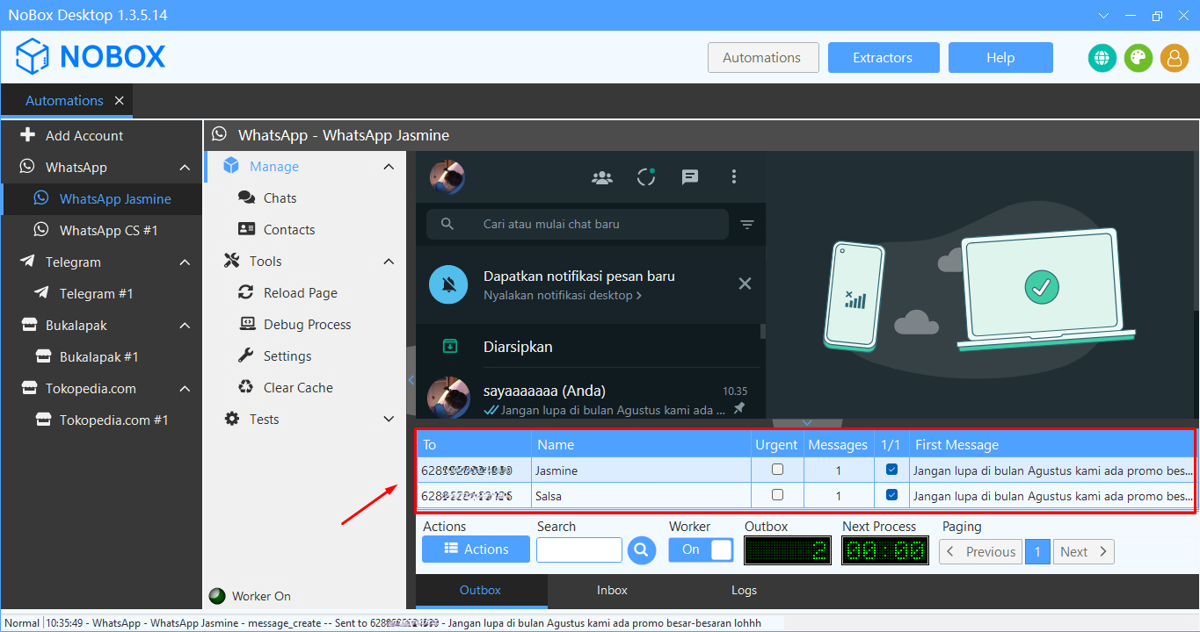
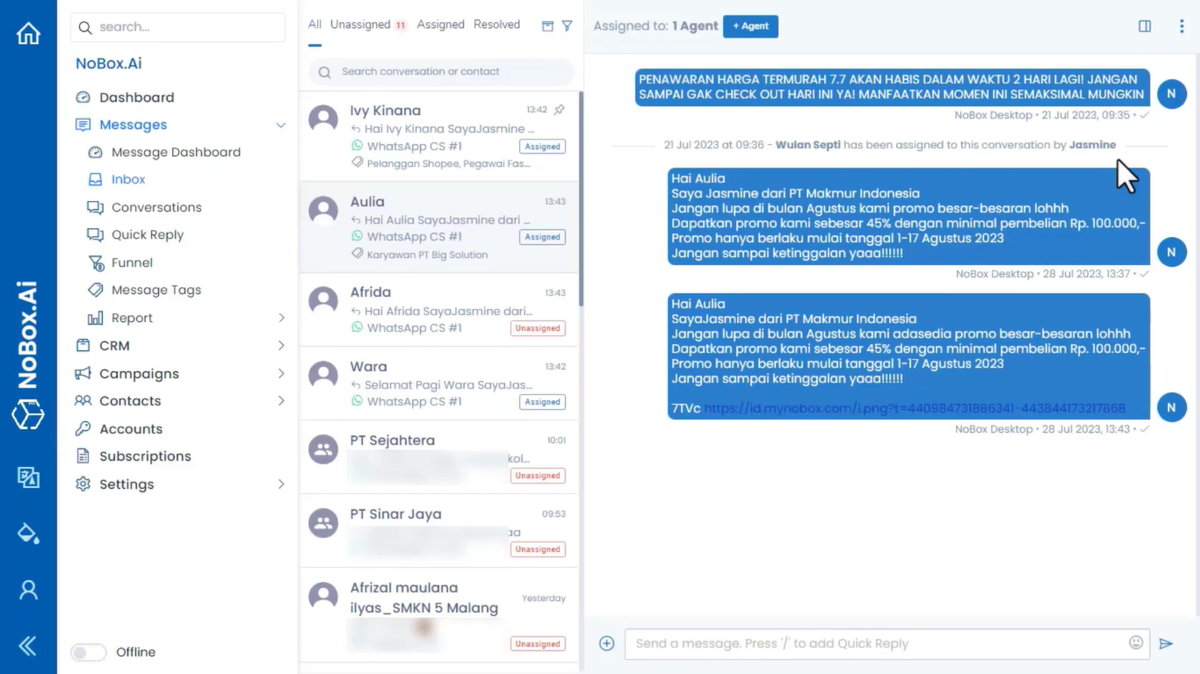
- Additionally, you can view your campaign results in the [Inbox] menu, allowing you to immediately monitor the campaign outcomes and directly reply to chats with your target audience.
Pause Process Campaign
This feature allows you to pause the campaign sending process. Here's how:
- In the [Outbox] tab, click the [Worker] button and ensure the worker status is [OFF].
- The sending process will pause.
- To resume the sending process, click the [Worker] button and ensure the worker status is [ON].
- The sending process will continue.
Disabling WhatsApp Account
This feature helps reduce the RAM usage of the NoBox Desktop application on your device.
To disable an account, select one of your WhatsApp accounts, then uncheck the status section. Once done, click [Save] to save the changes.
.png)
Check the NoBox Desktop application; newly deactivated WhatsApp accounts do not appear.
Edit and Delete Accounts
To edit an account, please open and log in to the website id.nobox.ai, click on the [Accounts] menu. Choose the account you want to edit, then edit your data and click [Save] to save the changes.
To delete an account, select the account you want to delete, then click [Delete]. A confirmation message will appear asking if you want to delete the account. Click [Yes] to confirm, or click [No] to cancel.
If you have any issues or difficulties related to Nobox.Ai, please contact us through Support Ticket