Quick Reply
Quick Reply is a feature on Nobox.Ai used as a message template to reply to messages more quickly, including text or media such as images, GIFs, and videos.
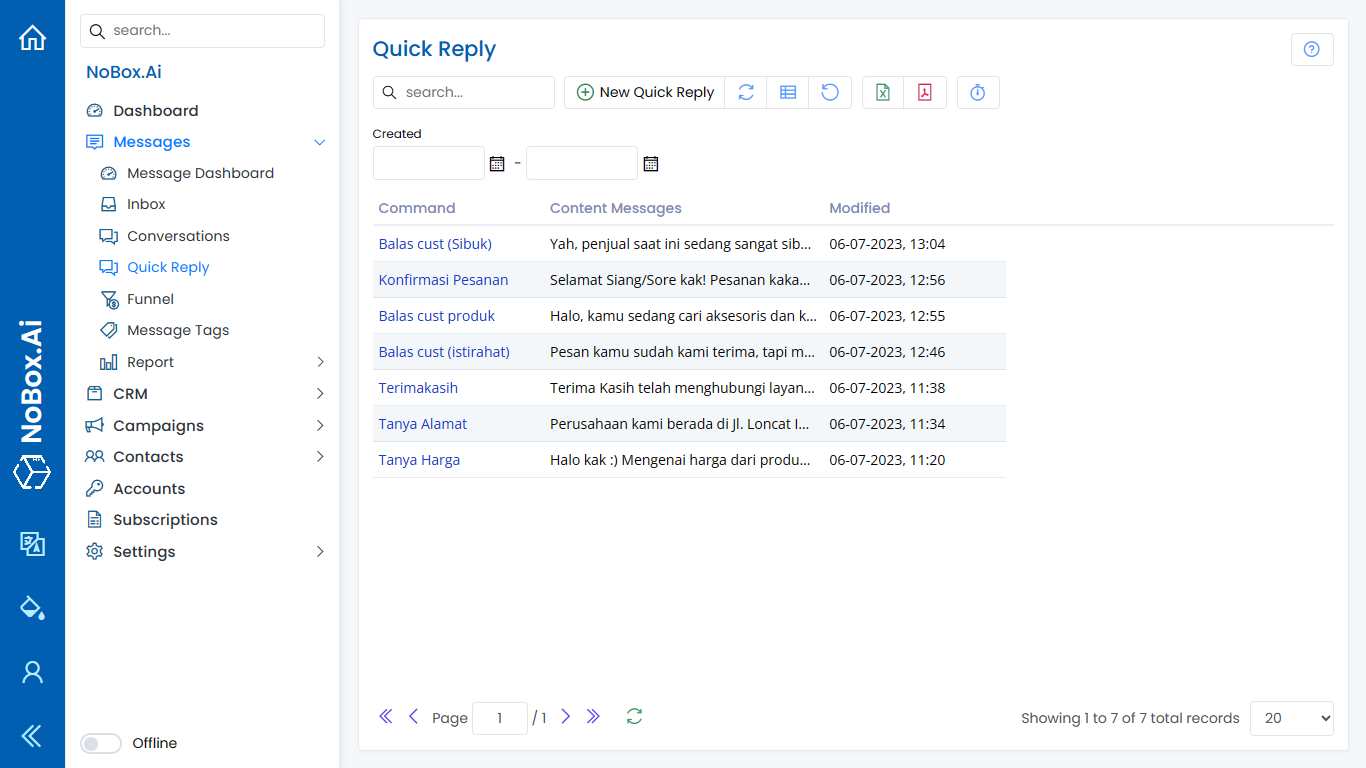
Add Quick Reply
To create quick reply data, please click the [Quick Reply] menu ➔ [Add Quick Reply]. A dialog [Add Quick Reply] will appear, then complete the fields in the dialog.
| Entry | Description | Example |
|---|---|---|
| Commend | Reply Commend | Bank Account |
| File | Select file | |
| Message Content | Message Body | Please transfer the payment to Bank BCA xxx.xxxx.xxx under the name Ana or to Bank Mandiri xxx-xx-xxxx-x under the name Ana. After transferring, please send the proof to WhatsApp at 0810000-0000. |
If you have completed the fields above, click [Save] to store the data.
Edit and Delete Quick Reply Data
To edit a quick reply data, first select which data you want to edit. Make your edits and click [Save] to save the changes. To delete a quick reply data, select the data you wish to delete, then click [Delete]. A confirmation will appear asking if you want to delete the data. Click [Yes] to confirm, or [No] to cancel.
How to use Quick Reply
To send a quick reply, you need to follow these steps:
1. Choose the [Message] ➔ module and click on the [Inbox] menu to view all incoming conversations. Then select one of those messages.
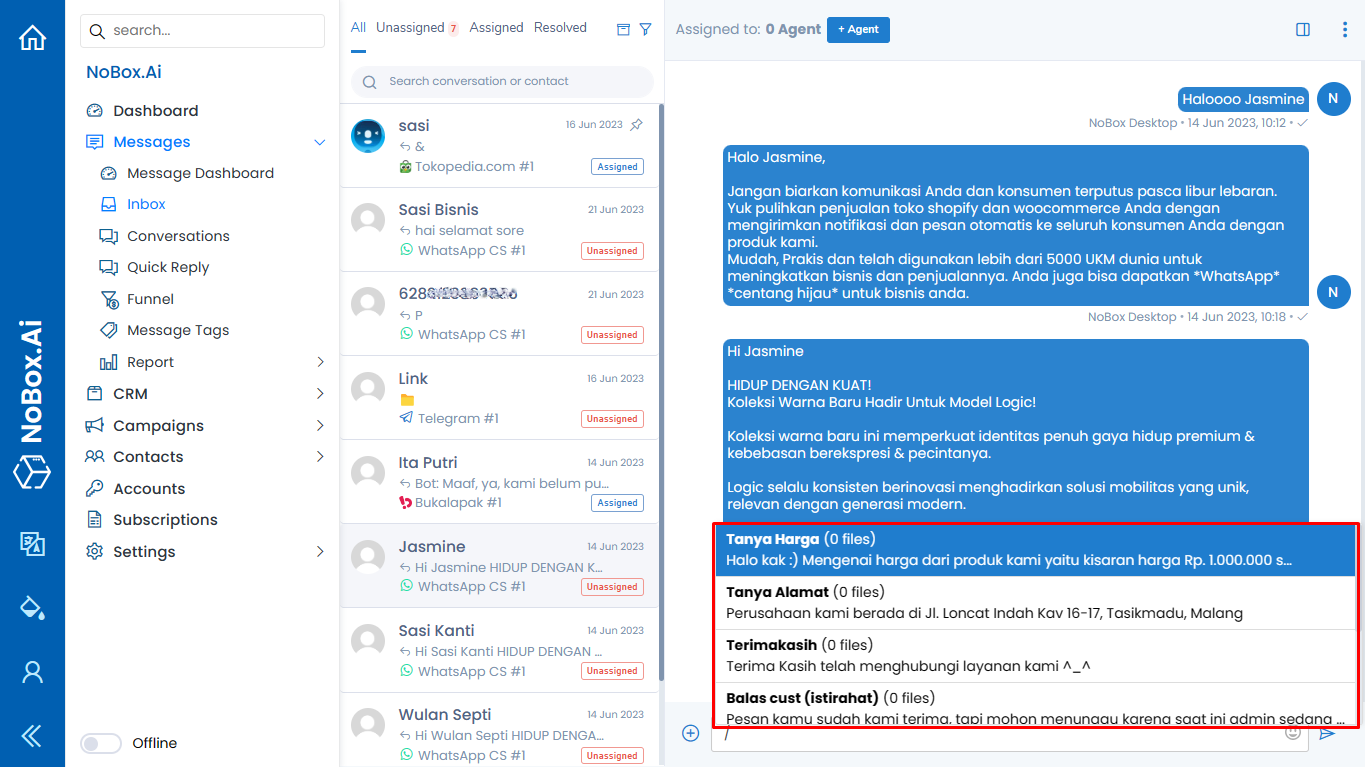
2. In the message input, press "/" on your keyboard.
.png)
3. Then, a list of available quick replies will appear. Choose the quick reply you need.
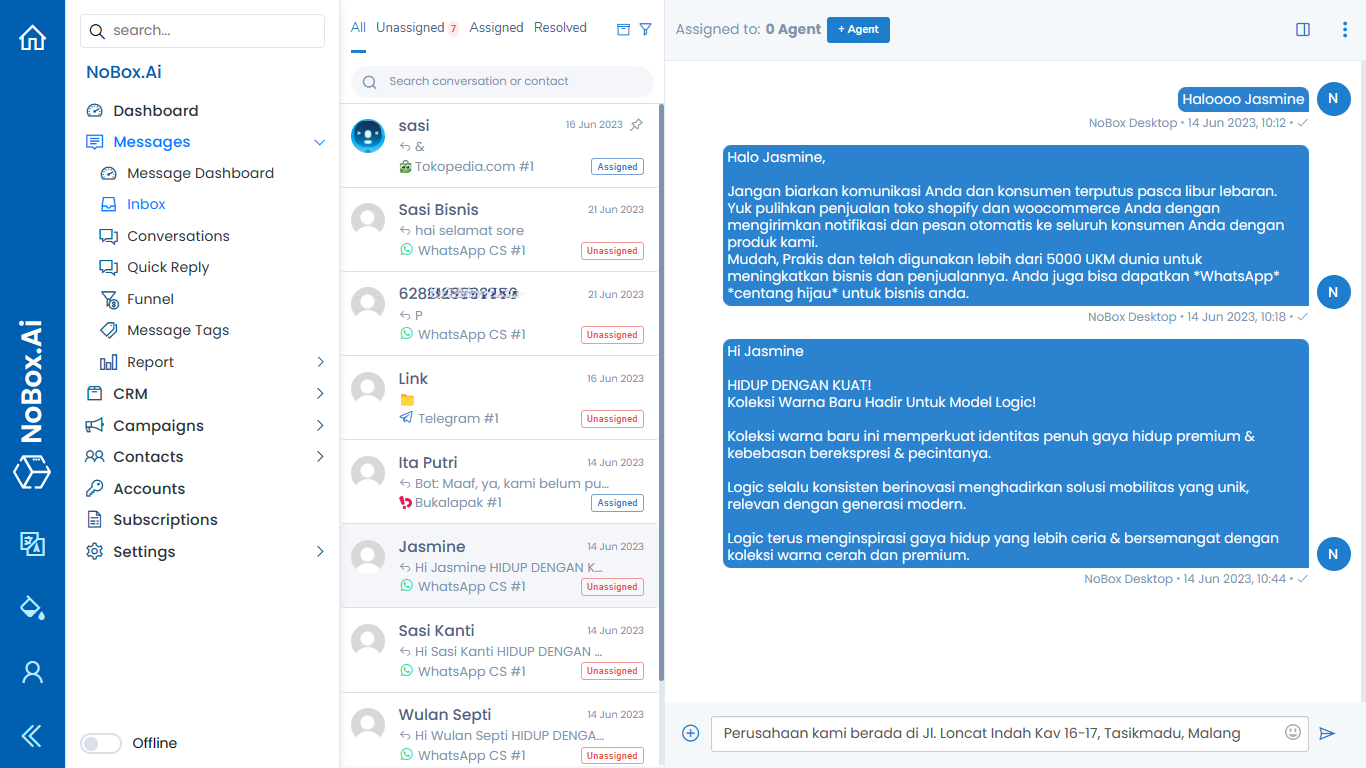
4. In that case, a quick reply will be automatically written in the message box. You can also edit the message before sending it. Then, you can press the button [ ] to send the message.
If you encounter any issues or difficulties related to Nobox.Ai, please contact us via Support Ticket