WhatsApp Automation can efficiently automate follow-ups with your prospects and send messages to WhatsApp quickly and with high quality. It allows you to send automated messages that can be customized as needed and can connect with chatbots to effectively enhance interaction with potential customers.
New Account
Ensure you have subscribed to Shopee Automation. To add a new account, click on the [Account] ➔ [New Account] module, and a [New Account] dialog will appear.
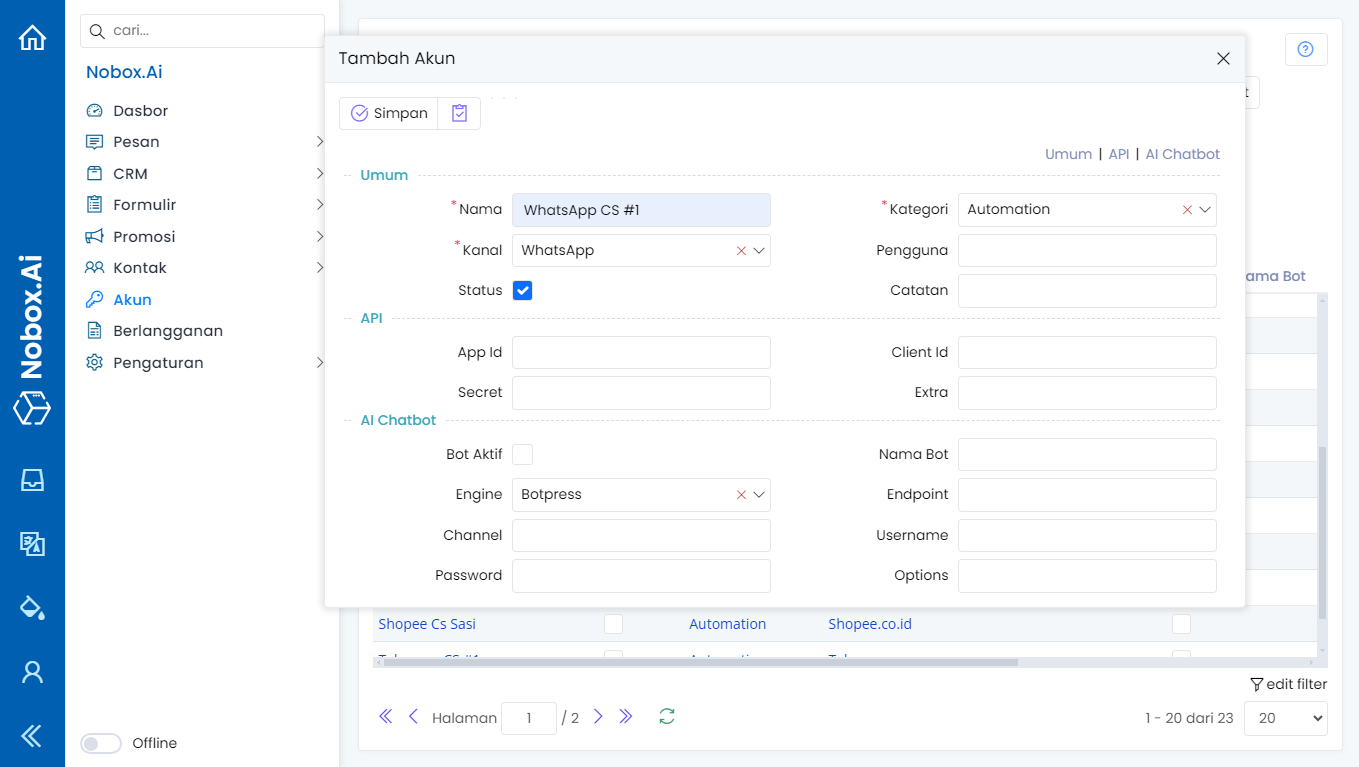
| Field | Description | Example |
|---|---|---|
| Channel | The channel you choose | |
| Category | Select a category | Automation |
| Name | Your account name | WhatsApp Cs #1 |
| Note | Provide notes about the account | - |
| Status | Information on whether the account is active | Active |
Once you have completed the fields, click [Save] to save the new account you just created. Ensure that NoboxChatManager is running, wait a moment for the QR code to appear in Nobox, then scan the QR code to link it with your WhatsApp.
.png)
Handling WhatsApp Account Messages
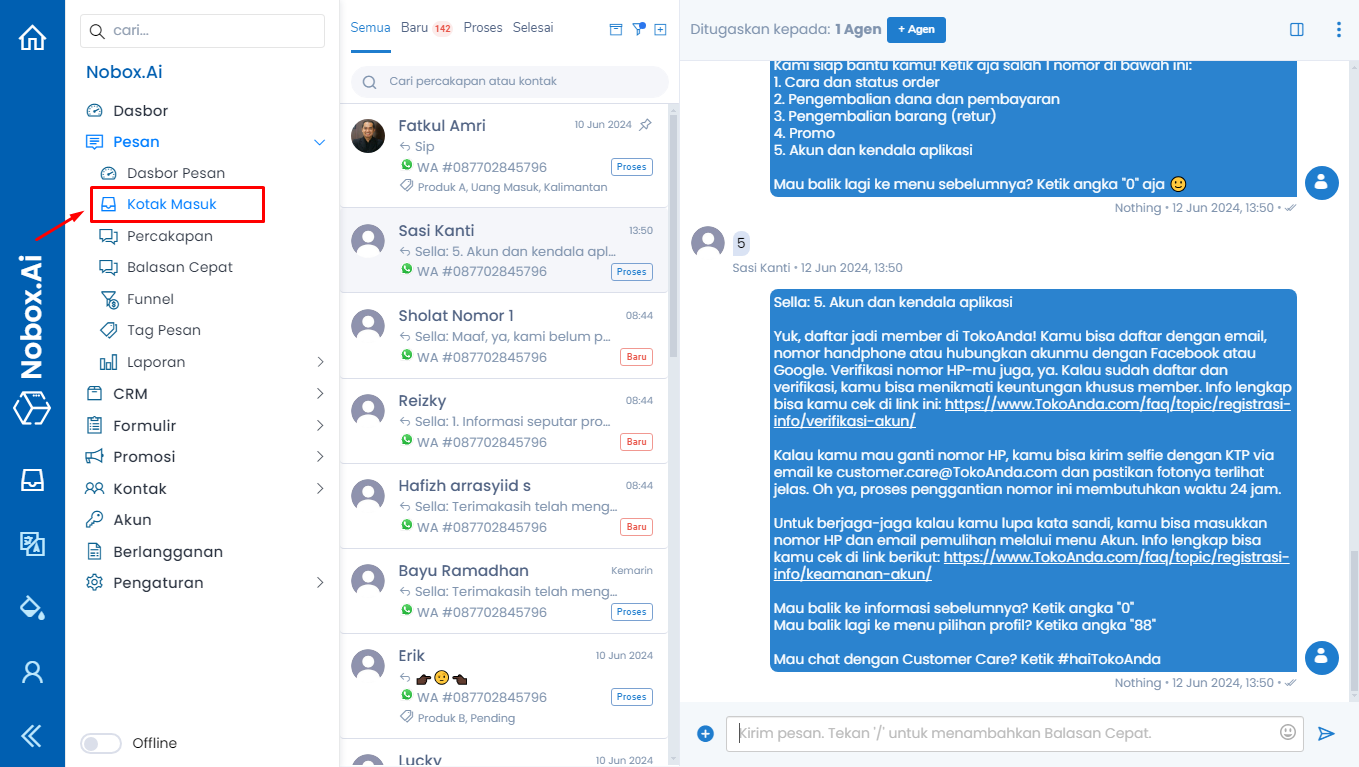
Once your WhatsApp account has been successfully added, any incoming messages will automatically appear in Nobox. Click on the [Messages] ➔ [Inbox] module, and you will see all the messages from your account. Select one and reply to it.
How to Use a WhatsApp Account for Sending Promotions
You can use a WhatsApp account to send promotions by following these steps:
- Click on the [Promotion] module, then click [Promotion].
- Choose an existing promotion or create a new one, select the [WhatsApp] channel, select the [WhatsApp] account you just created, and ensure your WhatsApp account is active.
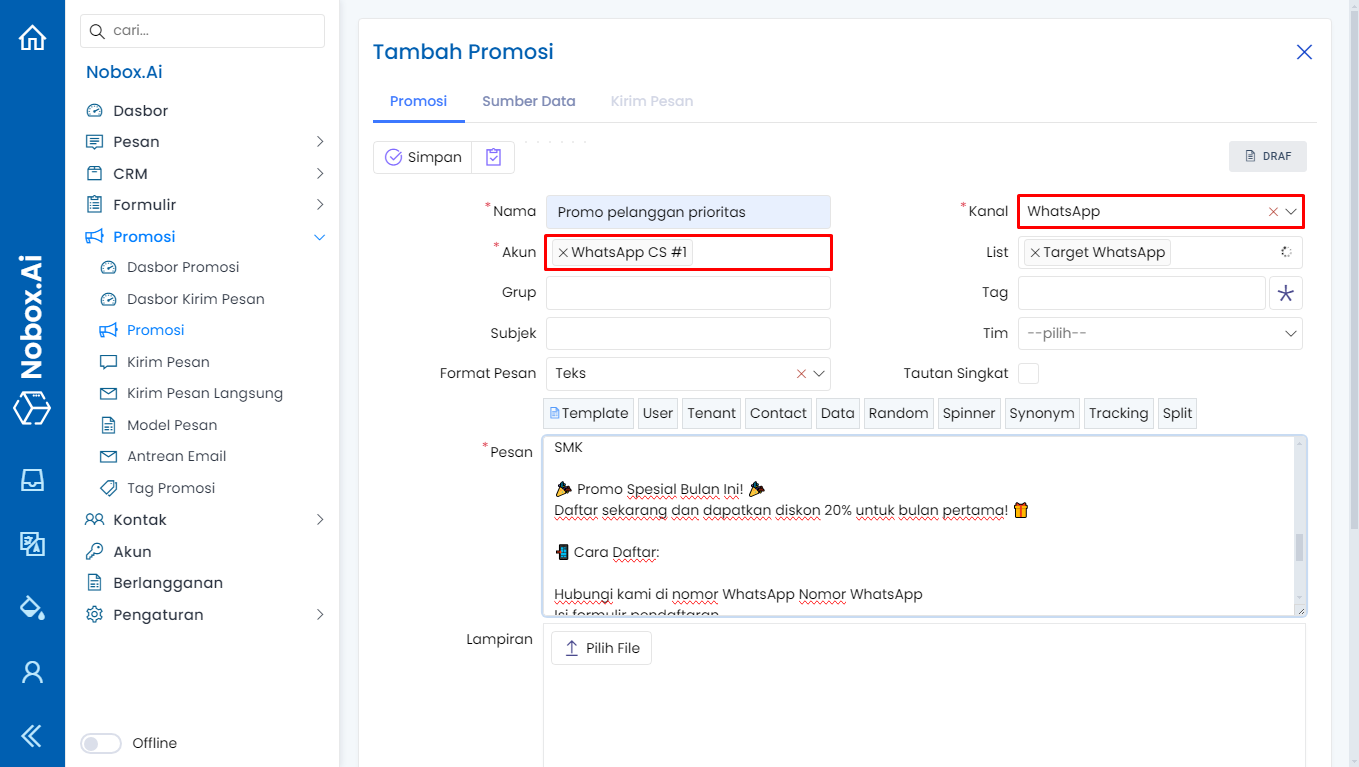
- Ensure that the promotional data is correctly filled in, then proceed with the process.
- To monitor the promotion delivery, you can open the [Send Message] tab.
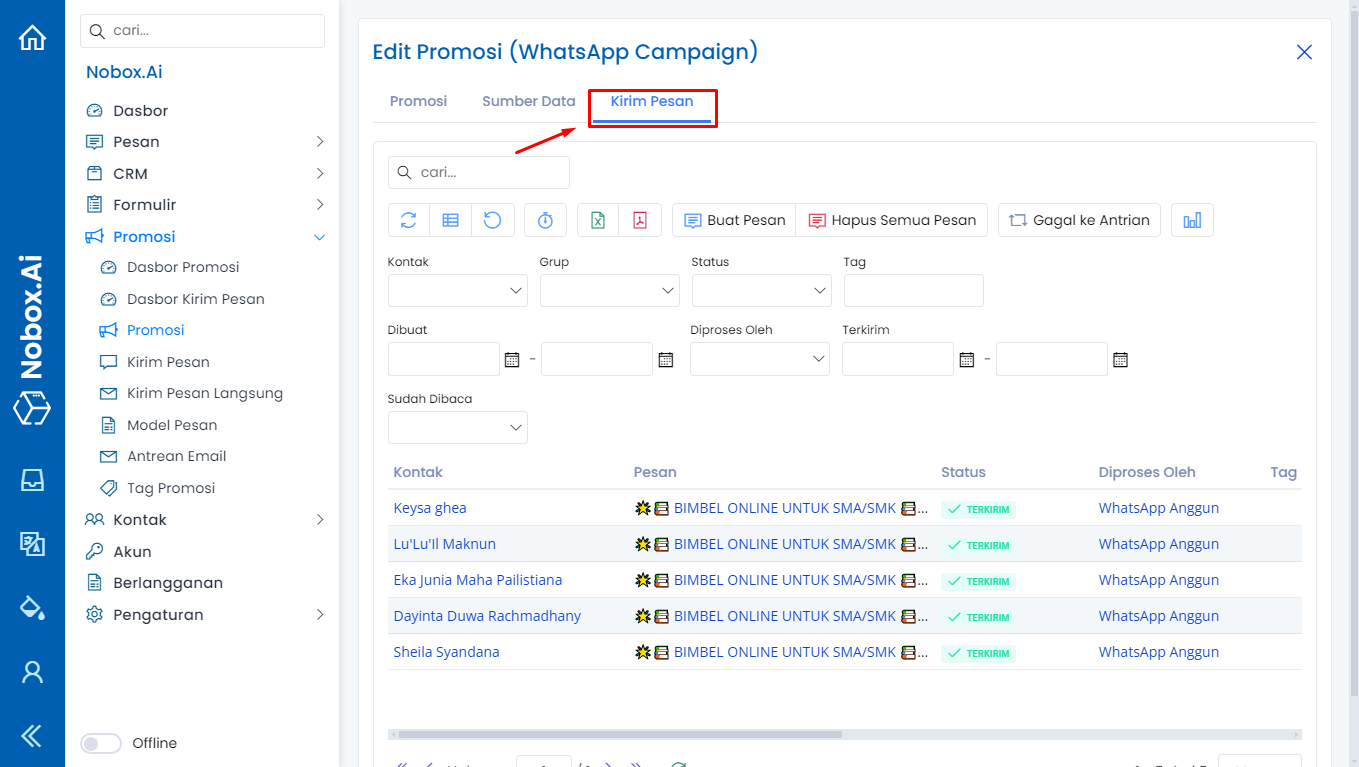
- Additionally, you can also view the promotion results in the [Inbox] menu, allowing you to immediately monitor promotion outcomes and reply to messages directly with your promotion targets.
If you haven't understood the basic steps to promote with NoBox, you can follow these steps by clicking this link.
Deactivating a WhatsApp Account
To deactivate an account, select one of your WhatsApp accounts, then uncheck the status section. Once done, click [Save] to save the changes.

Edit and Delete Account
To edit an account, please open and log in to the Nobox website, click the [Account] menu. Choose the account you want to edit, then update your data and click [Save] to save the changes.
To delete an account, please select the account you wish to delete, then click [Delete]. A confirmation notice will appear asking if you want to delete the account. If yes, click [Yes]; if not, click [No].
If you have any issues or difficulties related to Nobox.Ai, please contact us through Support Ticket