Shopee
Shopee Automation efficiently automates follow-ups with your potential customers and sends messages to Shopee quickly and with high quality. It allows you to send automated messages that can be customized according to your needs and can be integrated with a chatbot to effectively enhance interaction with potential customers.
New Account
Ensure you have subscribed to Shopee Automation. To add a new account, click the menu [Account] ➔ [New Account] and the [New Account] dialog will appear.
.png)
| Field | Description | Example |
|---|---|---|
| Channel | The channel you choose | Shopee |
| Category | Select a category | Automation |
| Name | Your account name | Shopee CS #1 |
| Note | Provide a note about the account | - |
| Status | Information if the account is active | Active |
Once you have completed the fields, click [Save] to save the newly created account.
Configuration
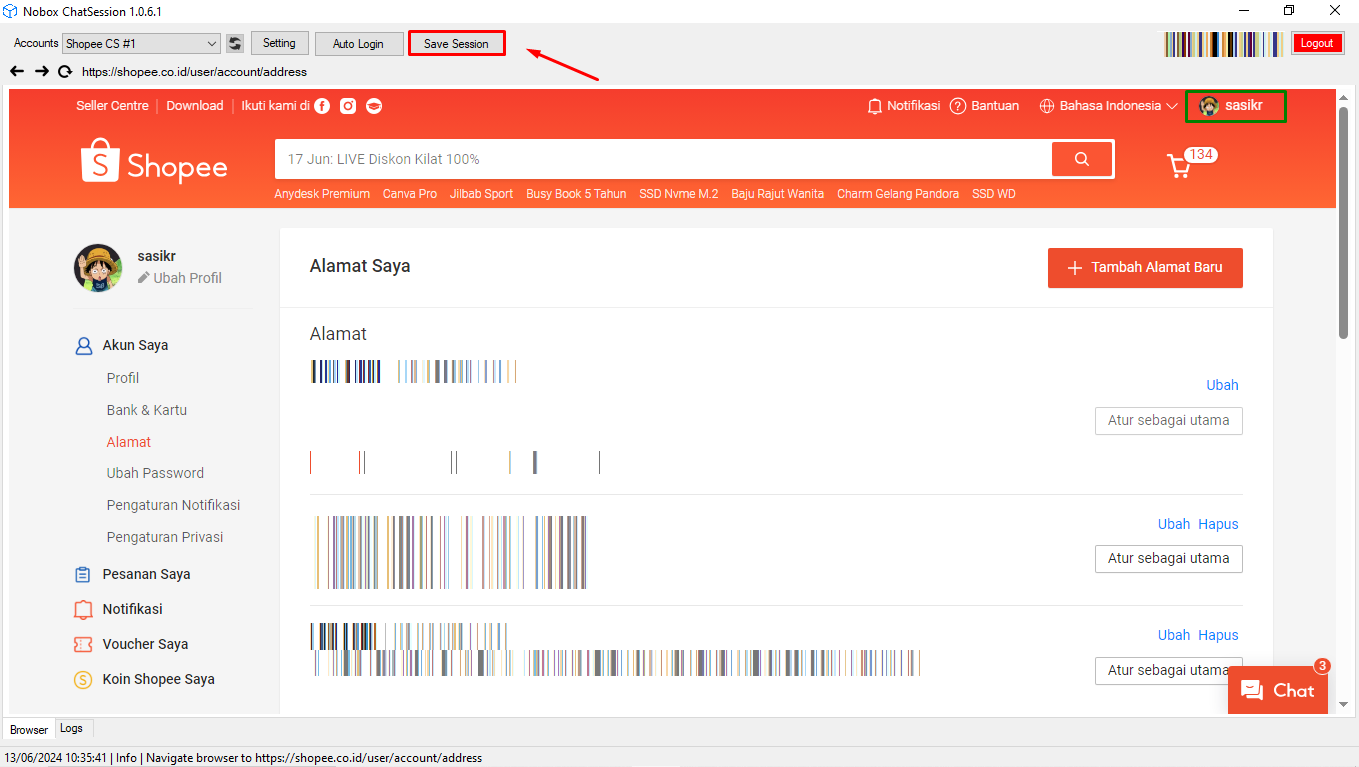
Here you can see that the Shopee Account has been successfully created. The newly created account will appear in NoboxChatSession. Follow the steps below to configure your Shopee account:
- Log in to Shopee to link it with your Shopee account. Then click the [Save Session] button. Ensure that the log tab contains the message "Save session Telegram Automation successfully."
- Once the configuration process has been completed successfully, your Telegram account is ready to use.
Handling Shopee Account Messages
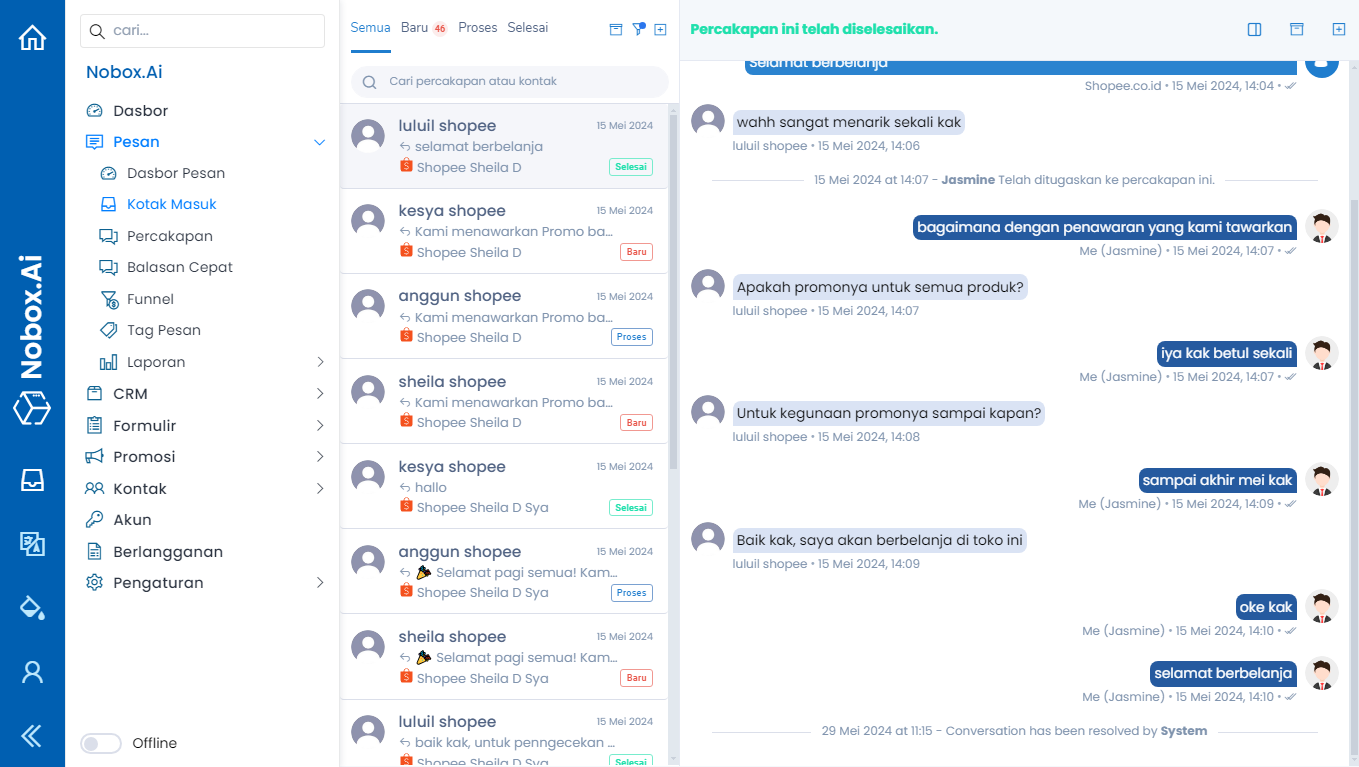
Once your Shopee account is successfully added, incoming messages to your Shopee account will automatically be forwarded to Nobox. Click on the [Messages] ➔ [Inbox] module, where you will see all the messages from your account. Choose a message from Shopee and reply to it.
How to Use Shopee Account for Sending Promotions
You can use your Shopee account to send promotions by following these steps:
- Click on the [Promotion] module, then click [Promotion].
- Choose an existing promotion or create a new one, select the [Shopee] channel, choose the [Shopee] account you just created, and ensure that your Shopee account is active.
- Make sure the promotion details are filled out correctly, then proceed.
- To monitor the promotion delivery, you can open the [Send Message] tab.
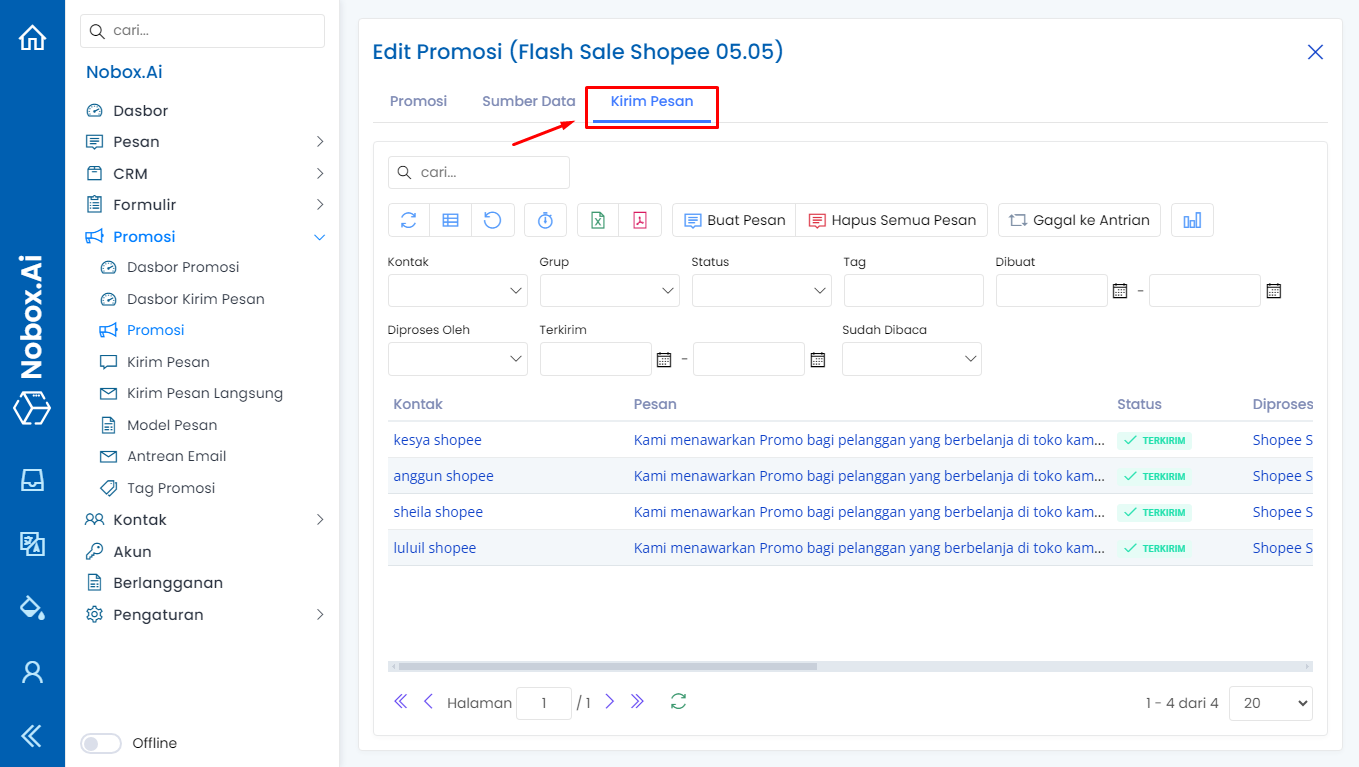
- Moreover, you can view the promotional results in the [Inbox] menu, enabling you to directly monitor the promotion outcomes and respond to chats with your targeted audience.
Deactivating a Shopee Account
To deactivate an account, select one of your Shopee accounts, then uncheck the status section. Once done, click [Save] to apply the changes.

Edit and Delete Account
To edit an account, please open and log in to the Nobox website, click on the [Account] menu. Select which account you want to edit, then edit your data and click [Save] to save the changes.
To delete an account, select which account you want to delete, then click [Delete]. A confirmation notification will appear asking if you want to delete the account. If yes, click [Yes]; if not, click [No].
If you have any issues or difficulties related to Nobox.Ai, please contact us through Support Ticket