AI Agents
AI Agent from NoBox.Ai is an intelligent virtual assistant designed to automate your digital interactions. This agent can automatically answer customer queries, gather prospect data, and operate 24/7 across various platforms. Its goal is to enhance service efficiency while smartly routing complex conversations to human agents when necessary.
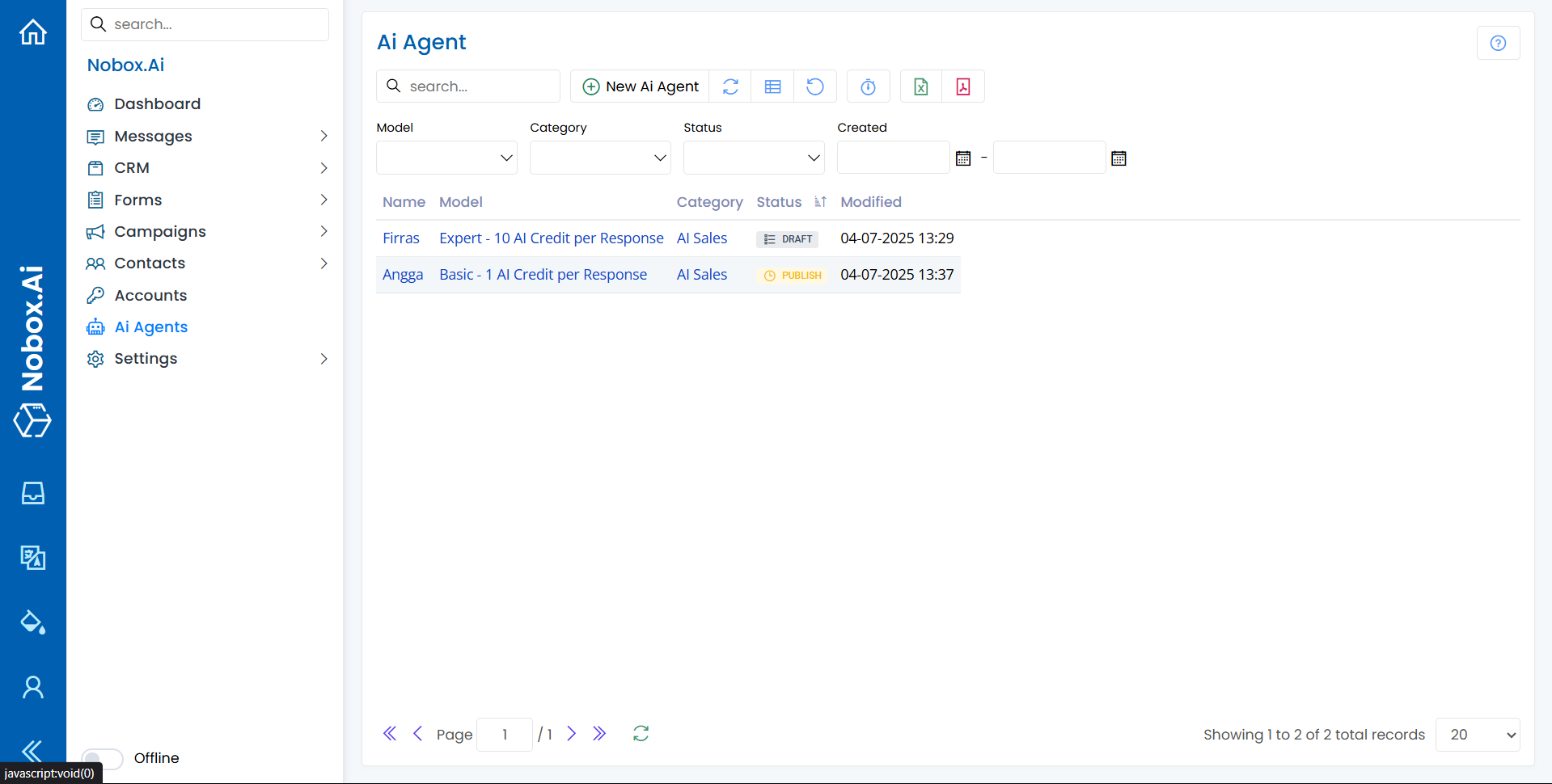
On the display, there are several statuses. The explanation of these statuses is as follows:
| Feature | Function |
|---|---|
.png) | The AI agent is currently under development or editing. Its configuration is not final and is not active to serve users. In this status, you can change any settings without affecting the running service. |
.png) | The AI agent has been activated by clicking the "Publish" button. The agent is now "live" and ready to interact with customers/users on the designated platform. Each interaction will begin using AI credits. |
Add AI Agent To add promotional data, click the menu ➔ [NewAI Agent] and a dialog [New AI Agent] will appear.
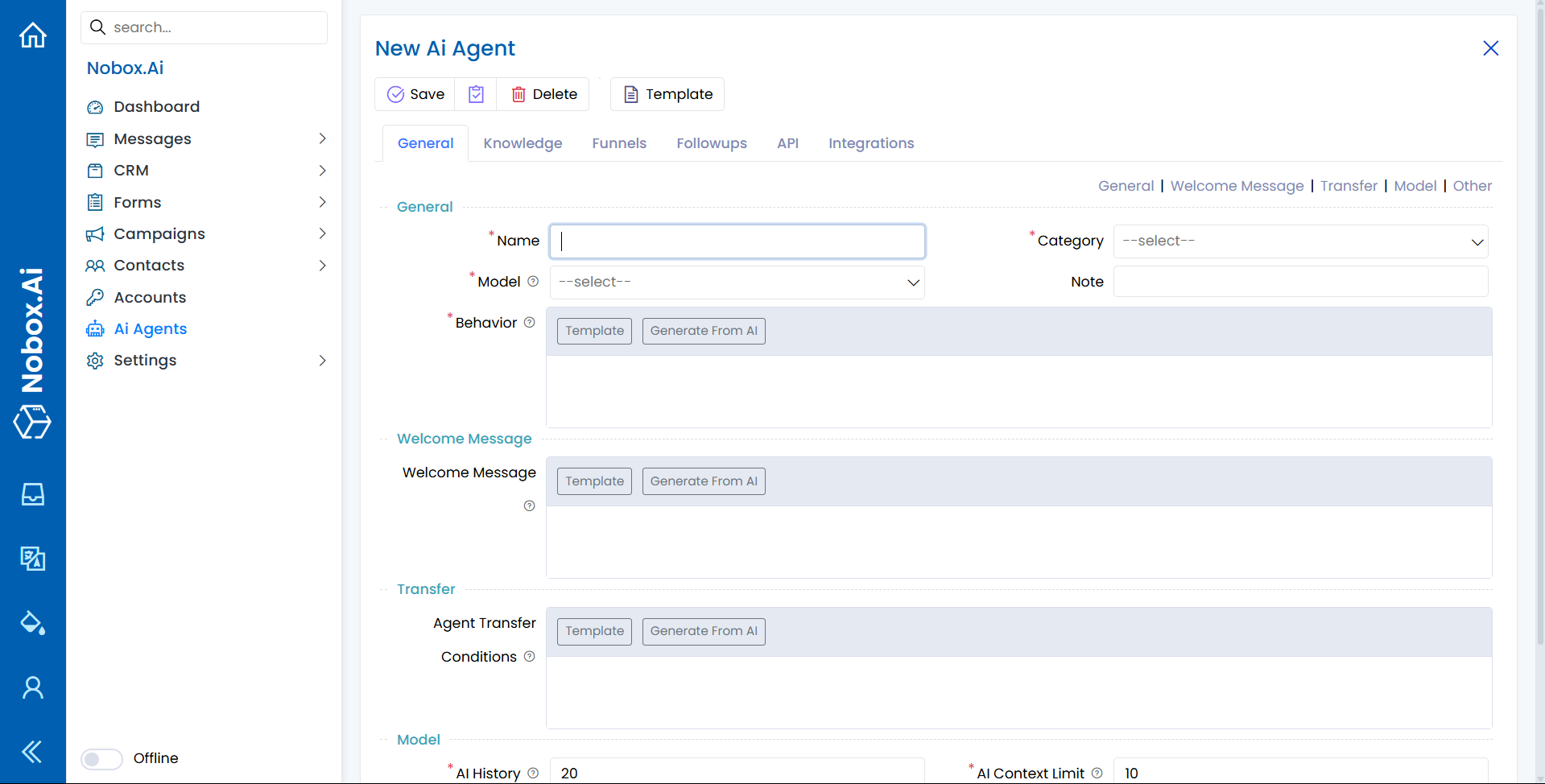
Fill in the required fields, as shown in the following example:
| Field | Description |
|---|---|
| Name | AI Agent Name |
| Model | AI Model |
| Behavior | Main Task of the AI |
| Category | AI Agent Category |
| Note | Internal Note for the AI Agent |
| Welcome Message | The first message sent by the AI to initiate a conversation |
| Agent Transfer Conditions | Critical rules determining when the AI should stop and transfer the conversation to a human agent. |
Once you have filled in the fields, click [Save] to save the new AI Agent data, and the AI Agent's status will become [Draft].
Edit and Delete AI Agent Data
To edit an AI Agent's data, first select the data you wish to edit. Edit your data, then click [Save] to save the changes. To delete AI Agent data, select the AI Agent you wish to delete, then click [Delete]. A dialog will appear asking if you want to delete this data. Click [Yes] to confirm or [No] to cancel.
If you have any issues or difficulties related to Nobox.Ai, please contact us through Support Ticket