Lists
List is one of the menus in Nobox.Ai used to categorize contact data.
.png)
To create a data list, click the [Contacts] module, then click the [List]➔[New List] menu. A [New List] dialog will appear, where you can enter the name of the list you wish to create.
If you have completed the entry, click [Save] to save the newly created list data.
Edit And Delete Data List
To edit a list item, please first select which data you want to edit. Update your data and click [Save] to save the changes.
To delete an item from a list, select the item and click [Delete]. A confirmation dialog will appear asking if you want to proceed with the deletion. If so, click [Yes] otherwise, click [No].
New Contact
To easily add contacts to the list, you can use the following feature.

New From Contact
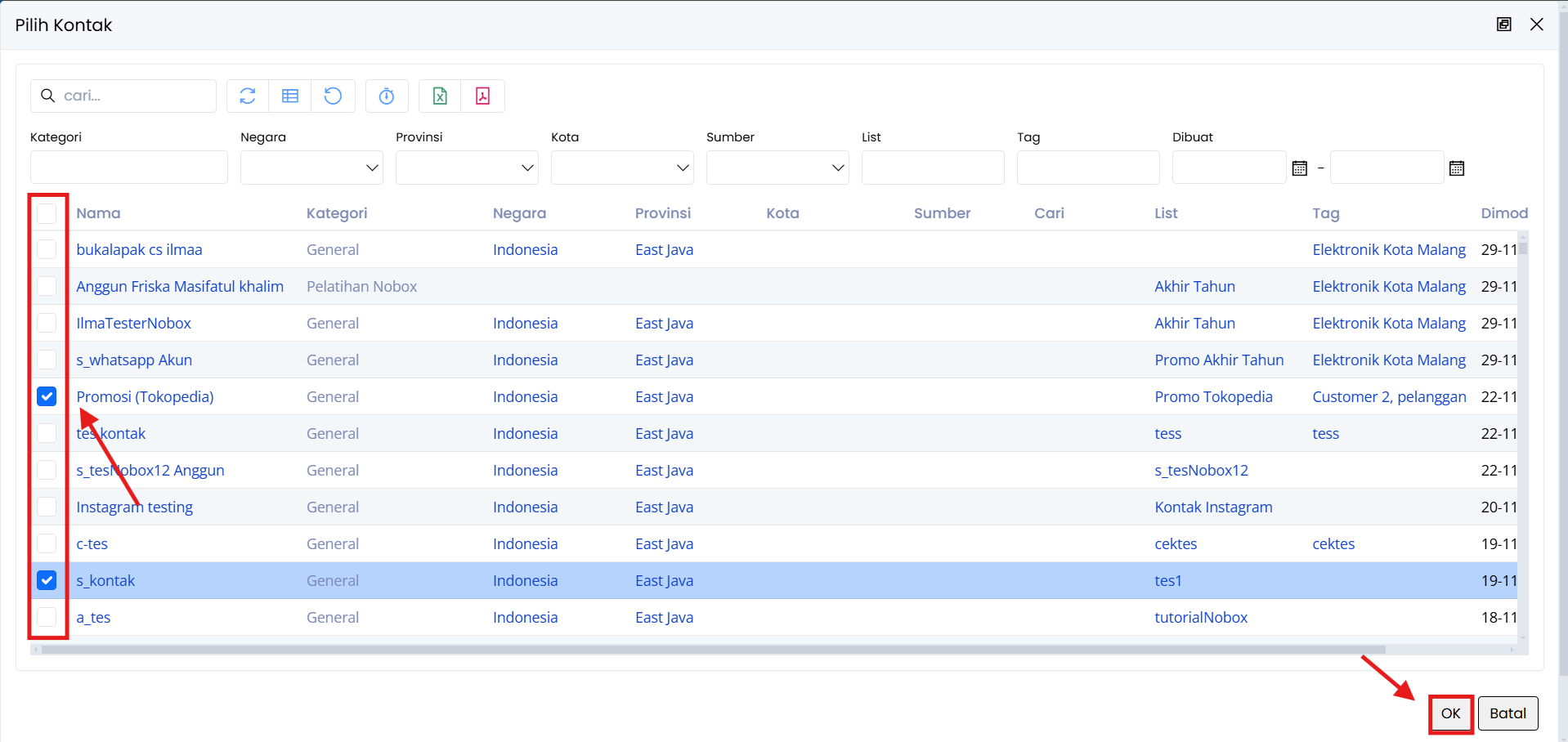
To add a new contact through the contact data, select the list to be used, click the [New Contact] ➔ button, click the [New from Contacts] ➔ button, choose the contact ➔ click [OK].
New From Promotion Target
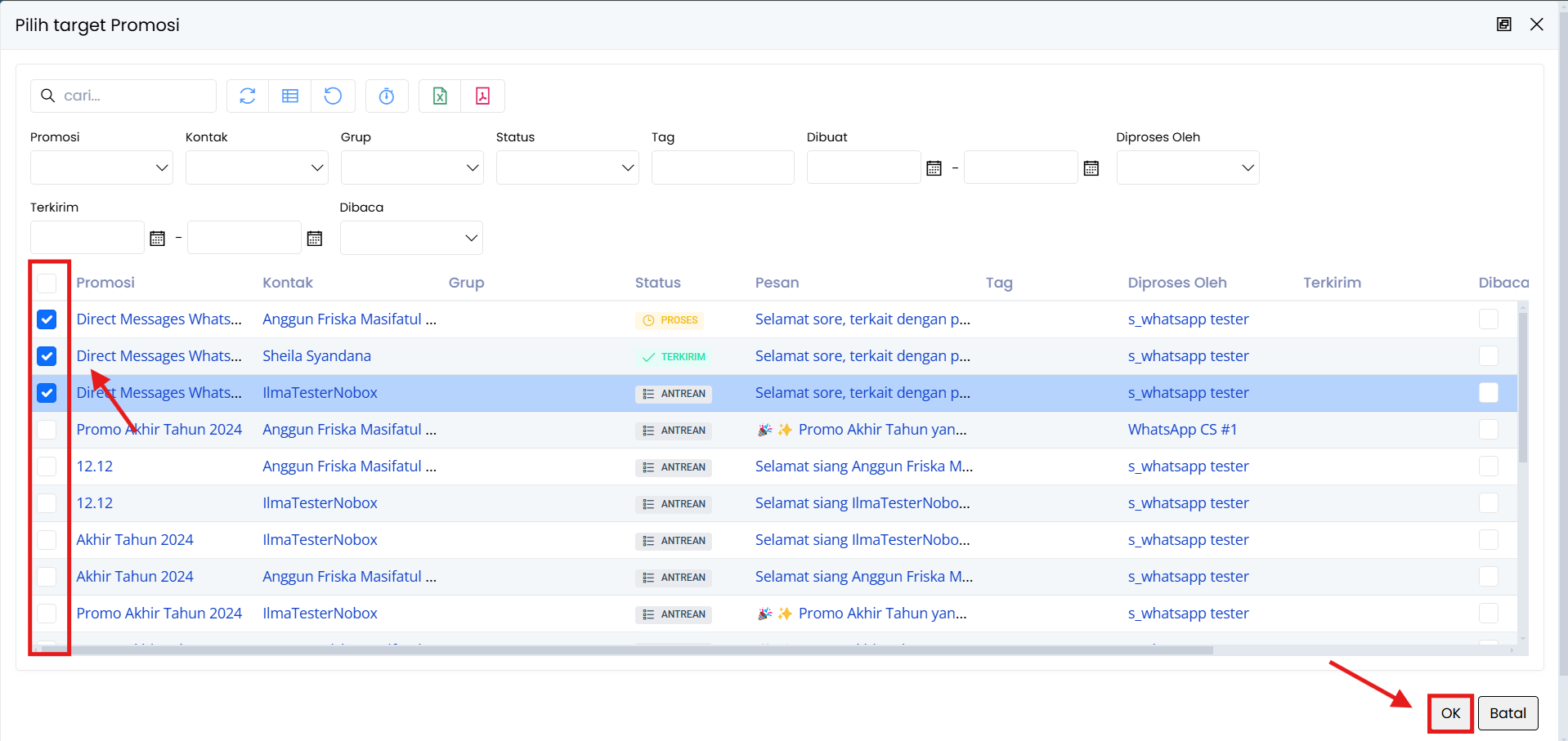
To add a contact via the promotion target, follow these steps: select the list to be used, click the [New Contact] button ➔ click the [New from Promotion Target] button ➔ choose the promotion data ➔ click [OK].
Delete All Contacts
To delete all contact data in a list, select the desired list, then click [Delete All Contacts]. A confirmation dialog will appear asking if you want to delete all contact data in that list. If yes, click [Yes] if not, click [No].
Jika ada masalah atau kesulitan terkait Nobox.Ai, silahkan hubungi kami melalui Support Ticket
\