Indonesiayp.com Extractor
Indonesiayp.com Extractor is a feature used to extract business prospect data from Indonesiayp.com with excellent speed and quality results.
Add Account
To add a new Extractor, please open the NoBox Desktop ➔ [Extractor] ➔ [Add Account] application, and the [Add Account] dialog will appear.
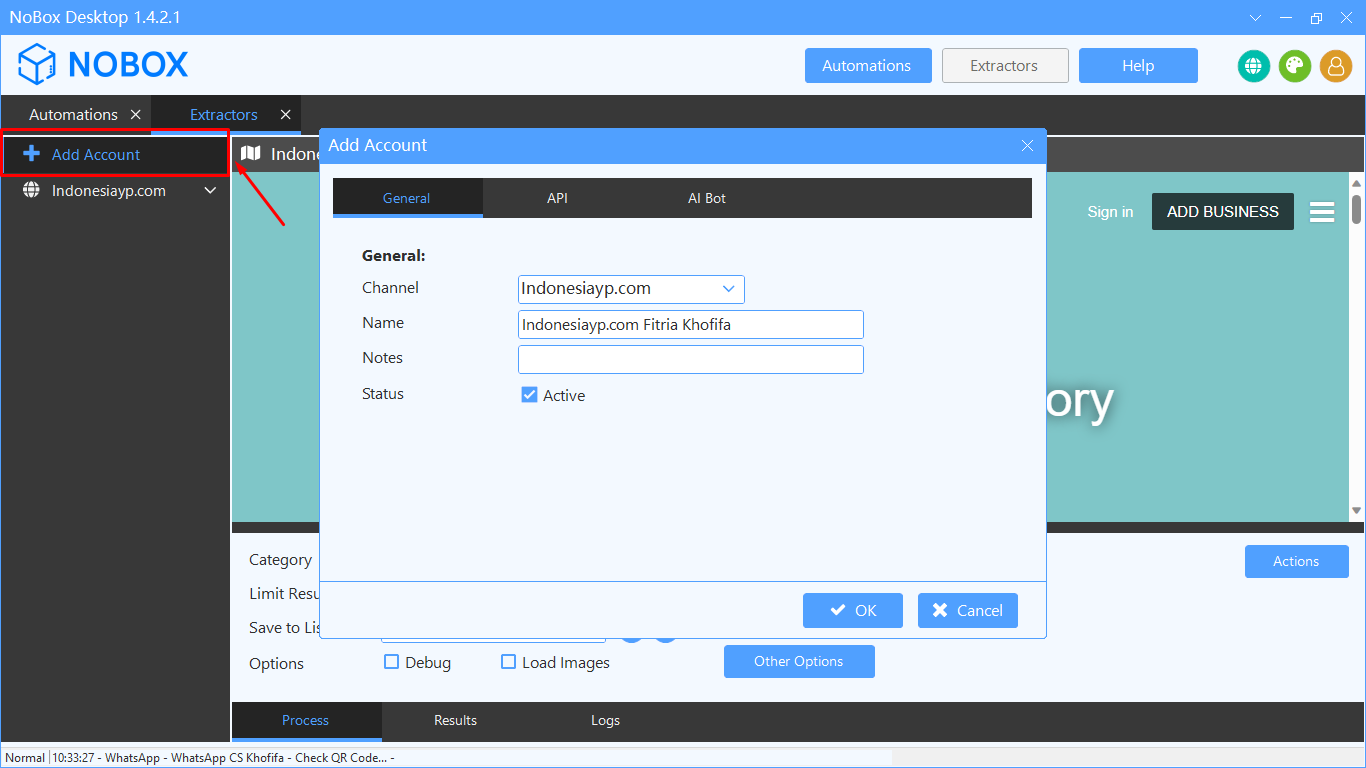
| Field | Description | Example |
|---|---|---|
| Channel | Channel you choose | Indonesiayp.com |
| Name | Your Account Name | Indonesiayp.com Fitria Khofifa |
| Notes | Provide notes about the account | - |
| Status | Information if the account is active | Active |
If you have completed the fields, click [OK] to save the newly created account.
Configuration
After adding a new account, you only need to open the Indonesiayp account you just created through a PC/laptop.
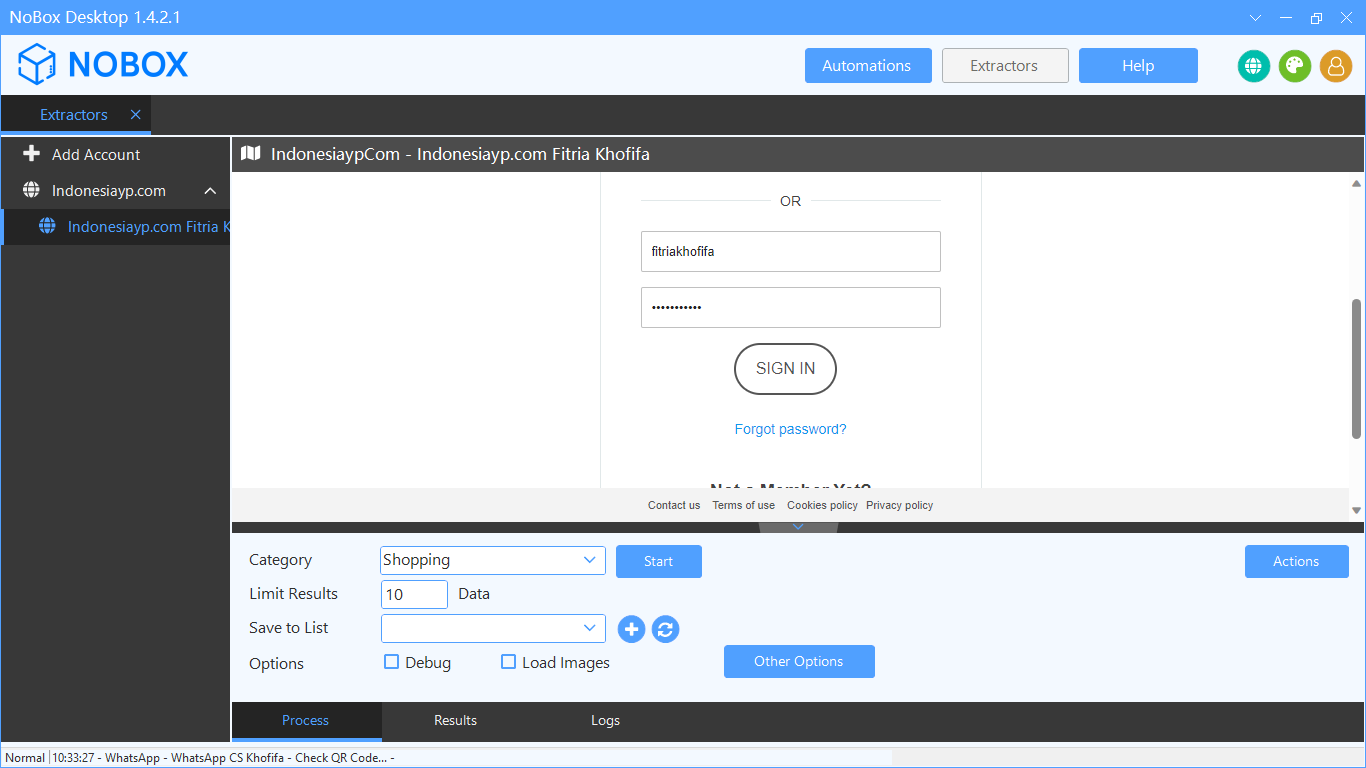
Input:
- For accounts that have just been created, they will appear on NoBox Desktop. Then log in to the Indonesiayp account to link it with your account.
- Make sure the [Logs] tab contains the information "Ready to start".
- If so, the account is ready for use.
Basic Operations
Before proceeding to the data scraping stage, you should understand the basic operations of the application and the functions of the Indonesiayp.com Extractor as follows:
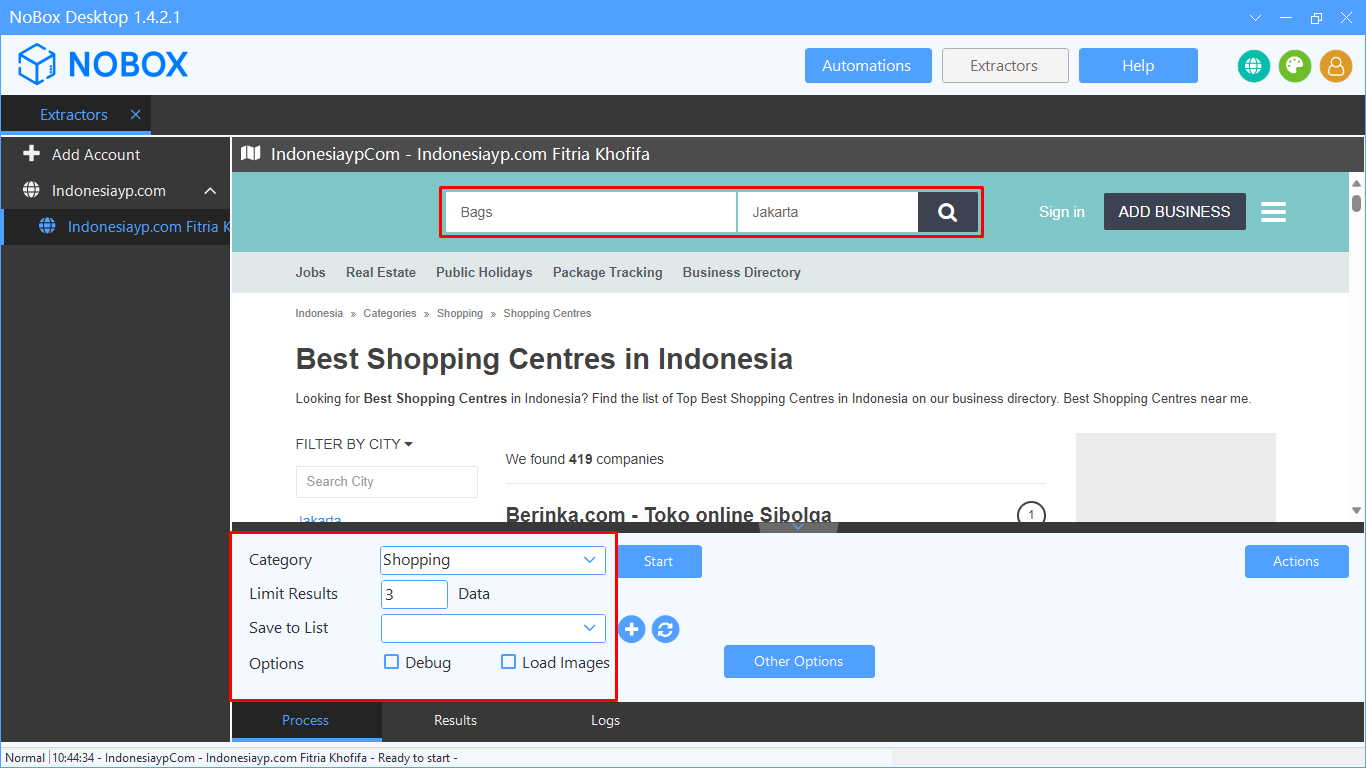
- Enter the data search in the [Searching Indonesiayp.com] column.
- Fill in the [Process] tab.
- Choose the category of location to search.
- Enter the [Limit Result] to determine the number of data to retrieve.
- Select a list to save the extracted data in [Save to List] or add a new list.
- Choose [Options] to display debug mode or images of items.
| Field | Description | Example |
|---|---|---|
| Category | Select data category | Shopping |
| Limit Result | Enter the number of data you want to extract | 3 |
| Save to list | Select/add data list to save extracted data | Indonesiayp |
| Options | Check to enable debug and load images | - |
Scrape Data
Scraping data from Indonesiayp.com allows you to quickly and easily extract seller or advertiser information from various product and service listings with quality.
.png)
- After data processing is complete, click [Start] to begin data extraction
- Wait a moment until a notification indicates that the data extraction is complete
- If the amount of data retrieved is less than the amount entered, there are duplicate data items excluded from the same installer
- The extracted data will automatically be saved to the Contacts menu in NoBox.Ai
Export Data
NoBox provides options to save the extracted data in Excel (.xlsx, .csv) and JSON file formats (.json).
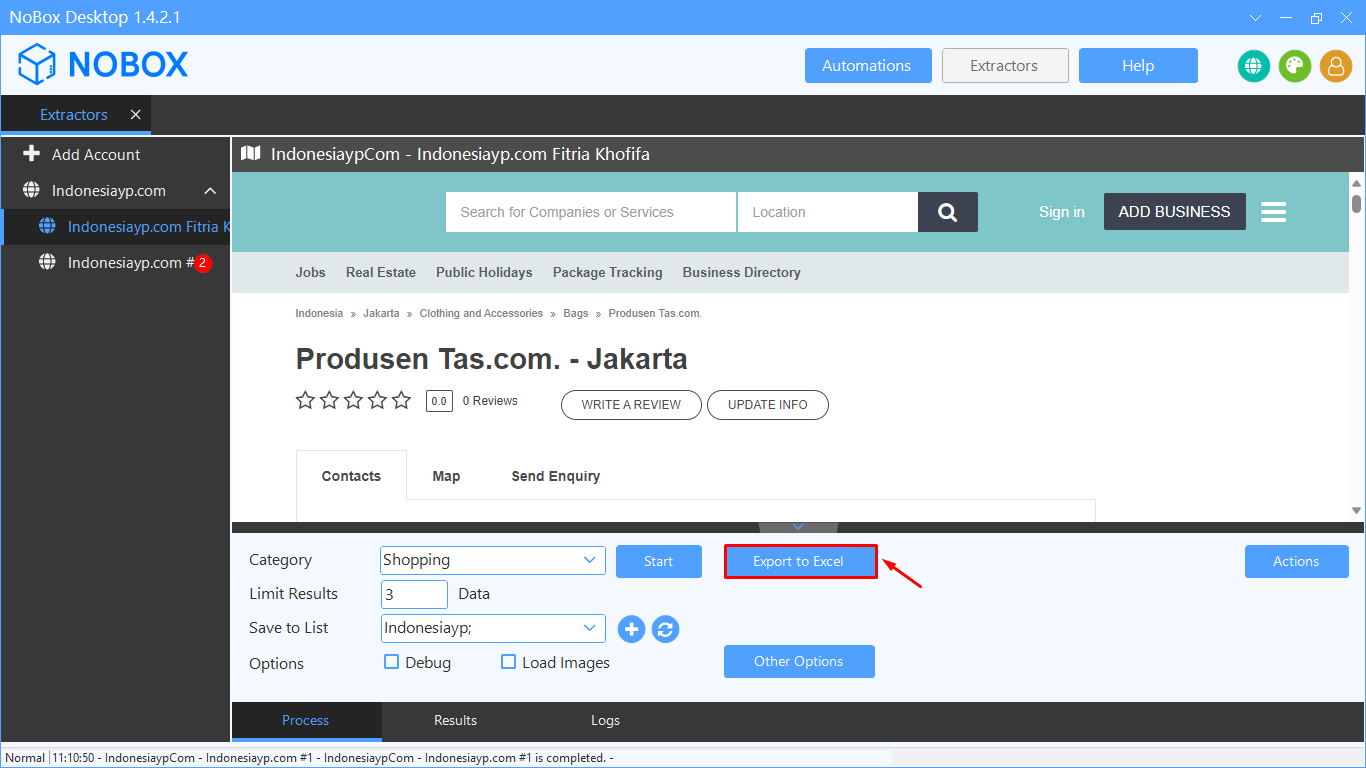
- Click [Export to Excel] on the [Process] page.
- To see the newly retrieved data, go to the [Results] page and click the [Action] button to export in Excel, CSV, and JSON formats.
NoBox.Ai Website
Extracted data will be automatically stored on the NoBox.Ai website, allowing you to access and monitor it from any device and browser.
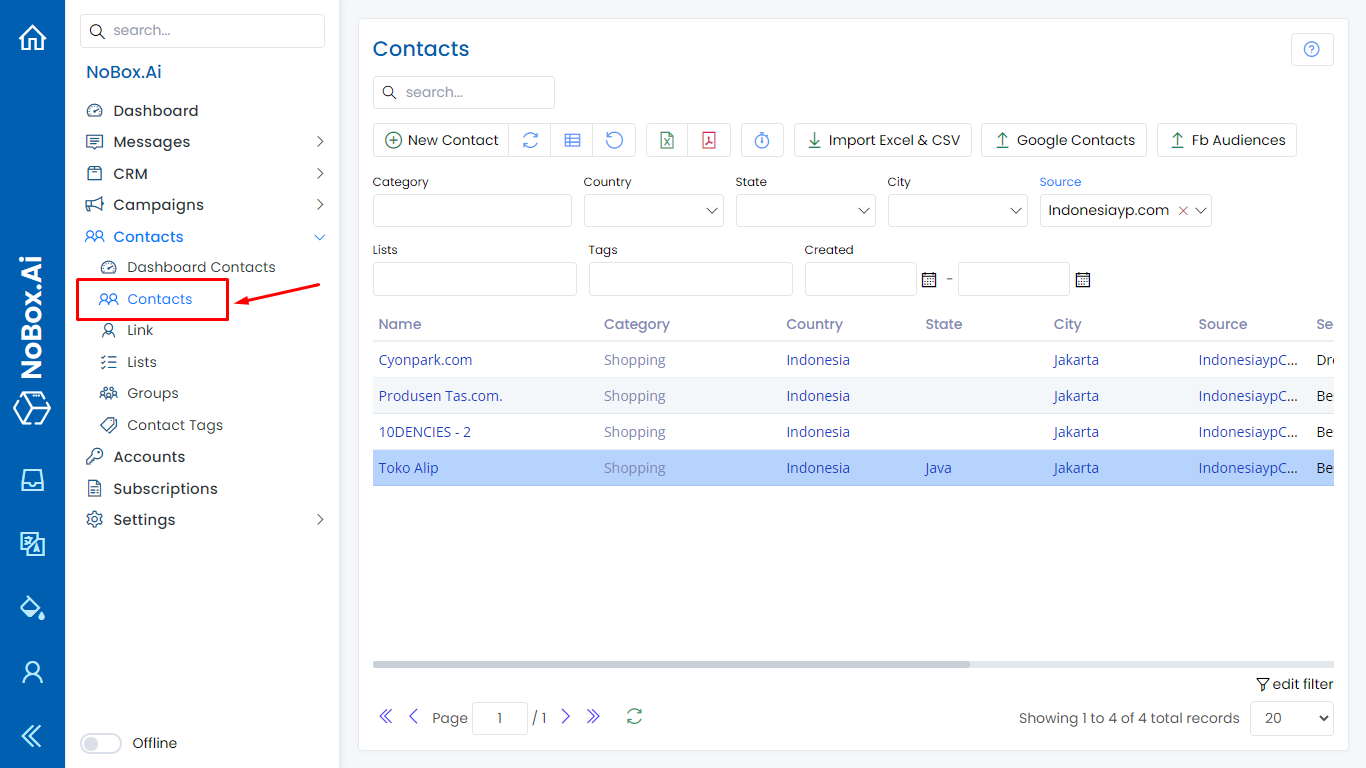
- Go to the [Contacts] section and select the [Contacts] menu.
- Choose the filter [Source -> Indonesiayp.com].
- Enable the [Auto Refresh] feature to monitor which data has been successfully processed.
Multi Tab
The Indonesiayp.com Extractor supports multi-tab processes, allowing searches with various keywords to be run simultaneously.
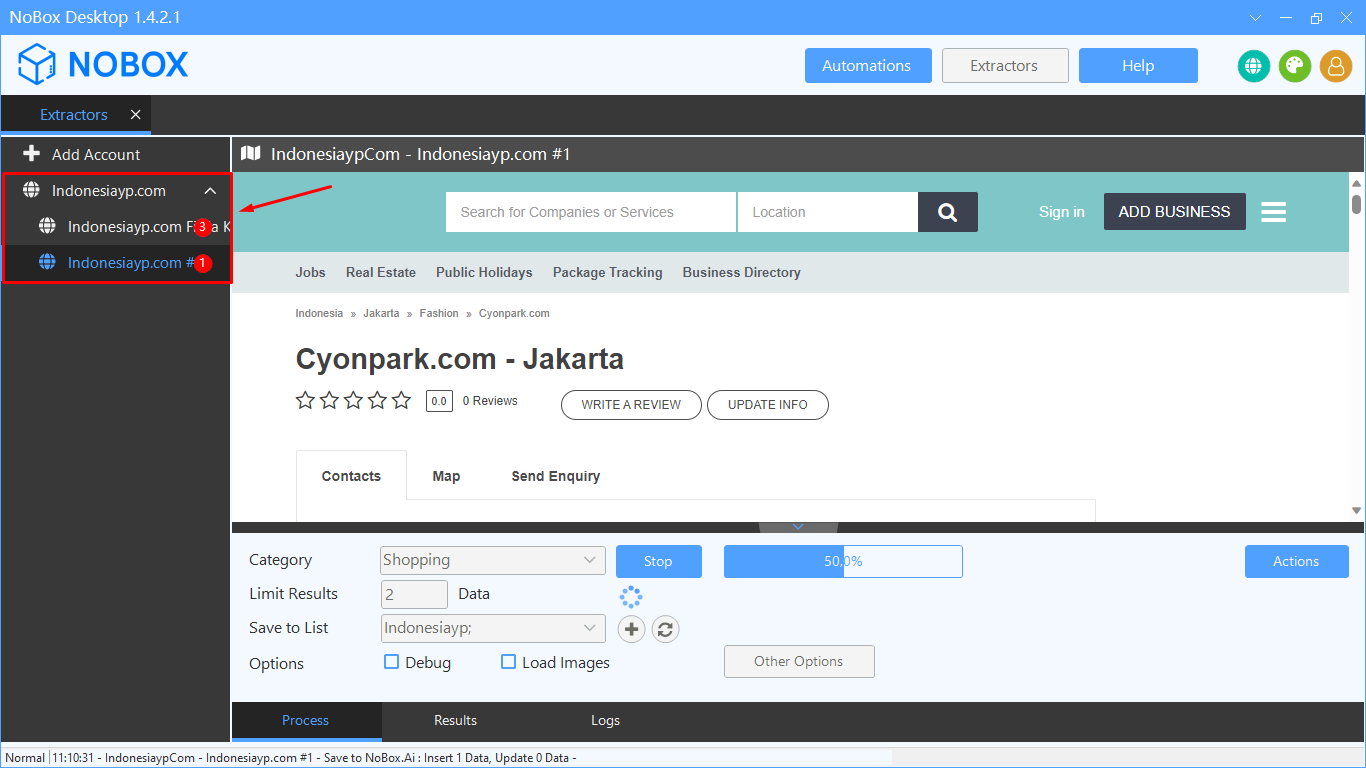
- Extract data from one account using the tool with the search term "Bags" located in "Jakarta," obtaining 2 pieces of data, and add them to the Indonesiayp list.
- Add one more account with the same search term but with a different location and a different result limit.
Handling Unexpected Shutdown During Data Extraction
NoBox provides a feature to handle unexpected computer/software shutdown during the data extraction process.
.png)
Reopening NoBox App and Continuing Data Search
- Reopen the NoBox application and navigate to [Extractor-> Indonesiayp.com]. You will see a notification that the previous process is not yet complete.
- Click [OK] to continue the data search process.
- Click [Cancel] to cancel the search.
Disabling Indonesiayp.com Account
This feature helps reduce the RAM usage of the NoBox Desktop application on your device.
To disable an account, select one of your Indonesiayp accounts, then uncheck the status box. Once done, click [Save] to save the changes.
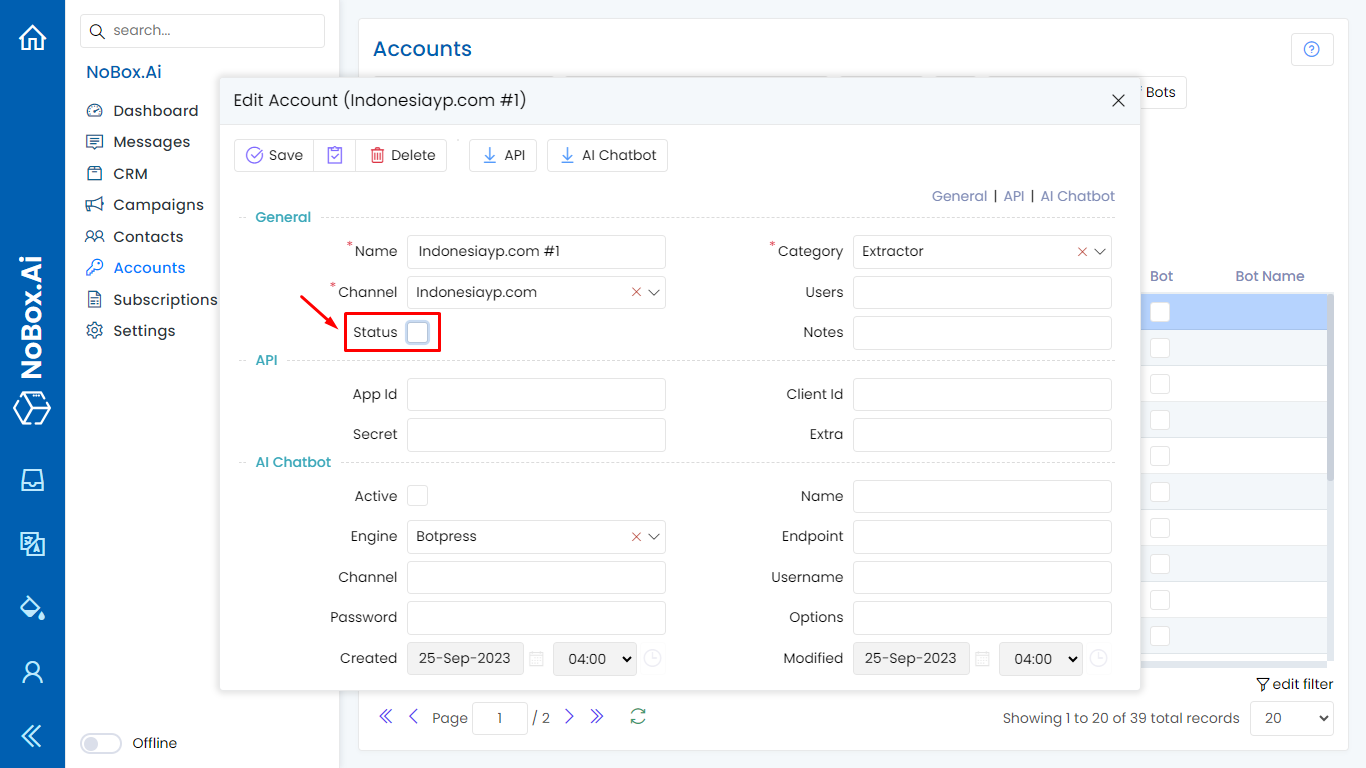
You can check the NoBox Desktop app, the recently deactivated Indonesiayp account is not displayed.
Edit and Delete Account
To edit an account, please open and log in to the website id.nobox.ai, click the [Accounts] menu. Choose the account you wish to edit, then update your data and click [Save] to save the changes.
To delete an account, select the account you wish to delete, then click [Delete], and a confirmation notification will appear asking if you want to delete the account. If yes, click [Yes]; if not, click [No].
If you have any issues or difficulties related to Nobox.Ai, please contact us through Support Ticket