Affiliate Program
Method for Earning Commission by Promoting CRM Products
Earn a sales commission of 30% for every product sold through your affiliate link. The sales commission will be automatically recorded in your Affiliate system.
Products List
The Products List is a menu used for managing products that will be sold in the affiliate store. To add a product you want to sell, please select the [Products List] ➔ [Add Products] menu, which will display all the product options available in the affiliate program. Choose the products you wish to sell.
If you have selected the available products, click [Save] to save the data, and the added products will appear on your store page. To view the details of your store, go to the [Preview Store] section.
Delete Product
To delete a product data, select the unused product data and then click [
My Customers
My Customers is a menu used for managing your customer data. To add customer data, please select the [My Customer] ➔ [New] menu, and a [New Customer] dialog will appear. Then, complete the fields in the dialog.
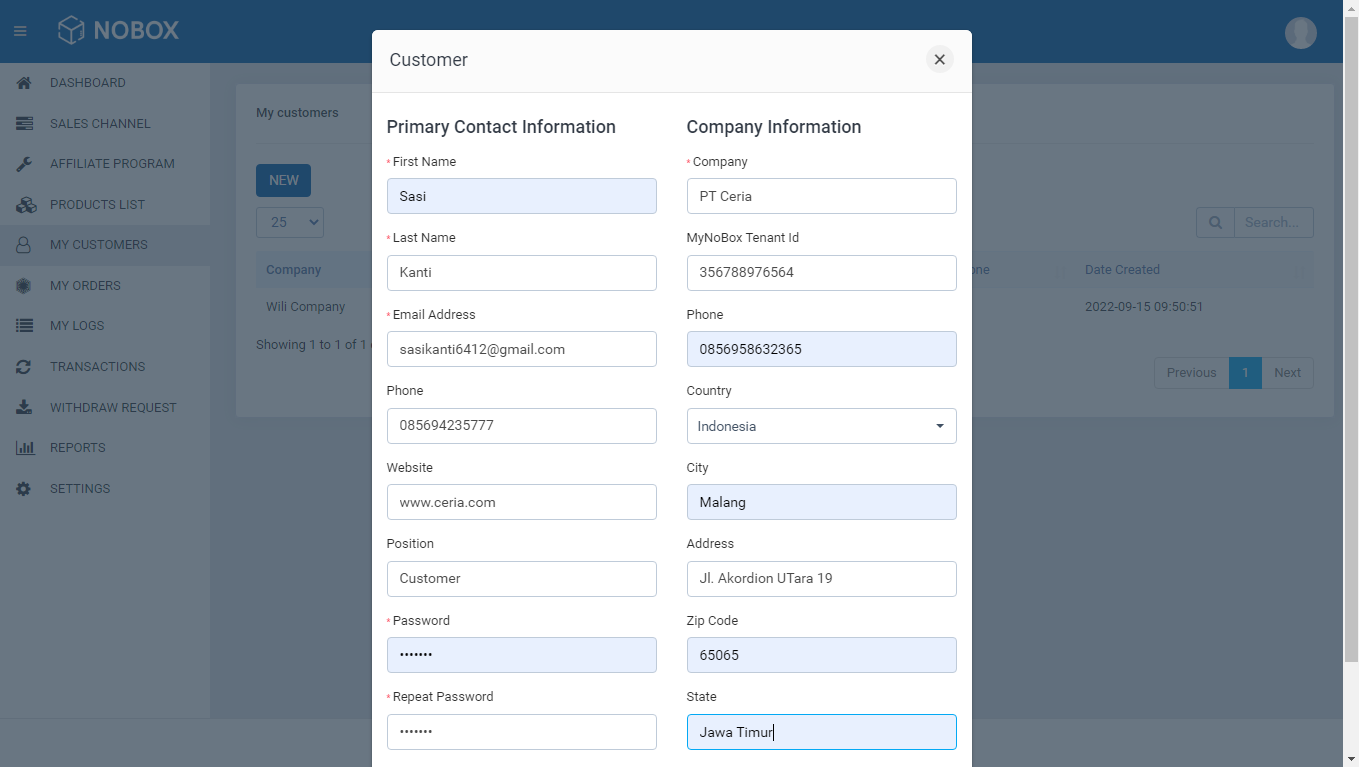
| Field | Description | Example |
|---|---|---|
| Firstname | First name | Sasi |
| Lastname | Last name | Kanti |
| Email address | Email address | sasikanti6411@gmail.com |
| Phone | Phone number | 08532657444 |
| Website | Website address | www.ceria.com |
| Position | Customer position | Customer |
| Password | Password | - |
| Repeat password | Confirm password | - |
| Company | Company name | PT Ceria |
| MyNoBox tenant id | ID found in the company profile menu on the MyNoBox website used to connect MyNoBox CRM for subscription processes. | 02356842544545 |
| Phone | Company phone number | 085694576235 |
| Country | Country | Indonesia |
| City | City | Malang |
| Address | Company address | Jl. Akordion 19 |
| Zip code | Postal code | 65065 |
| State | State | Jawa Timur |
If you have completed all the fields, click [Save] to save the new customer data you have created.
My Orders
My Orders is a menu that can be used to manage product orders in your store. To add a product order, please select [My Orders] ➔ [New], and a [New Order] dialog will appear. Complete the fields in the dialog and select the items you wish to purchase.
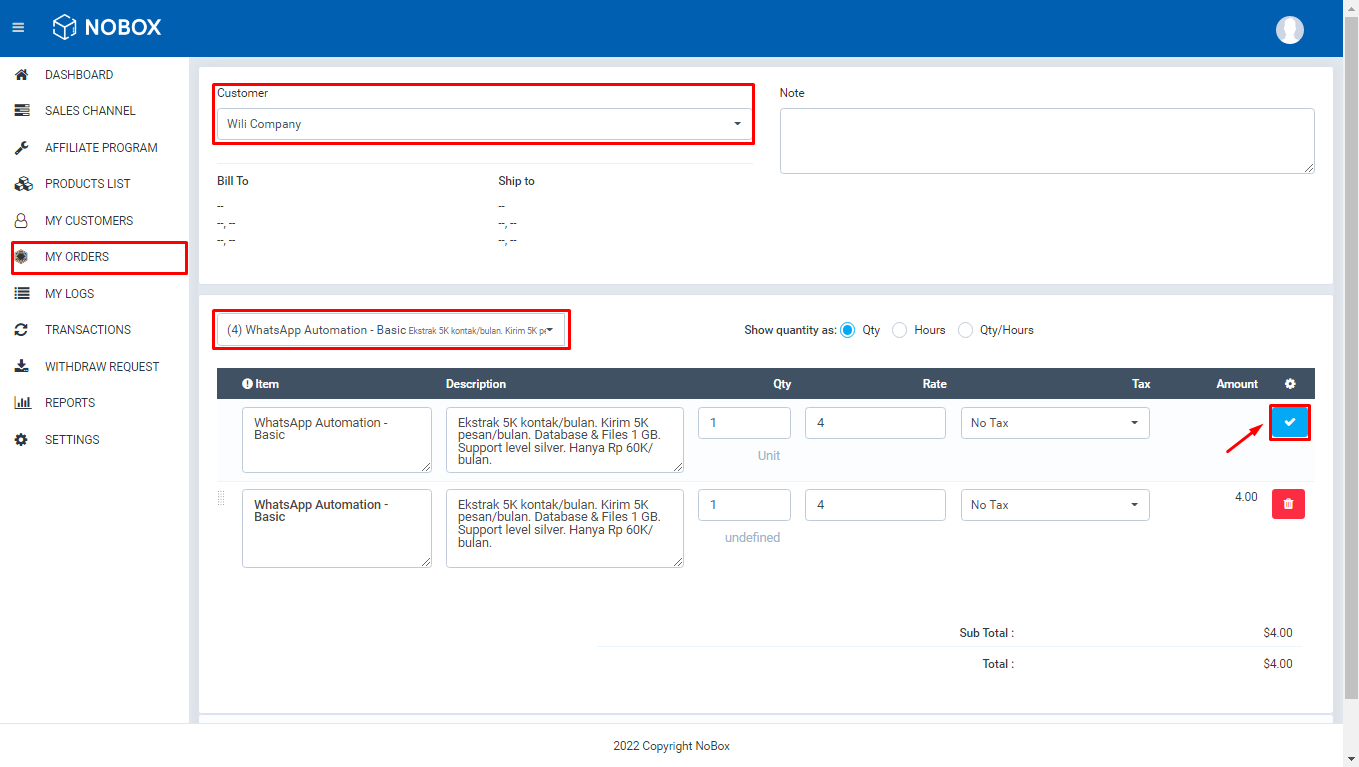
If you have completed all the fields, click [Save] to save the new order data you have just created.
My Logs
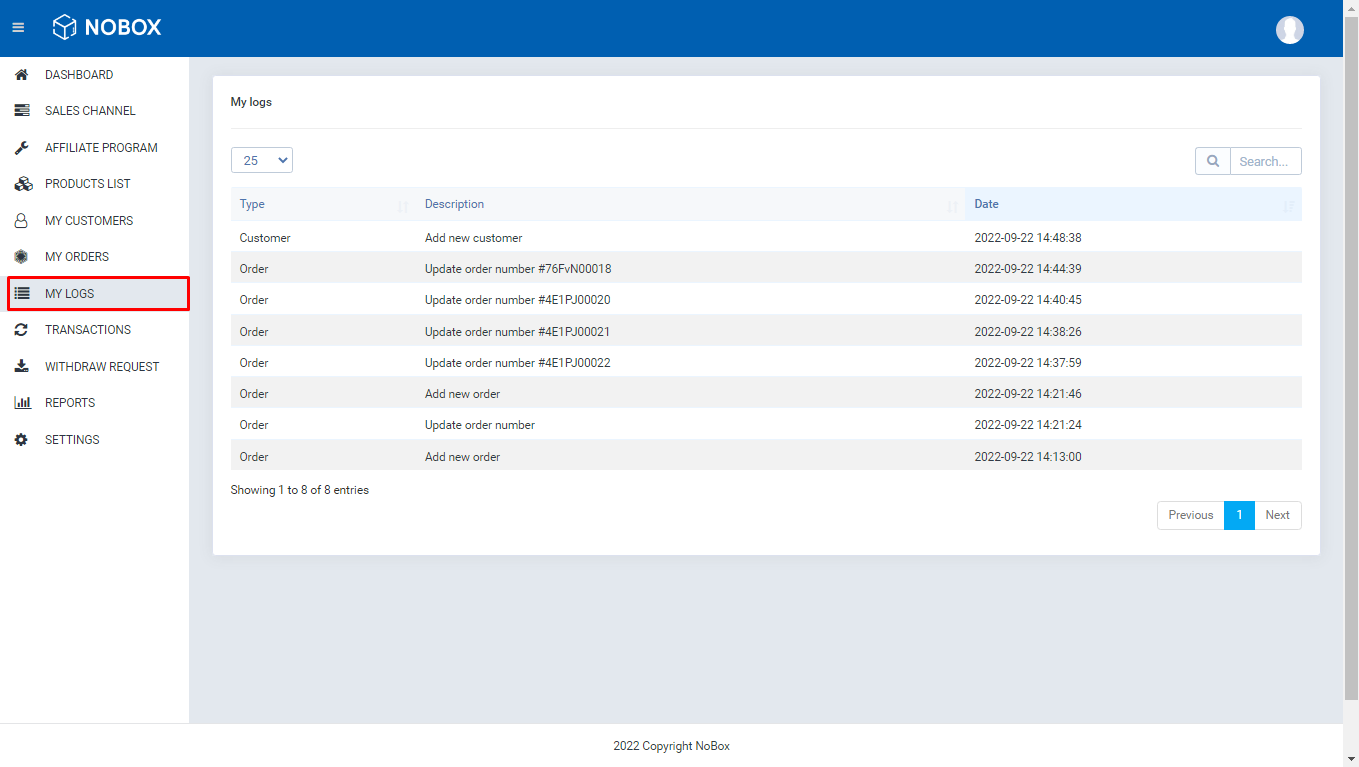
My Logs is a menu used to monitor activities in the affiliate CRM, such as adding orders, changing orders, and more
Transactions
Transactions is a menu used for managing commissions from paid affiliate orders. To withdraw the commission, select the [Transactions] menu ➔ Click the checkbox to choose the commission you want to withdraw ➔ Click [Withdraw all selected]. A withdraw dialog will appear, then complete the fields in the dialog.
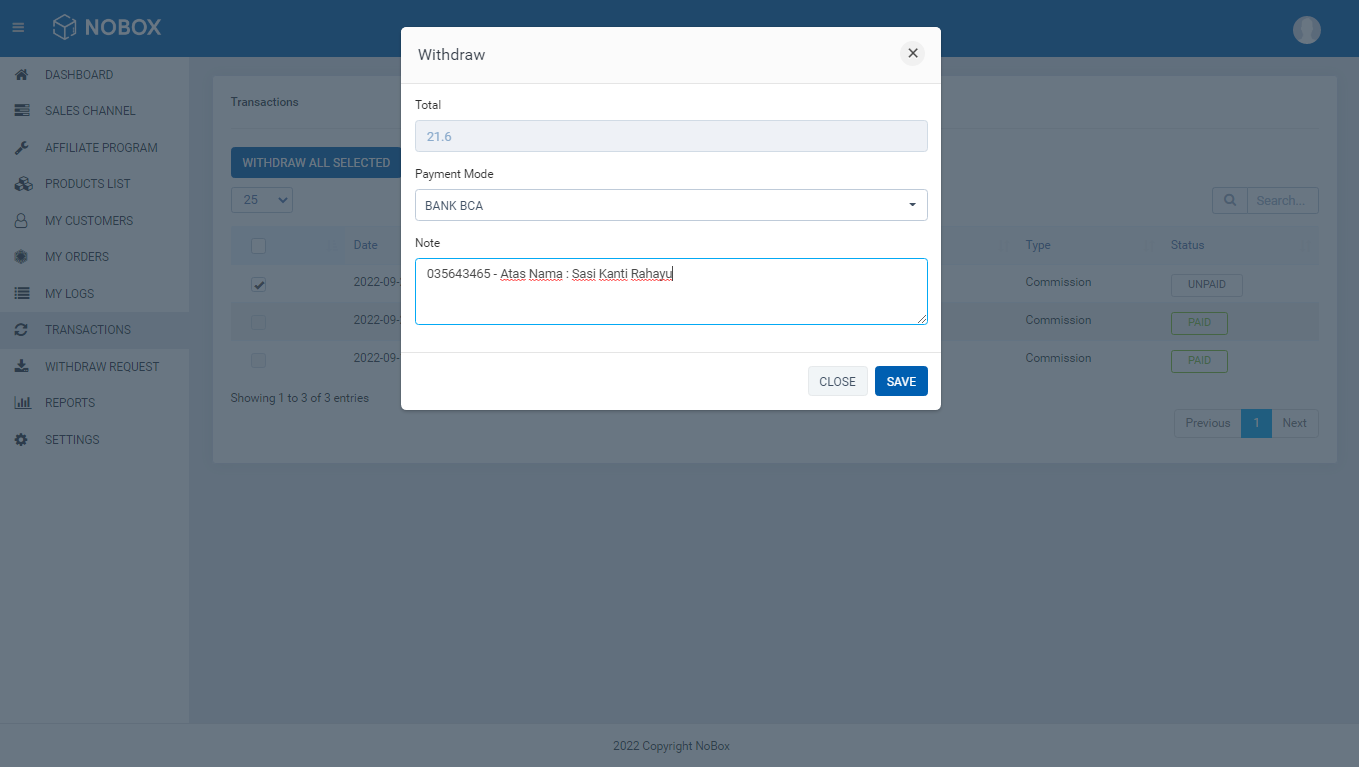
| Field | Description | Example |
|---|---|---|
| Total | Total commission you earned | $ 21.6 |
| Payment mode | Payment method | Bank BCA |
| Note | Account note | 034555656 - In the name of: Sasi Kanti Rahayu |
Once you have completed the form, click [Save] to save the new withdrawal request data you just created. Wait until your withdrawal is approved.
| Status | Description |
|---|---|
| Unpaid | Commission not yet paid |
| Waiting | Commission being processed |
| Reject | Commission rejected |
| Accept | Commission paid and sent to your account |
Withdraw Request
The Withdraw Request is a menu used for monitoring the withdrawal process. In this section, you can check the status of your withdrawal.
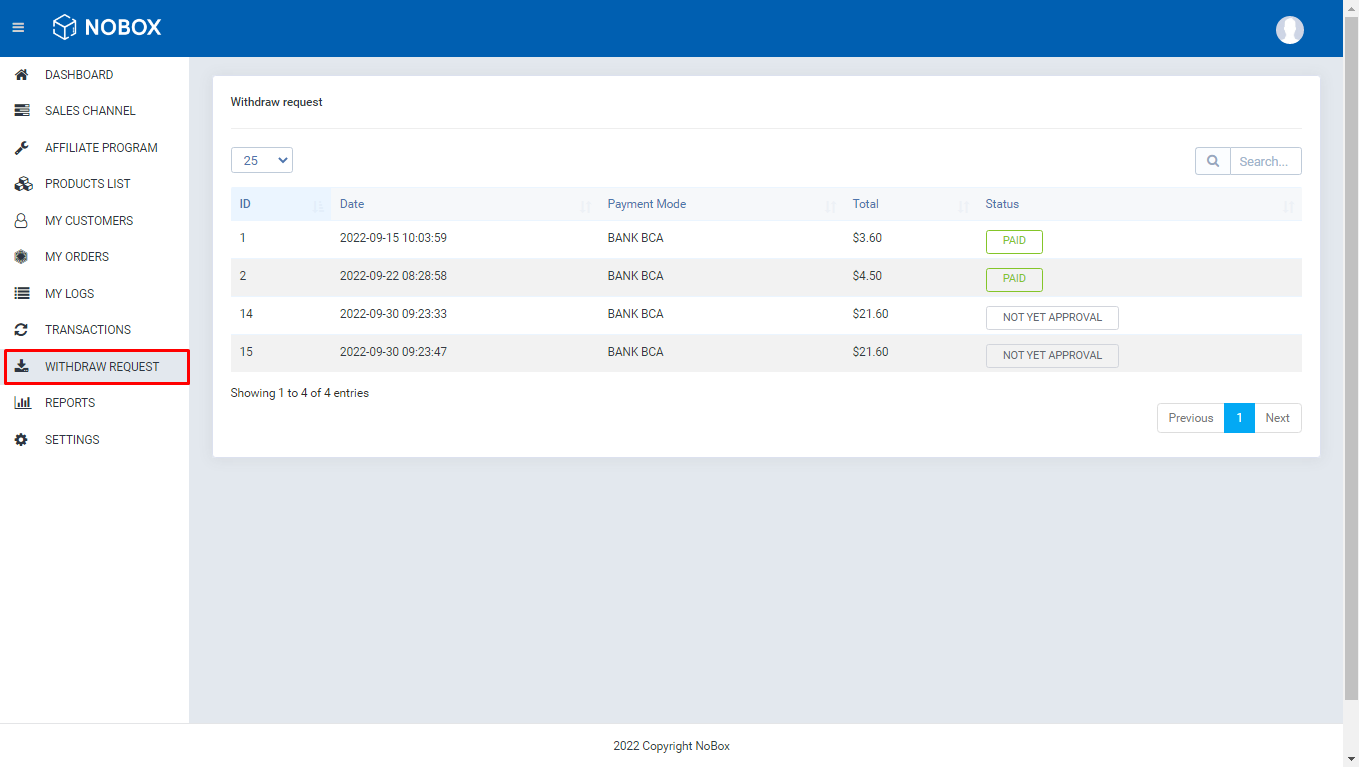
| Status | Description |
|---|---|
| Not Yet Approval | The commission is still in the process. |
| Reject | Commission denied |
| Paid | The commission has been approved and paid. |
Reports
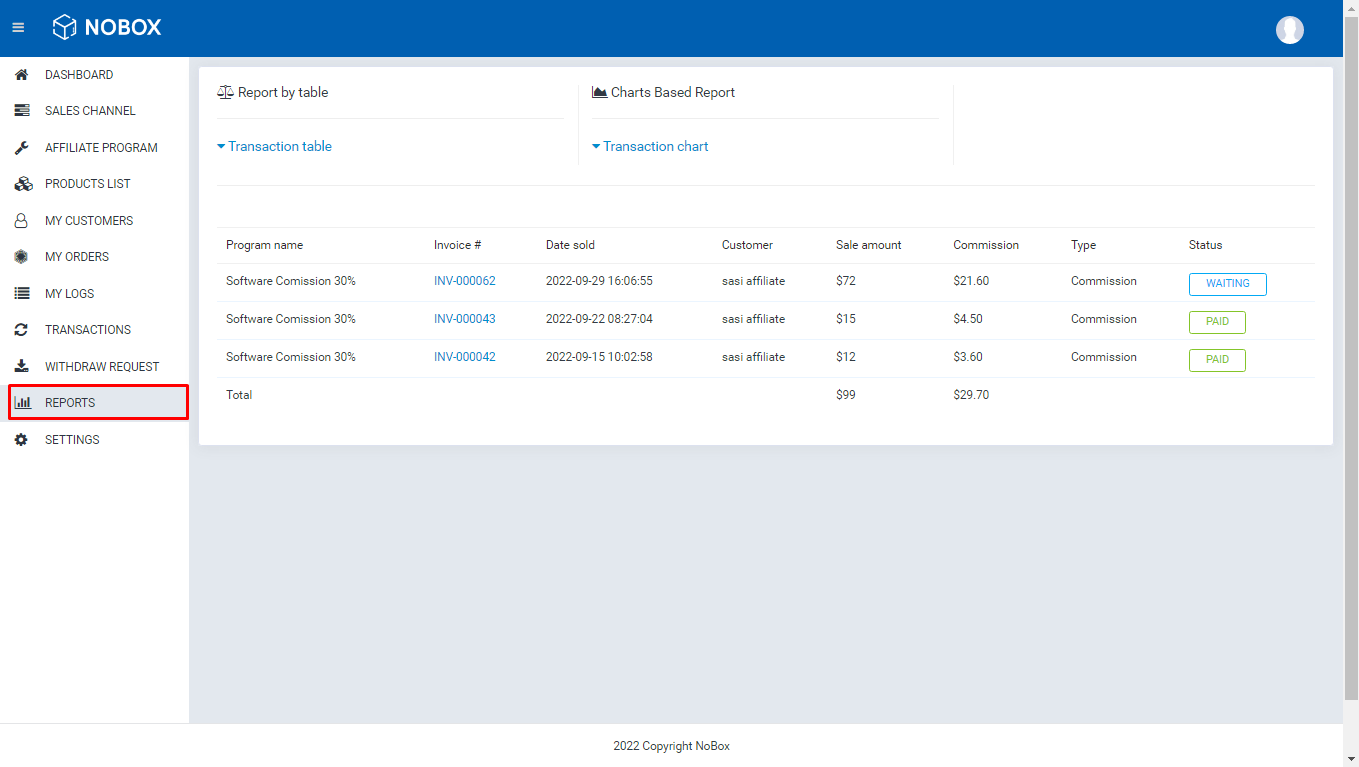
The "Reports" menu is used for commission reports, available in table or chart format. Here, you can view customer invoice details, total sales, and total commissions.
If you have any issues or difficulties related to Nobox.Ai, please contact us through Support Ticket